
When the Webgility Desktop Scheduler is running on your computer, it holds an active connection to the QuickBooks company file you connected to Webgility. You can keep working in that same connected company file alongside Webgility, but opening a different QuickBooks company file on the same computer requires stopping the Scheduler first. This article shows what to do in each case so you never have to close Webgility Desktop just to get into QuickBooks. If you want a full tour of what the Scheduler is and how it runs, see Scheduler Settings Overview.
When This AppliesUse these steps if you keep more than one QuickBooks company file on the same computer where Webgility Desktop is installed, and you need to open one that is not the file Webgility is connected to.
Why This HappensWebgility Desktop reaches into QuickBooks through an integrated-application connection. While the Scheduler is running, that connection stays open on the connected company file. QuickBooks lets Webgility and you share the connection for that one file at the same time, but QuickBooks will not open a second company file through the same integrated-application session — it shows a dialog saying another integrated application is using the data file. Stopping the Scheduler releases the connection so you can open any other file.
Steps to Keep Working While the Scheduler Runs
Step 1: If you only need to work in the QuickBooks company file that Webgility Desktop is already connected to, open it as you normally would — the Scheduler and QuickBooks share the connection and both run side by side.
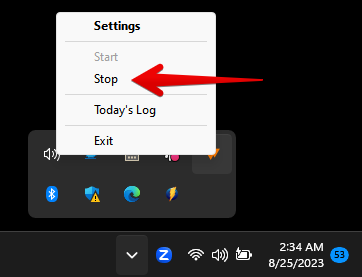
Step 2: If you need to open a different QuickBooks company file on the same computer, right-click the Scheduler icon in the Windows system tray (bottom-right of your screen) and choose Stop. You do not need to close Webgility Desktop itself.
Step 3: Open the other QuickBooks company file. Finish whatever work you need to do in it, then close that file.
Step 4: Return to the connected QuickBooks company file (open it again if you closed it), then click the Scheduler clock icon in the top-right of Webgility Desktop and choose Start Scheduler to resume background syncing. The exact start and stop steps, including what each clock-icon colour means, are in How to Start and Stop the Webgility Desktop Scheduler.
Key RecommendationIf you move between QuickBooks company files often, consider scheduling your downtime so the Webgility Scheduler is already stopped before you switch files, and start it again when you are done. Treat the Scheduler stop and start as a quick toggle, not as a reason to shut down Webgility Desktop in the morning — closing Webgility also clears your dashboard tabs and recent-orders view that you may want to keep open through the day.
Additional SupportIf QuickBooks still refuses to open a different company file after you have stopped the Scheduler and no other integrated application is running, contact Webgility Support with the name of the file that fails to open and the exact wording of the QuickBooks dialog you see.