
What You Will Need
Before moving orders to the Repository, stop the Webgility Scheduler to ensure the database is not being actively modified. Then, create a database backup by navigating to Webgility Desktop → Database → Backup and save the backup to C:\Webgility.
Steps to Move Posted Orders to the Repository
-
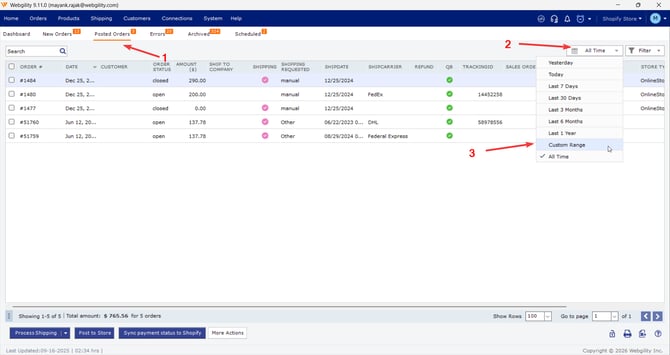
In Webgility Desktop, in the Dashboard go to the Posted tab.
-
Filter the Posted tab to show only the sales channel and date range you want to archive — for example, Amazon orders older than two years — using the top filter row, and select Custom Range.
-
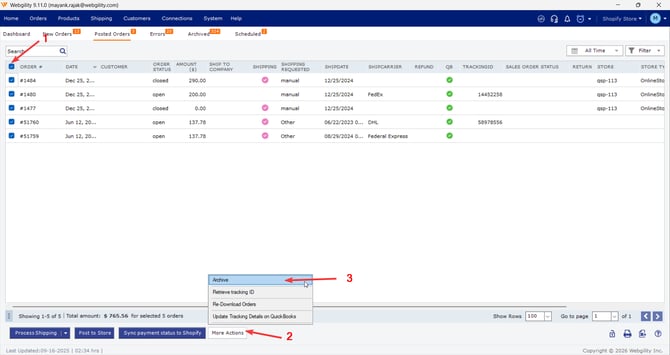
Select the filtered orders in bulk, right-click, and click on More Actions in the bottom, then select Archive.
-
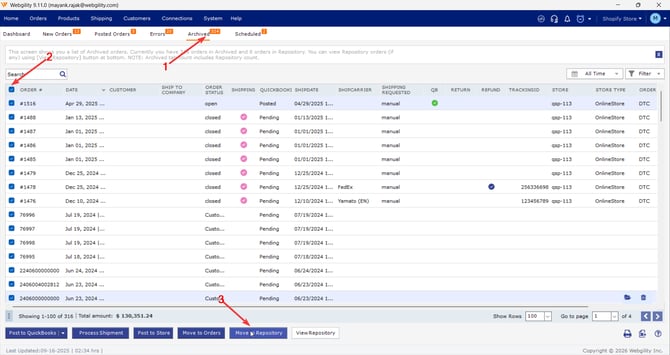
You may also refer to How to Archive Orders. Once orders are moved, go to the Archive Tab, re-select the orders and click on Move to Repository.
-
After the move completes, run DBUtility on the Webgility database so the freed space is reclaimed — the full walk-through is in How to Run DB Upgrade and Utility.
-
Restart Webgility Desktop and switch between the Orders, Products, and Customers tabs to confirm the lag is resolved and tab switching is responsive again.
Feel Free to reach out to us at support@webgility.com.