
Part of How to Download, Review and Post Refunds in Webgility i.
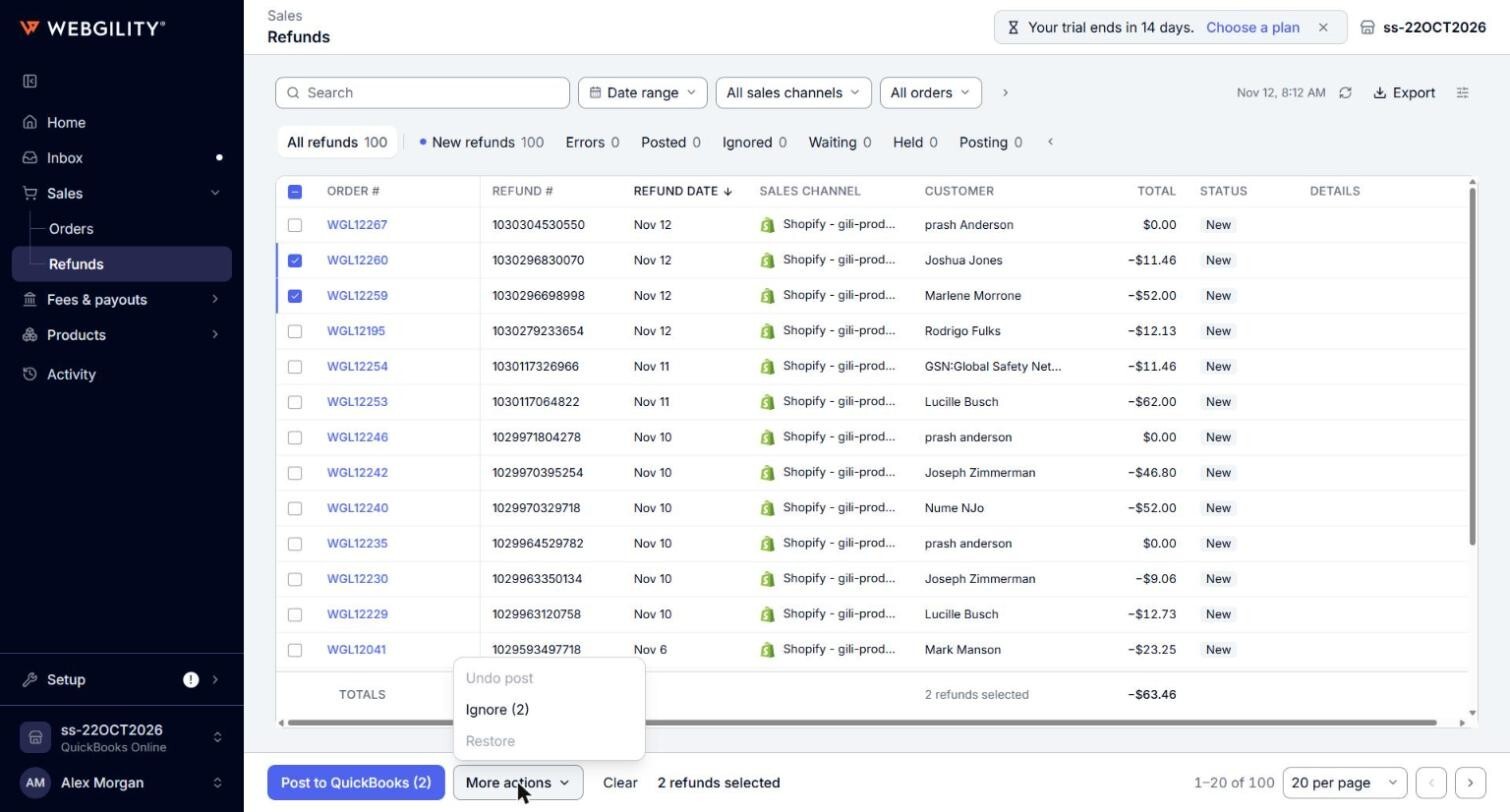
More actions for refunds
Tick one or more refunds and click More actions to:
- Undo post: take posted refunds back out of QuickBooks Online. On the Posted tab, the same action is the Unpost button. The refunds' orders stay as they are. The card at the top then says, for each refund, "Removed from QuickBooks, and the refund can be posted again."
- Ignore: stop a refund from posting. The confirm says: "The selected refund will be marked as ignored and cannot be posted to QuickBooks until it is restored." Posted refunds cannot be ignored. Unpost them first.
- Restore: put ignored refunds back, so they can post again. On the Ignored tab, the same action is the Restore button.
Note: Force unpost when QuickBooks can’t confirm the transaction on the Posted tab of the Refunds page is not available yet.