
Part of How to Find and Fix Errored Orders in Webgility i.
Map or create several products of one order at once
When an order stopped on more than one product that has no QuickBooks product, Map product opens one panel for all of them. Its title names the order and the count, for example Order WGL12338 stopped on 2 products.
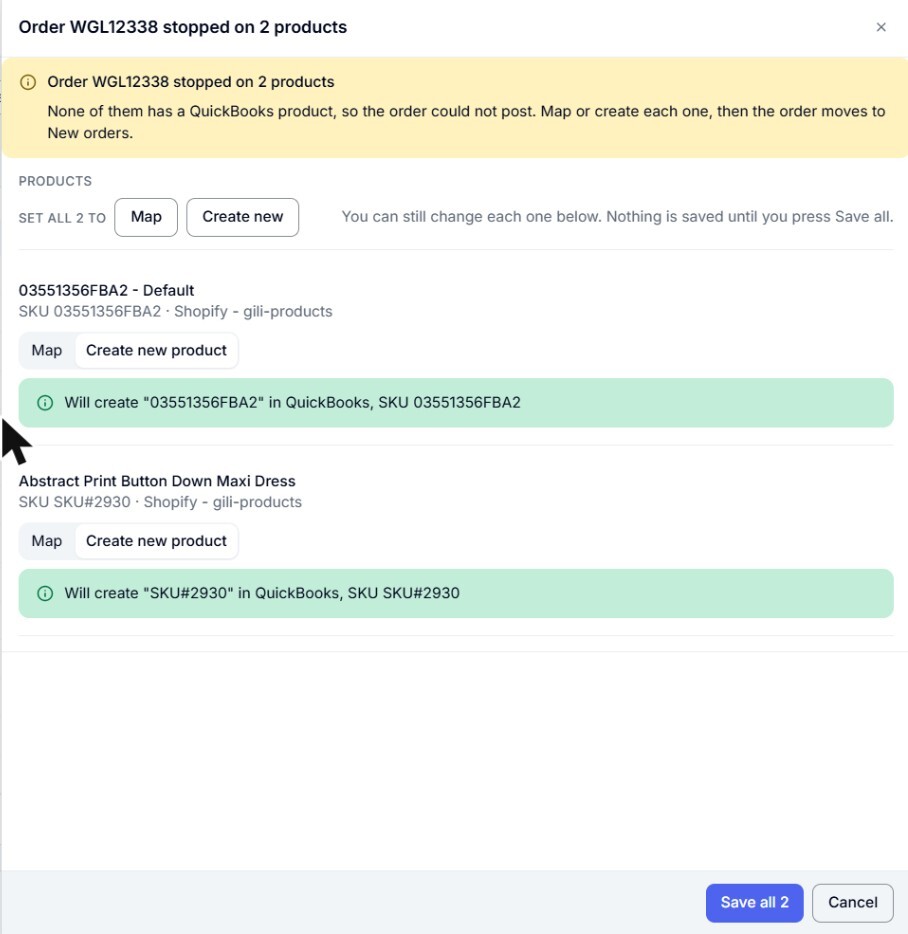
- Read the yellow box. It says that none of the products has a QuickBooks product, and that the order moves to New orders once each one is mapped or created.
- Choose what to do for each product. Each row shows the product's name, SKU and sales channel, with two choices:
- Map: pick an existing QuickBooks product in the Search by SKU or name box. If Webgility i finds an obvious match, the row starts on Map with that product already picked.
- Create new product: Webgility i creates a QuickBooks product for it. The green line says what it creates, for example Will create "SKU#2930" in QuickBooks, SKU SKU#2930. If Webgility i cannot create the product, the row says why instead.
To choose the same for every product, click Map or Create new next to Set all 2 to. You can still change each row afterwards. Nothing is saved until you click Save all.
Note: If a product is also listed on another sales channel or store, its row shows Also linked to 1 other listing. Click Change to see those listings. They are mapped or created with this one, unless you clear their boxes.
Note: A product that already has a QuickBooks product shows Mapped to and the product's name, with an Unmap button. Leave it as it is, or click Unmap to choose another product for it.
- Click Save all (the button shows the count, for example Save all 2). A row left on Map with no product picked shows Pick a QuickBooks product, or switch to Create new., and nothing is saved until you fix it.
- Read the result:
- 2 products fixed and mapped.: every product has a QuickBooks product. Click Close. The order leaves the Errors tab and moves to New orders, ready to post.
- 1 of 2 products fixed and mapped. Check the rest below.: the products listed below were not saved, each with the reason. Fix them and open Map product again.
- Nothing was saved. Check the reasons below and try again.: none of the products was saved.
Note: If every product of the order already has a QuickBooks product when you click Map product, the panel says All 2 products already have a QuickBooks item. You can post the order now. Click Change mapping to change one of them.