
You post orders from Webgility Online to QuickBooks Online, and orders shipping to a state where your business does not have a sales tax obligation are still posting with a tax amount. Common trigger: a customer changes the shipping address after purchase from a taxable state to a non-taxable state (for example Washington to Oregon), and Webgility passes the original tax value through to QuickBooks. Your books end up with tax posted against a non-taxable order and QuickBooks flags the tax code as Out of Scope.
Why This HappensWebgility Online passes each order's sales tax value straight through to QuickBooks rather than recalculating it against QuickBooks' own tax settings. That keeps Webgility fast and predictable for the taxable-state case, but it means any tax value the sales channel sent — including tax on an address that later changed to a non-taxable state — will land on the QuickBooks transaction unless you tell Webgility to ignore it for that state.
Steps to Add a State to the Ignore-Tax List
Step 1: Open Webgility Online and go to your Sales Tax settings for the affected sales channel. The full walk-through of the WO sales tax setup surface is in Set up Sales Tax in Webgility Online for QuickBooks Online.
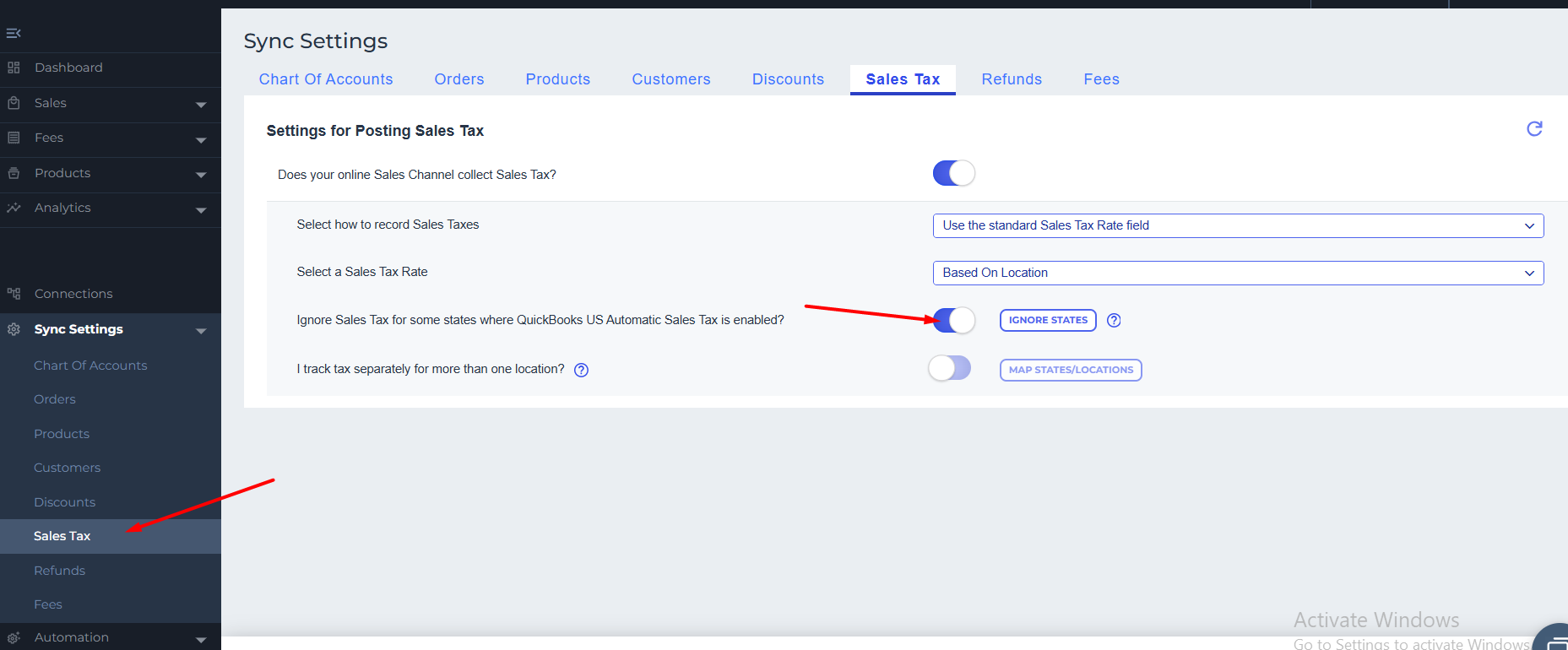
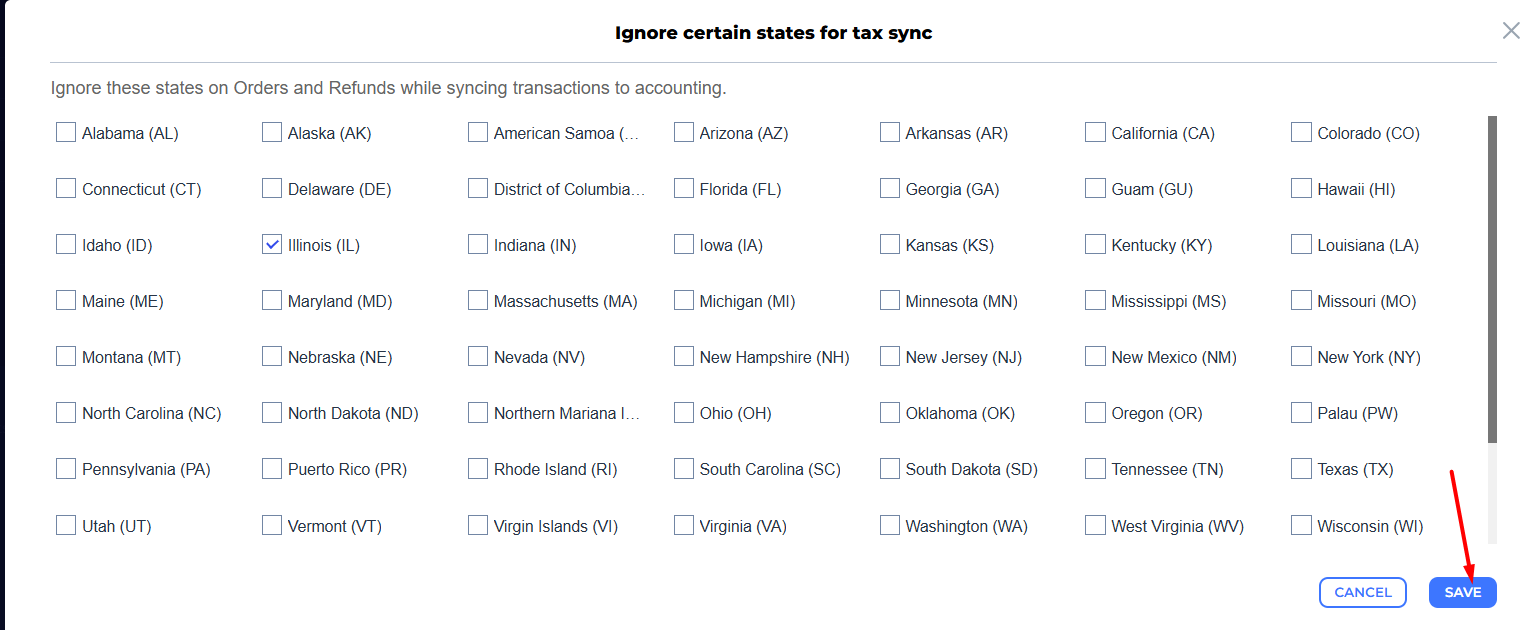
Step 2: Turn on the option to Ignore Sales Tax for some states. The list of states becomes editable so you can pick the ones your business does not collect tax for.
Step 3: Add each non-taxable state to the ignore list — for example, add Oregon for a Washington-based business that occasionally ships to Oregon.
Step 4: Save the change. Webgility applies the new ignore-list on the next sync, and any future order shipping to an ignored state posts to QuickBooks with a zero tax value regardless of what the sales channel sent.
Step 5: Fix the orders already posted with the wrong tax. Open each affected order in Webgility Online, unpost it, redownload it so Webgility picks up the current tax value with the new ignore-list applied, and post it back to QuickBooks.
Important Note: "The ignore-list applies only to orders processed AFTER the setting is saved. Orders already posted keep their original tax value until you unpost and repost them."
Review your business's state-by-state sales tax obligations with your accountant before adding a state to the ignore list. The ignore-list is a Webgility-side rule; it does not change your legal obligation to collect tax where you owe it. When you gain a new taxable state or lose an obligation in an existing one, come back to this setting and update the list.
Additional SupportIf tax still posts on orders for a state you have added to the ignore list, share one affected order number, the shipping address on that order, and a screenshot of your Webgility Online sales tax settings with Webgility Support so the ignore-list can be reviewed on your account.