
Part of How to Map a Sales Channel Listing to a QuickBooks Product in Webgility i.
Steps: Ignore a listing
Ignoring sets a listing aside: it moves to the Ignored tab and leaves the counts and the working lists.
- On the All, Unmapped or Mapped tab, select the box at the start of each listing you want to ignore.
- Click Ignore product at the bottom of the page. A confirmation opens.
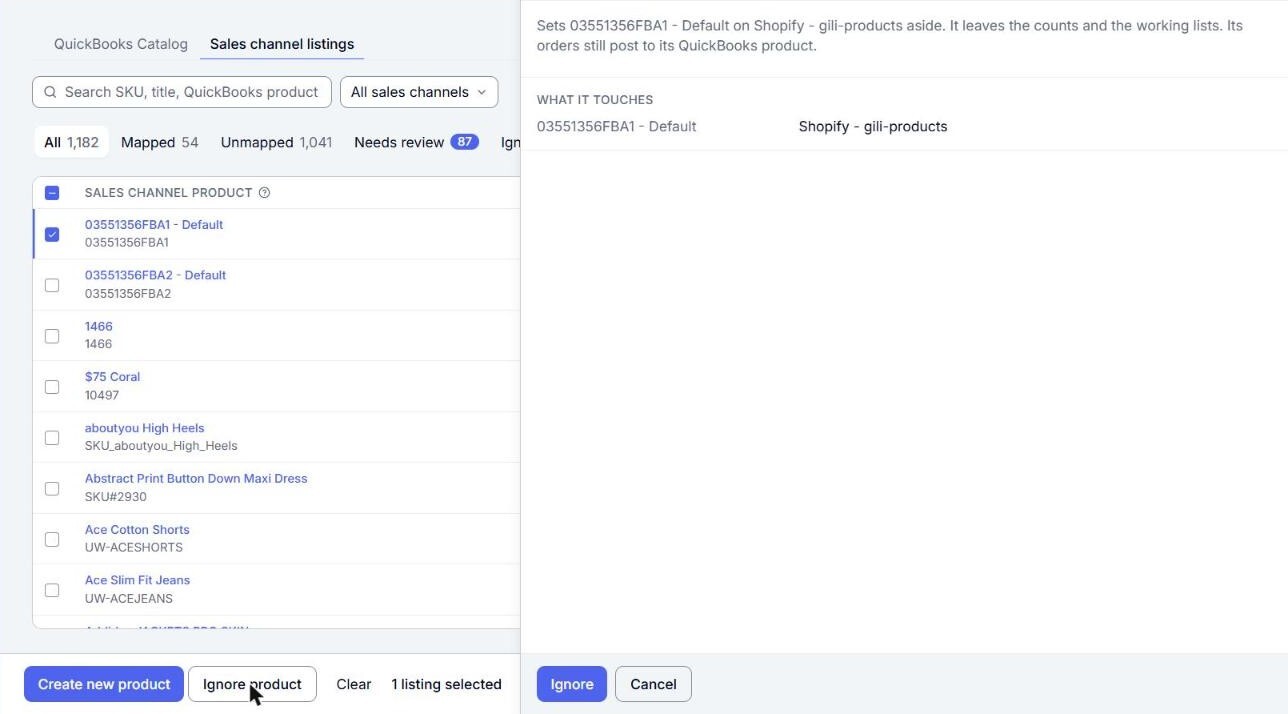
- Click Ignore to confirm. If the same product is listed elsewhere, the confirmation asks where, under the title Ignore: where?. Clear the box of any listing you want to keep, then click the button, for example Ignore 2 listings.
Note: Ignoring does not stop orders from posting. The orders of an ignored listing still post as they do now: to its QuickBooks product if it has one, or by the channel's If a matching is not found, then setting if it has none.
To bring a listing back, go to the Ignored tab and click Restore in its row, or select the listings and click Restore at the bottom of the page. The listing goes back to where it was.