
Prerequisites
Before proceeding, ensure the following:
-
You have a valid Webgility Desktop subscription.
-
You have administrator permissions on all computers where the updates will be applied.
-
All Webgility Desktop sessions are closed (including any add-ons or scheduler).
- All the add-on machines & primay machine should be connected on the same network.
Step 1: Download the Latest Webgility Version
-
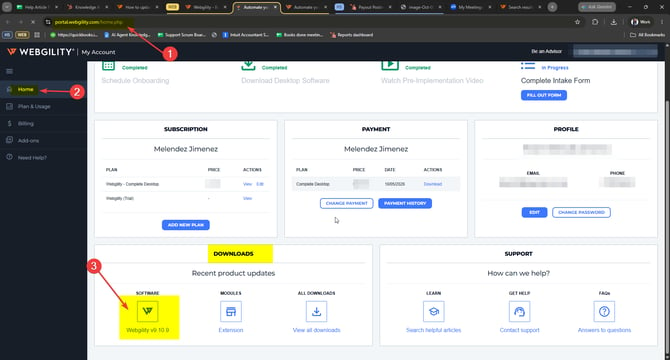
Go to portal.webgility.com
-
Navigate to the Downloads section.
-
Download the latest Webgility installer.
Step 2: Install the Update on Each Computer
-
Run the installer and follow the on-screen prompts to update the existing version of Webgility Desktop.
-
Configuration settings will be preserved during the upgrade process.
-
Repeat the installation on any additional computers where Webgility Desktop is used. We need to make sure that all the Users are on the same versions of Webgility Desktop.
- You may also refer to Webgility Desktop Upgrade Guide: For Versions Pre-9.8.4
Step 3: Post-Update Verification – Version Check
-
Launch Webgility on each updated computer.
-
Go to Help and click on Terms and Privacy to confirm the version matches the latest release.

Step 4: Verify Scheduler Functionality
-
Run the Webgility Scheduler on the primary machine (the one hosting the SQL database).
-
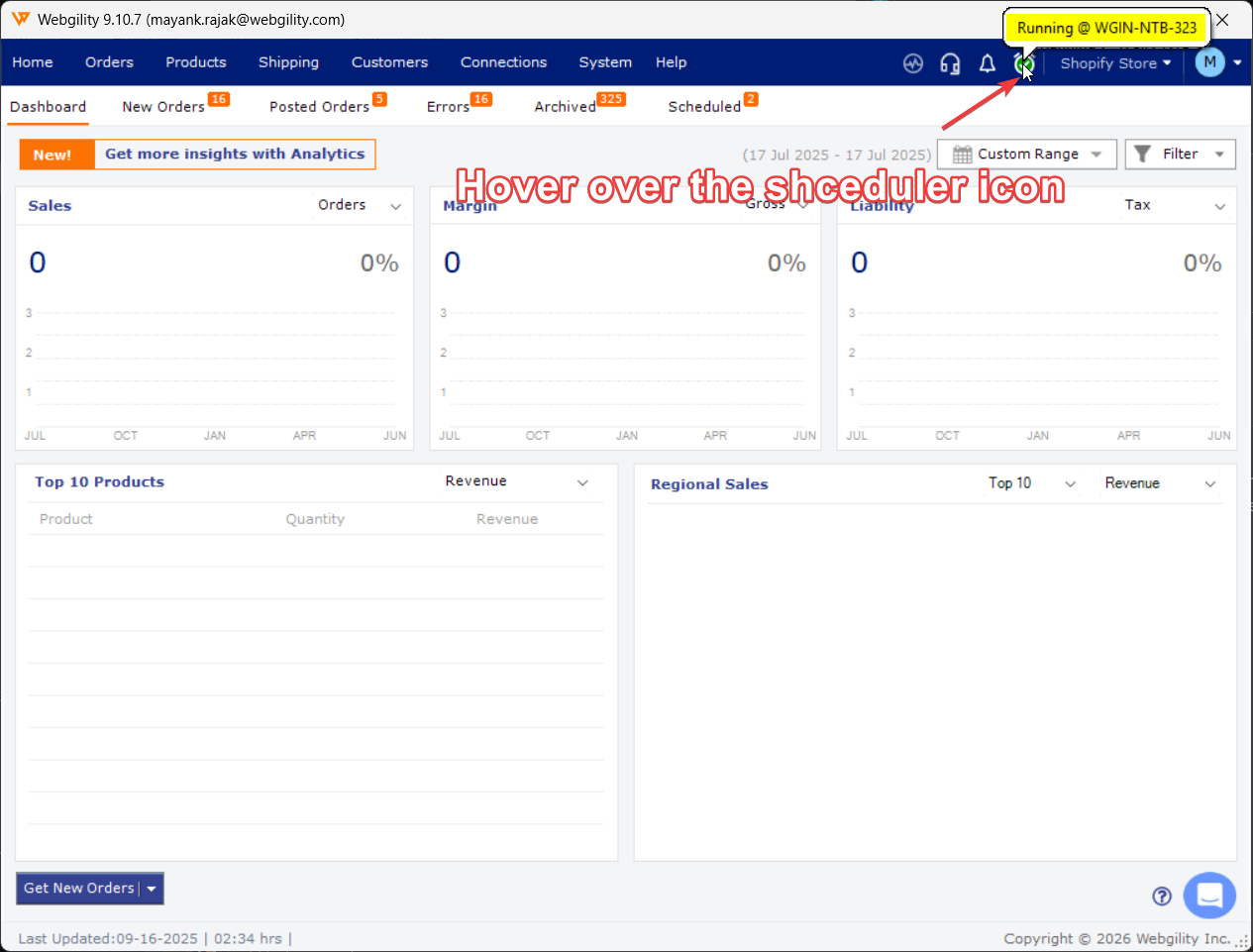
Confirm that scheduled tasks are running as expected without any errors, hover over the scheduler icon in Webgility Desktop to see where the automation is running.
Step 5: Verify Order Posting Functionality
-
Post an order from the New Orders Tab.
-
Ensure there are no errors or delays in order download, mapping, or posting.
- You may also refer to How to Post Orders to Your Accounting Solution with Webgility Desktop
Feel free to reach out to us at support@webgility.com.