
Part of How to Post Orders to QuickBooks in Webgility i.
How to unpost an order
Unpost takes a posted order back out of QuickBooks Online, so it can be posted again. Use it, for example, after you change a setting and want the order posted with the new setting.
- Go to Sales > Orders and click the Posted tab.
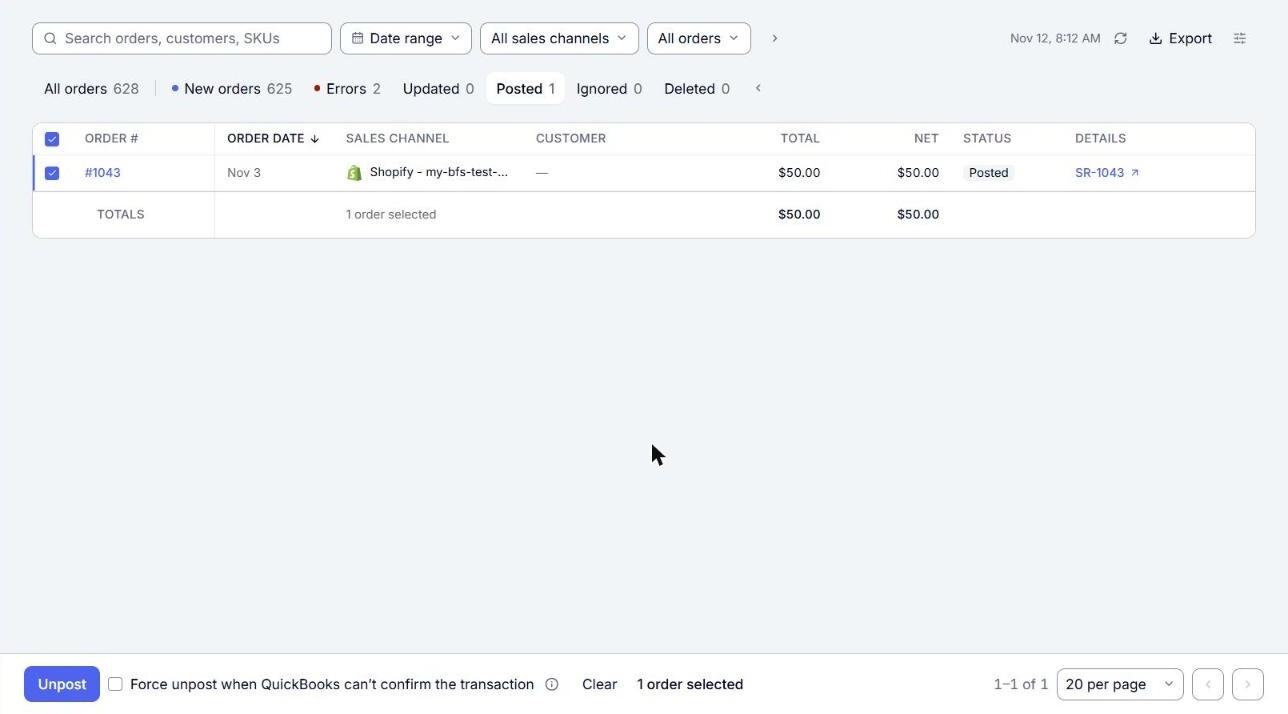
- Tick the orders you want to take out of QuickBooks Online, then click Unpost.
- Read the confirm, for example "Unpost 2 orders". It lists the QuickBooks Online transactions it will delete under Will be deleted in QuickBooks, and the orders under Orders to unpost. It warns: "These transactions are deleted, not voided. If any of them is already matched or reconciled in your bank feed, you’ll need to match it again in QuickBooks after posting." Click Unpost 2 orders to go ahead.
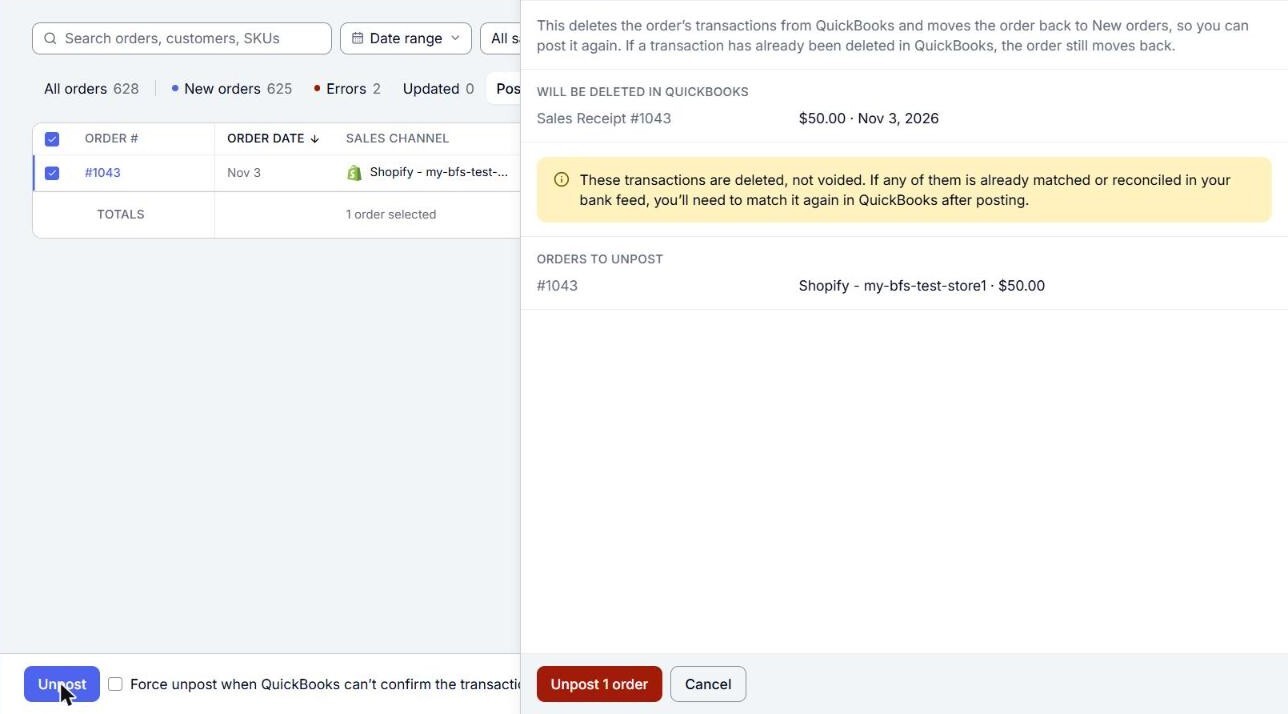
- The confirm stays open while the orders are removed, then says, for example, "2 orders unposted." The orders move back to the New orders tab, and you can post them again.
Note: If an order cannot be unposted, the confirm says why, for example "Order #1042 won’t be unposted: it shares one QuickBooks transaction with other orders. Tick #1043 too, and unpost them together." Orders whose document is still waiting for QuickBooks Online, or whose change waits on the Updated tab, are unposted once that is done.