
Overview
If you've made recent data changes or updated settings in Webgility Desktop, you might run into payout posting errors. These issues are usually easy to fix by clearing old sync data and reposting the correct information. Here’s how to get everything back on track.
Step-by-Step Guide
1. Make Sure Webgility is Updated
-
Open Webgility Desktop
-
Go to Help > Check for Updates
-
If an update is available, install it and restart the application
- You may refer to Update Webgility Desktop Using Check for Updates Option.
2. Undo the Affected Orders
-
Go to Dashboard > Posted Orders
-
Find the orders linked to the payout that failed
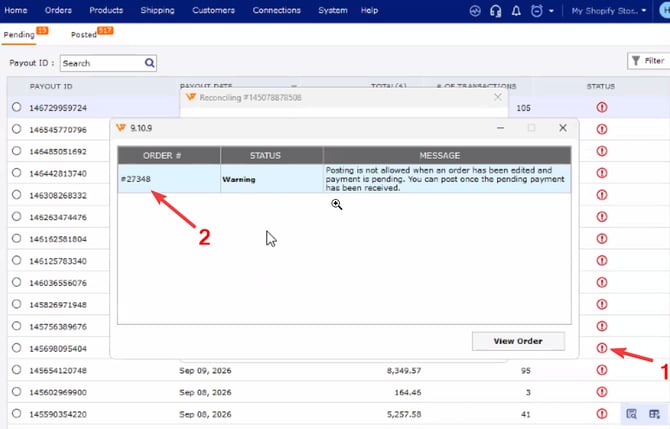
- While posting the Payout Click on the Error Prompt to see which are the affected orders & note-down the order numbers.
-
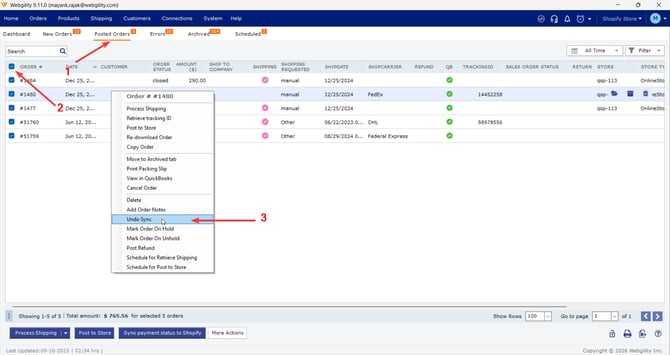
Go to the Posted Orders & select the affected orders & use Undo Sync to reset them to their pre-posting state
(This helps avoid duplicates and clears any stuck transactions.)
3. Re-download the Payout
-
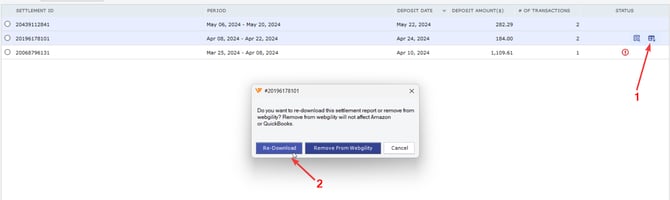
Still in Orders > Shopify > Payouts, click remove under the status option.
- Now select the redownload option.
-
Check that the new payout data matches your store records and doesn't show any error flags
5. Repost the Payout
-
Go to Orders >> Shopify >> Payout.
-
Click Post to QuickBooks.
-
Monitor the sync and ensure the payout is posted without errors
6. Final Verification
After reposting, review the following:
-
The order status in Webgility
-
The payout record in your QuickBooks.
-
Any logs or error messages to confirm a clean sync
Tip
Payout errors after updates or data changes are common but usually easy to fix. Keeping Webgility updated and regularly reviewing synced data can help prevent these issues.
Feel free to reach out to support@webgility.com.