
Overview
If orders appear to be downloading only from a specific date, or older orders are not appearing in Webgility Desktop, several settings can affect which orders are retrieved.
The first step is to confirm that the order exists in the sales channel and has an order status that Webgility is configured to download. You can then use Orders by Range to manually retrieve orders from a specific date range or Orders by ID to retrieve a specific order. The available date range and download options can vary depending on the connected sales channel.
Symptoms
- Orders are not appearing in Webgility Desktop.
- Orders appear to download only from a particular date.
- Historical orders are missing.
- An order exists in the sales channel but is not available in Webgility.
- You need to manually download orders from a previous date.
- A specific order needs to be retrieved using its order ID.
Troubleshooting
1. Check the Webgility Desktop version
If the issue started after using an older version of Webgility Desktop, first verify that you are running the latest available version.
To check for updates:
- Open Webgility Desktop and log in.
- Go to Help > Check for Updates.
- If an update is available, click Update.
- Keep the option to Take Webgility database backup before proceeding with the update enabled.
- Select the location where the database backup should be saved.
- Allow the Webgility installer to complete the update.
- Log back in to Webgility Desktop after the installation is complete.
- Go to Help > Terms and Privacy to verify the installed version.
Keeping Webgility Desktop updated helps maintain compatibility with connected sales channels and provides the latest fixes and improvements.
Related article: Update Webgility Desktop Using Check for Updates Option
2. Confirm that the order exists in the sales channel
Before changing Webgility settings, verify that the missing order actually exists in the connected sales channel.
Check the following:
- Confirm the order number or order ID.
- Verify the order date.
- Check the order's current status.
- Confirm that the order is available in the sales channel's order management area.
This is important because Webgility can only download orders that are available and eligible for retrieval from the connected sales channel.
If the order exists in the sales channel, continue with the steps below.
3. Check whether the order is already in Webgility
The order may have already been downloaded and moved to another section of Webgility.
In Webgility Desktop:
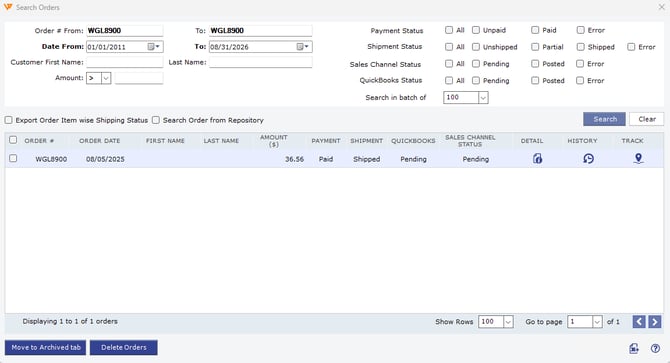
- Go to Orders > Search Order.
- Search for the order using the order number or other available order details.
- Review the search results.
Also check the New Orders, Scheduled, Posted, Archive, or Repository areas as applicable.
4. Verify the Order Download Settings
If the order exists in the sales channel but cannot be found in Webgility, verify that its status is selected for download.
- Go to Connections > Sales Channels.
- Open the settings for the affected sales channel.
- Open Download Settings.
- Review the order statuses selected for download.
- Make sure the status of the missing order corresponds to a status Webgility is configured to download.
- Save the changes.
For example, if the order is in a status that is not selected under the download settings, Webgility may not retrieve it during a normal order download.
Related article: How to configure the Sales Channel Settings in Webgility Desktop
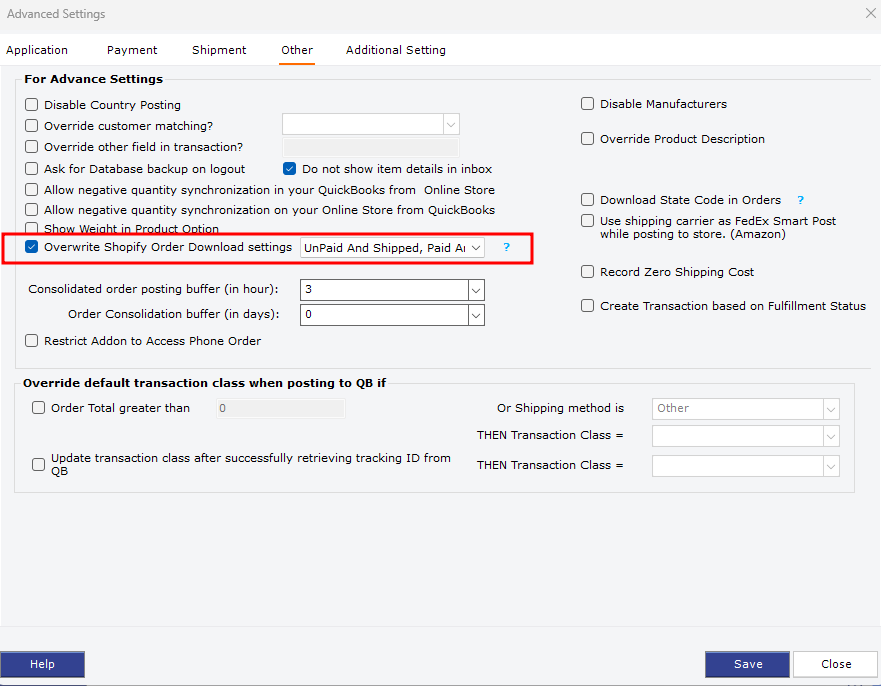
Important: Some sales channels have additional settings that can override the standard order download configuration. For example, Shopify has an Overwrite Shopify Order Download Settings option under Advanced Settings.
5. Check the order download age and historical-data limit
If the missing order is older than the period Webgility is configured or permitted to retrieve, it may not be returned during a normal order download.
Historical order download availability can depend on the applicable download limit and sales channel. The standard 90-day historical download period and an add-on for orders older than that period.
In some configurations, the applicable order download range can also be adjusted under Advanced Settings.
To review Advanced Settings:
- Go to Connections > Sales Channel.
- Select Advanced Settings > Application tab.
- Review the available order-download settings for the connected sales channel.
- If an order download range setting is available, verify that it covers the date of the missing order.
- Update the setting when appropriate and supported by the sales channel.
- Save the changes.
The available Advanced Settings are sales-channel specific, so not every sales channel will display the same options.
Example: In one customer configuration, the Maximum Order Age was set to 60 days. If an order was older than the configured limit, the setting could prevent it from being retrieved through the normal download process. The value of 60 days should not be considered a universal Webgility default.
Related article: Advanced Settings in Webgility Desktop: for Order Download and Posting
Important
Increasing an order-age or historical-data setting does not guarantee that an order will download. The order must still be available from the sales channel and meet the applicable download criteria.
For orders older than the supported historical-download period, a Historical Data Add-on may be required.
6. Download missing orders using Orders by Range
If you need to retrieve multiple historical orders, use Orders by Range.
- On the Webgility Desktop Dashboard, locate Get New Orders.
- Click the dropdown arrow next to Get New Orders.
- Select Orders by Range.
- In the Download Settings window, select the appropriate historical date range.
- Click Save & Close.
- Click Get New Orders.
- Allow Webgility to complete the download process.
- Review the New Orders section to verify whether the expected orders were downloaded.
The available date selections depend on the connected shopping cart or marketplace. Some sales channels provide a start and end date, while others may provide more granular time-based options.
Related article: How To Download Orders From a Backdate
Additional reference: How to Download Orders in Webgility Desktop
7. Download a specific order using Orders by ID
If you are looking for one or a small number of specific orders, Orders by ID can be more appropriate than downloading an entire date range.
- On the Webgility Desktop Dashboard, click the dropdown arrow next to Get New Orders.
- Select Orders by ID.
- Enter the order ID or order number in the Get Order By Order# window.
- Click Add.
- Repeat the process for additional orders if necessary.
- Click Get Orders to download the selected orders.
- If an incorrect order was added, select it and click Remove.
The order ID may not always be the same as the order number displayed in the sales channel. Some marketplaces use a unique internal order ID.
Related article: Download Orders By ID
8. Verify whether additional orders are actually missing
After downloading the appropriate date range:
- Compare the orders returned by Webgility with the orders available in the sales channel.
- Confirm that the expected order dates are included in the selected range.
- Verify that the expected order statuses are eligible for download.
- Search Webgility again using Orders > Search Order.
- Check the New Orders and other relevant order tabs.
If no additional orders are returned, verify in the sales channel that there are actually additional orders within the selected date range that meet the download criteria.