
Overview
Configure Webgility Desktop and its Scheduler to start automatically when you sign in to Windows. This helps keep scheduled order downloads, inventory syncs, and QuickBooks postings running without manually starting the Scheduler each time.
Steps to Enable Automatic Startup
Step 1: Enable Webgility Scheduler Startup
- Open Webgility Desktop.
- Click the Scheduler icon in the top-right corner and open its settings.
- Go to Settings > Run at Startup.
- Enable Run at startup and click Save.
For details, see Scheduler Settings Overview.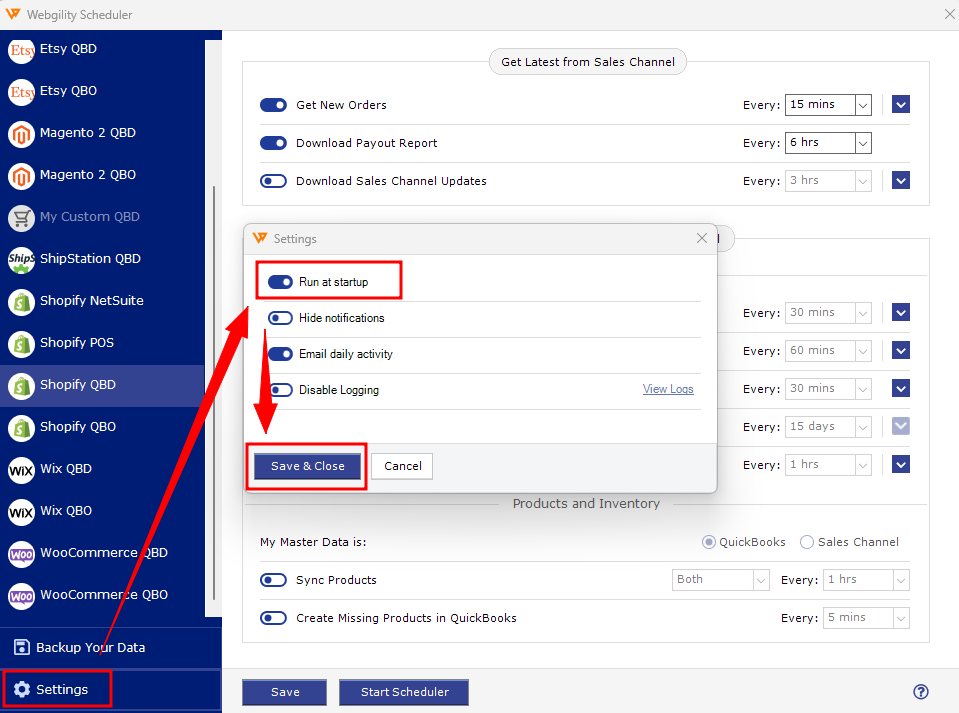
Step 2: Add Webgility Desktop to Windows Startup
- Press Windows + R to open the Run dialog.
- Type
shell:appsfolderand press Enter.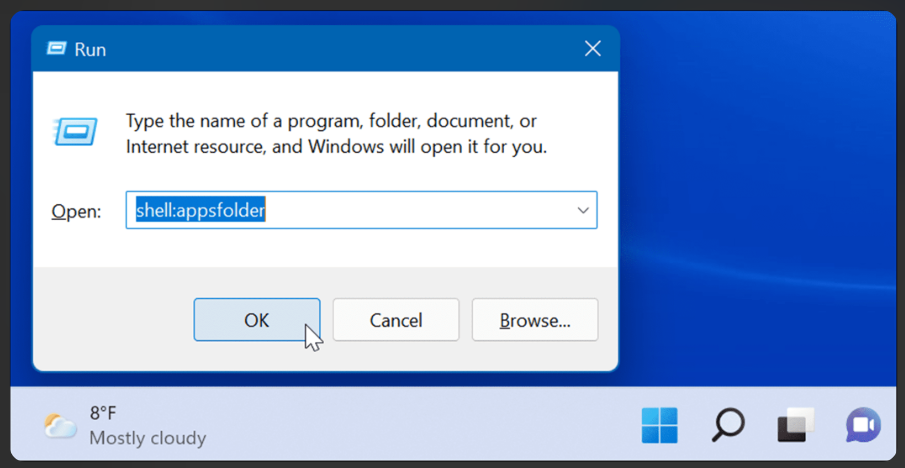
- In the window that opens, find Webgility Desktop.
- Right-click it and select Create shortcut. Windows will usually say it can’t create a shortcut there and offer to put it on the desktop. Click Yes.
- Press Windows + R again, type
shell:startup, and press Enter. This opens the Startup folder.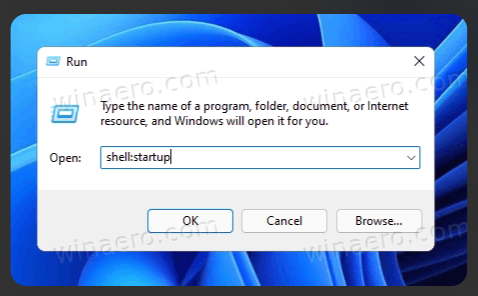
- Move the Webgility Desktop shortcut from the desktop into the Startup folder. You can drag it or cut and paste it.
- Restart the computer to confirm Webgility Desktop opens on login.
Windows will launch Webgility Desktop automatically when the current Windows user signs in. For more details, see Microsoft's guide to configuring startup applications.
Step 3: Verify Automatic Startup
Sign out of Windows and sign back in. Confirm that Webgility Desktop launches and the Scheduler starts successfully.
The Scheduler icon should be green when automation is running. For help, see How to Start or Stop the Scheduler.
Important Note
Keep the computer powered on and prevent it from entering sleep mode during scheduled operations. Configure the Scheduler to run on only one designated computer to avoid conflicts.
If you have any questions or need more help, please contact our support team.