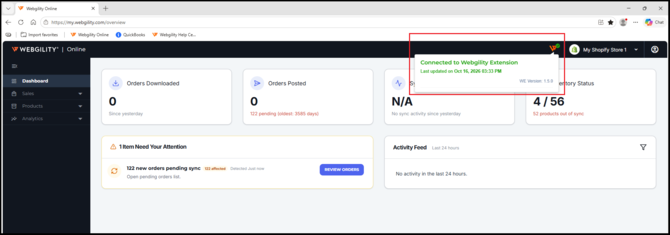
Symptoms
You may experience the following issues after upgrading the Webgility Desktop Extension:
- Webgility Online cannot connect to QuickBooks Desktop.
- The Webgility Desktop Extension cannot access your QuickBooks company file.
Why Does This Happen?
Webgility Online uses a connection certificate inside the QuickBooks Desktop application to authorize communication between the Webgility Desktop Extension and QuickBooks Desktop.
If that connection certificate becomes invalid during an upgrade, the Webgility Desktop Extension may no longer be able to connect to QuickBooks Desktop. Regenerating the certificate and reconnecting the Webgility Desktop Extension can help restore the connection.
How to fix this?
You will need to regenerate the Certificate and reconnect the Webgility Desktop Extension
Follow the steps below to restore the connection between Webgility Desktop Extension and QuickBooks Desktop.
- Make sure that Webgility Desktop Extension is on the latest version i.e. v1.5, if now then you will need to upgrade it.
You can refer to the steps mentioned in the help article : Update Your Webgility Desktop Extension
-
Once the update is complete, launch the Webgility Desktop Extension.
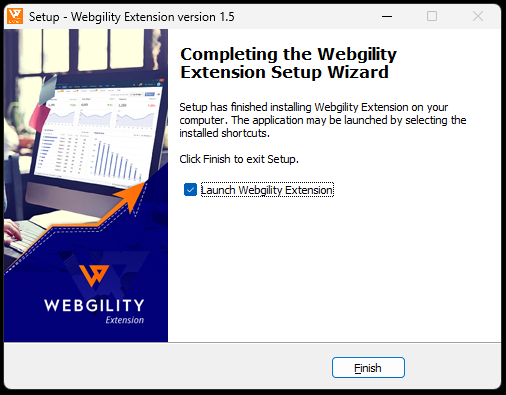
-
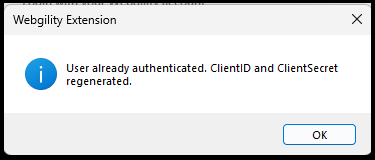
Login with your Webgility Online username and password and it will return with a success message
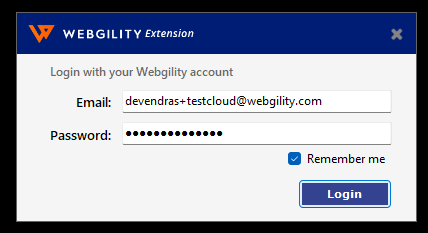
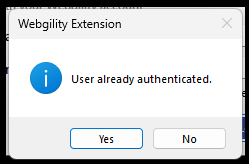
-
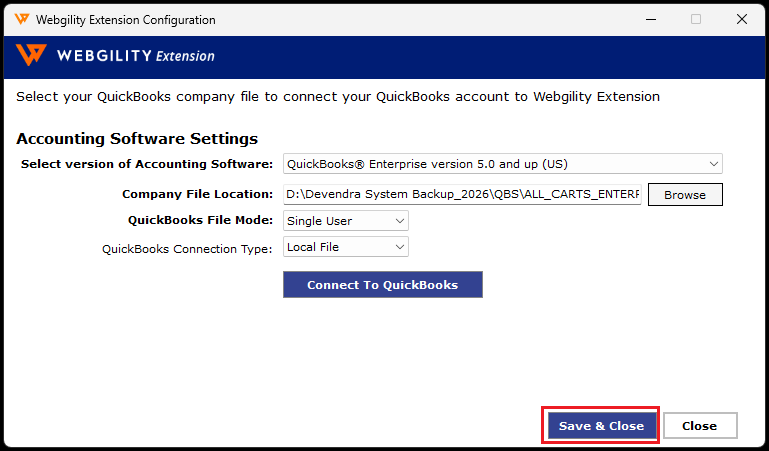
Now It will open a window where you will need to update the Quickbooks company file path. You can obtain it by navigating to Quickbooks Desktop Home page and pressing F2 key on the keyboard
- Once the company file has been updated then click on Connect to QuickBooks
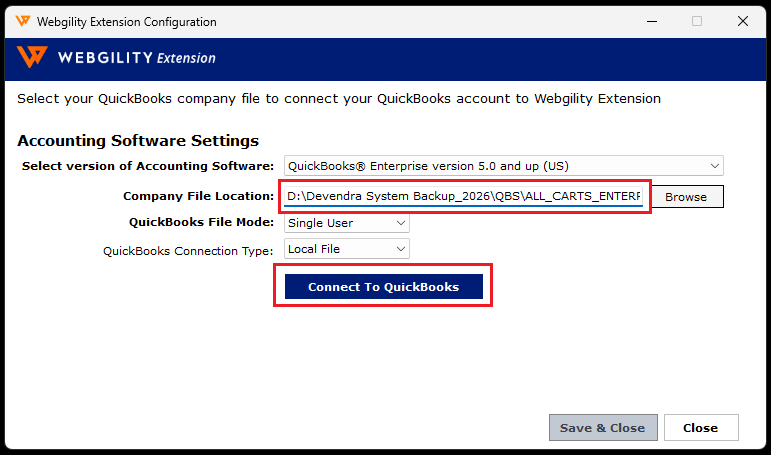
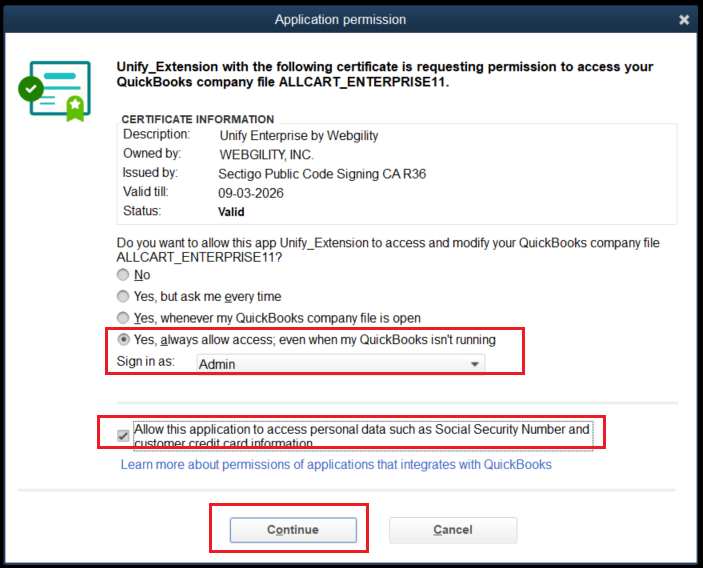
- This will generate a new connection certificate in QuickBooks Desktop so select the appropriate options and click on Continue
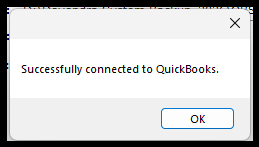
- This will return with a success message so click on OK
- And then click on Save & Close on Webgility Desktop Extension popup
- Now your Webgility Desktop Extension will show as connected to QuickBooks Desktop in Webgility Online