
Part of How to Ignore and Restore Orders in Webgility i.
How to restore an ignored order
- Go to Sales > Orders and click the arrow at the end of the tabs (Show ignored and deleted orders). Then click the Ignored tab.
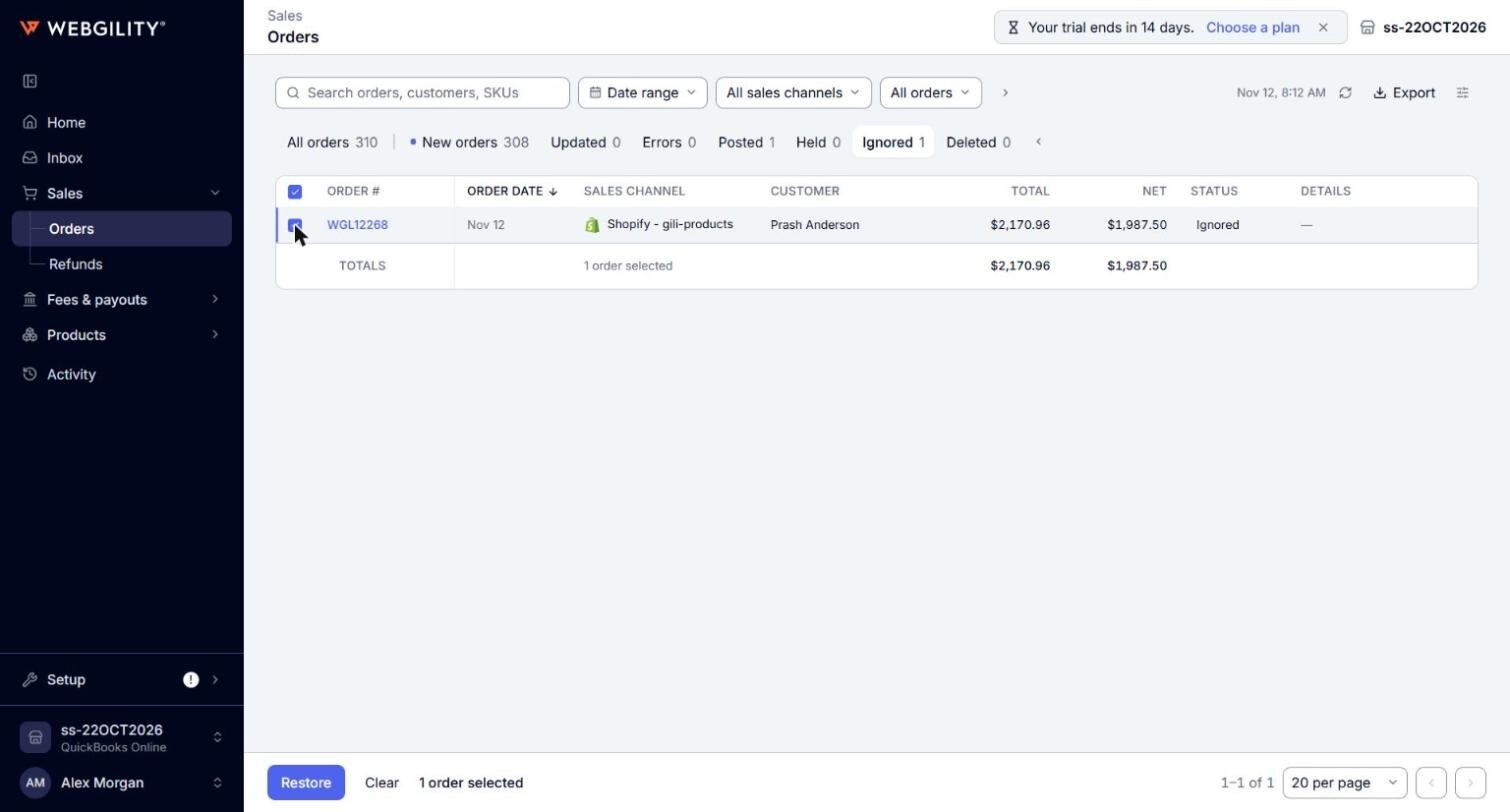
- Tick the orders you want to restore and click Restore.
- The orders go back to the tab they belong to, such as New orders, and can be posted again. Their Timeline records "Order Restored."
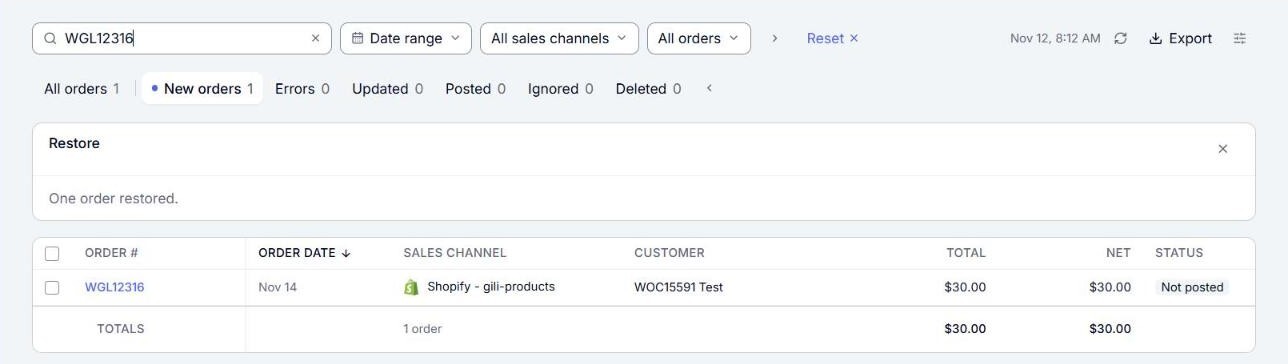
Note: A restored order that is waiting to post is posted the next time Webgility i posts automatically, if automatic posting is on for its sales channel. To post it now, tick it and click Post to QuickBooks.