
Steps to Resolve
1. Update Webgility Desktop
-
Launch Webgility Desktop.
-
Navigate to Help and click on Check for Updates.
-
Follow the prompts to complete the installation.
-
Once updated, relaunch Webgility Desktop.
- You may also refer to Update Webgility Desktop Using Check for Updates Option.
2. Verify Scheduler Settings
-
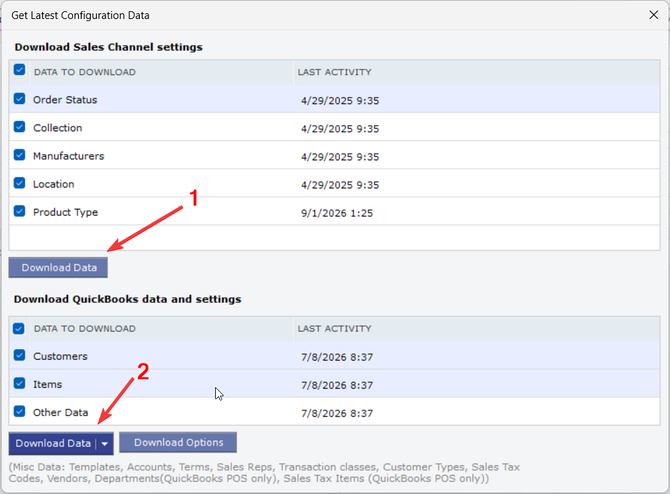
In Webgility, go to Connections, then Get Latest Data & Settings, and download both QuickBooks and Store data.
-
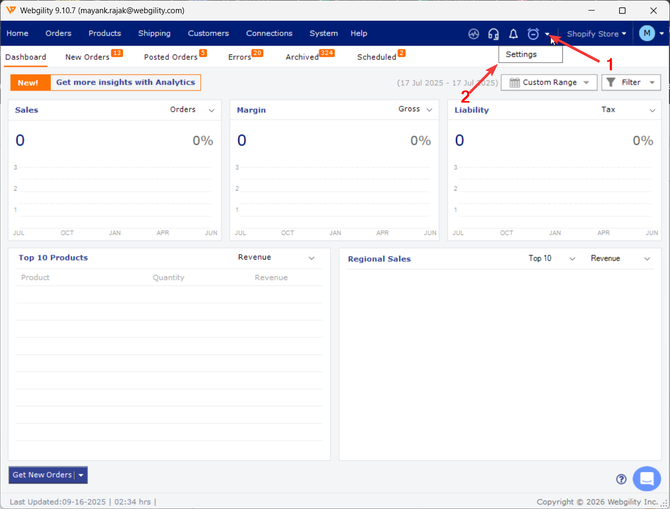
On the Webgility Dashboard, locate the Scheduler icon in the upper right corner.
-
Click the small arrow next to the Scheduler icon to view settings.
-
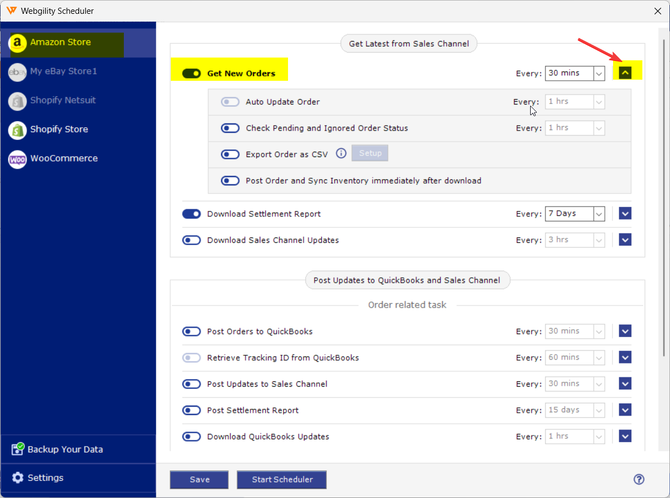
Also, verify the frequency and timing for each enabled task, and click on the Blue Dropdown to show additional settings
-
After confirming, click Save.
3. Check QuickBooks Company File Connection
-
Navigate to Connections, go to Accounting and click on Edit Connection.
-
Then Click Test QuickBooks Connection.
- You may also refer to How to Test QuickBooks Connection in Webgility Desktop.
Ensure the following:
-
Webgility is connected to the correct QuickBooks company file.
-
QuickBooks and Webgility are running on the same machine with the company file open.
- QuickBooks is running in Single User Mode with the Admin Credentials.
If the connection still fails:
-
Open QuickBooks in Single User Mode using Admin credentials.
-
Go to Edit, go to Preferences and click on Integrated Applications.
-
Remove the Unify certificate, then click Save.
-
Return to Webgility and retest the QuickBooks connection; this will regenerate the QuickBooks certificate for Webgility Desktop which we just removed.
- Please Refer to Regenerate QuickBooks Certificate.
4. Post Orders to QuickBooks
-
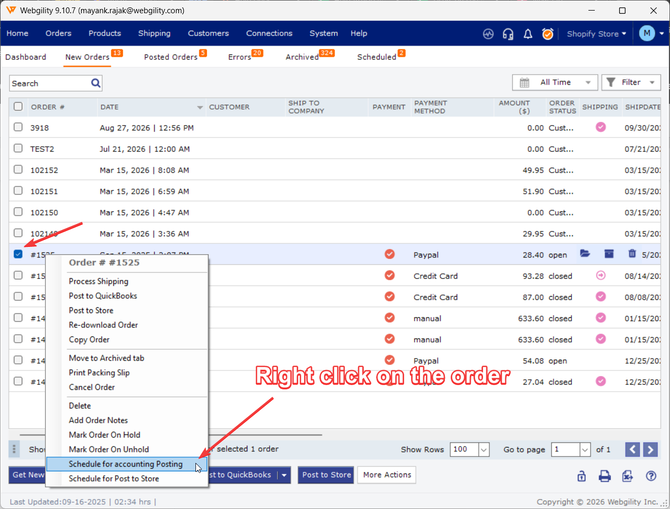
Go to the New Orders tab in Webgility.
-
Right-click on the order you want to sync and choose Schedule for Accounting.
-
The order will move to the Scheduled tab.
-
Start the Scheduler to process and sync the order with QuickBooks. You may also refer to How to Start or Stop the Scheduler.
Feel free to reach out to support@webgility.com.