
Resolution Steps
1. Verify Sales Channel Setup
-
Ensure sales channel is properly connected in Webgility.
-
If needed, reauthorize the sales channels:
-
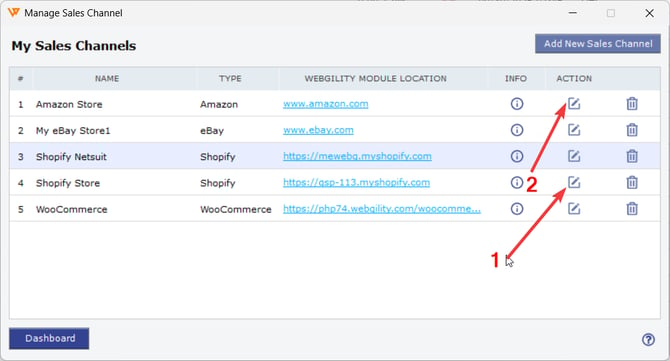
Navigate to Connections > Sales Channels > Manage Sales Channels
-
Click Edit Connection
-
Reauthorize using your login credentials
-
2. Review Account Mapping Limitations
-
Please note: Webgility does not support mapping accounts as journals within Shopify.
-
Ensure your accounting configuration avoids this unsupported method.
3. Redownload Payouts/Settlements
-
Go to Orders > Amazon/Shopify > Payouts/Settlements
-
Click Redownload to fetch the latest payout/settlement data
- Please refer to How to Download Missing Payouts from Shopify in Webgility Desktop.
- For Amazon: How to Download Settlement Reports in Webgility Desktop.
4. Re-download Affected Orders
-
Go to the New Orders and click on Get New Orders, to download any missing orders in Webgility Desktop.
-
If any order is related to the Payout or Settlement, then re-download the orders and directly post the report.
Feel free to reach out to support@webgility.com.