
If Shopify payouts are missing in your Webgility Desktop app, you can easily download them using one of two methods: by Date Range or by Payout ID. This guide walks through both options to help you retrieve historical or missing payout data.
Step-by-Step: Downloading Shopify Payouts
1. Navigate to the Payout Section
In Webgility Desktop:
-
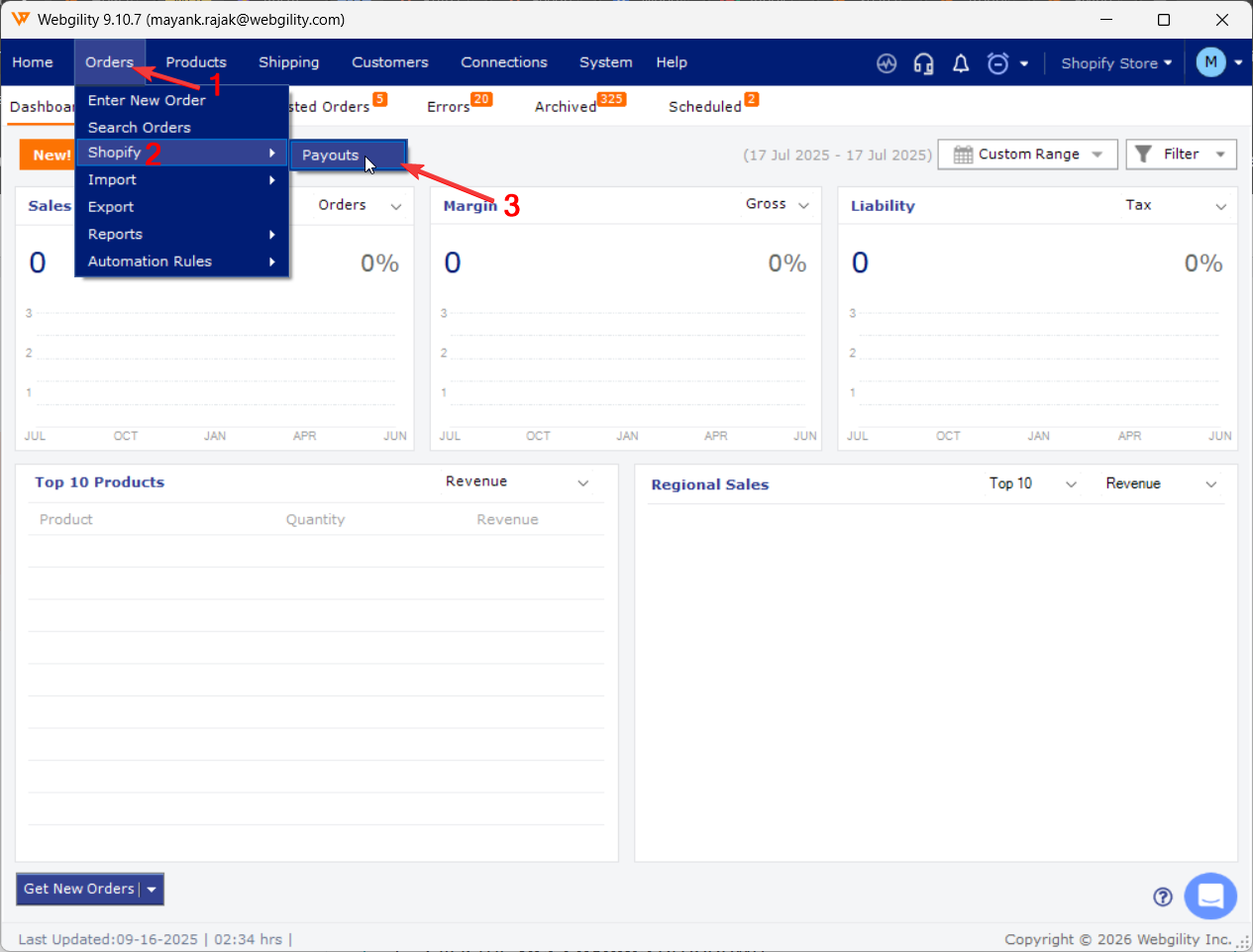
Go to Orders, then Shopify and Payout
Two Ways to Download Payouts
Method 1: Download by Date Range
Use this method to retrieve payouts for a specific time period.
-
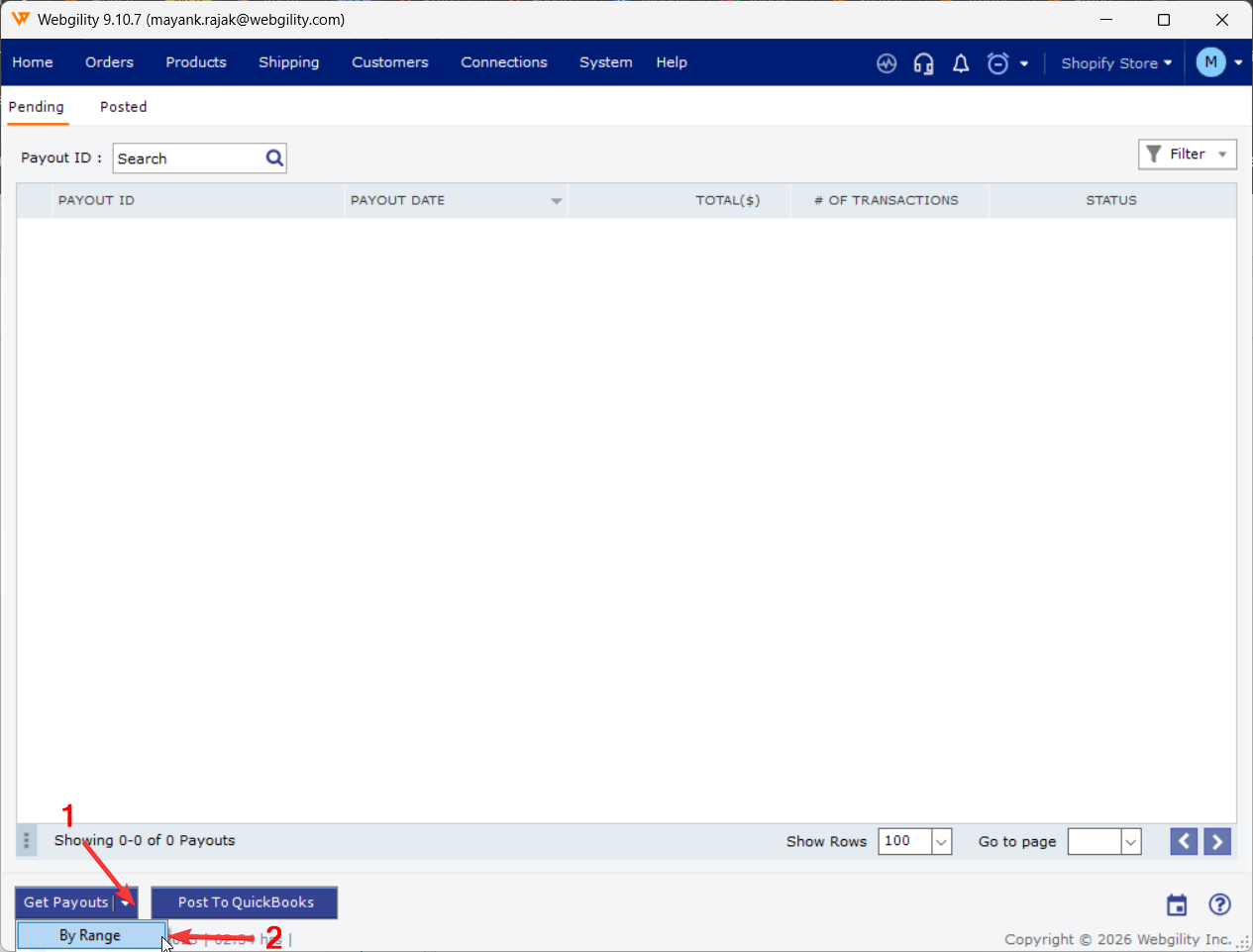
Click the Get Payouts dropdown, Select By Range
-
In the popup window:
-
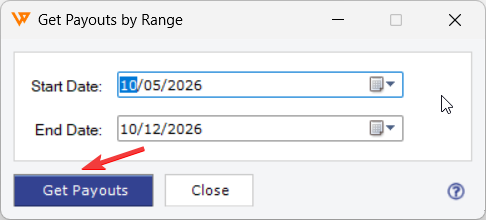
Enter the Start Date and End Date
-
Click Download
-
-
The payouts for that range will be retrieved and listed under the Pending tab
✅ Tip: Make sure the date range includes the expected payout window.
Method 2: Download by Payout ID
- Beside Get Payouts, click on the small white arrow, select By ID (usually found near standard download options).
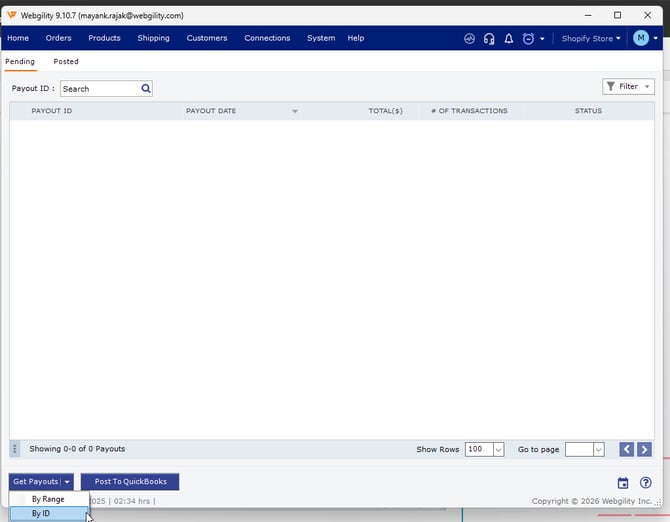
- Paste the copied Payout ID into the prompt and click Download & confirm that the payout downloads and appears in the list.
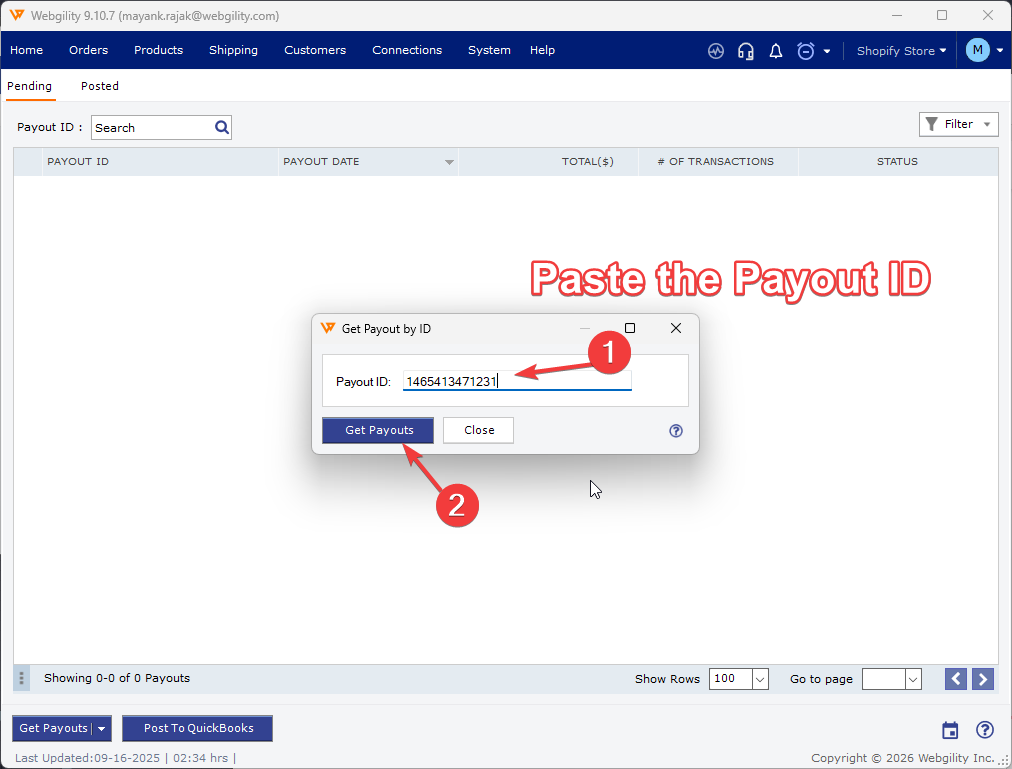
✅ Tip: Double-check the Payout ID to avoid download errors.
After Downloading
-
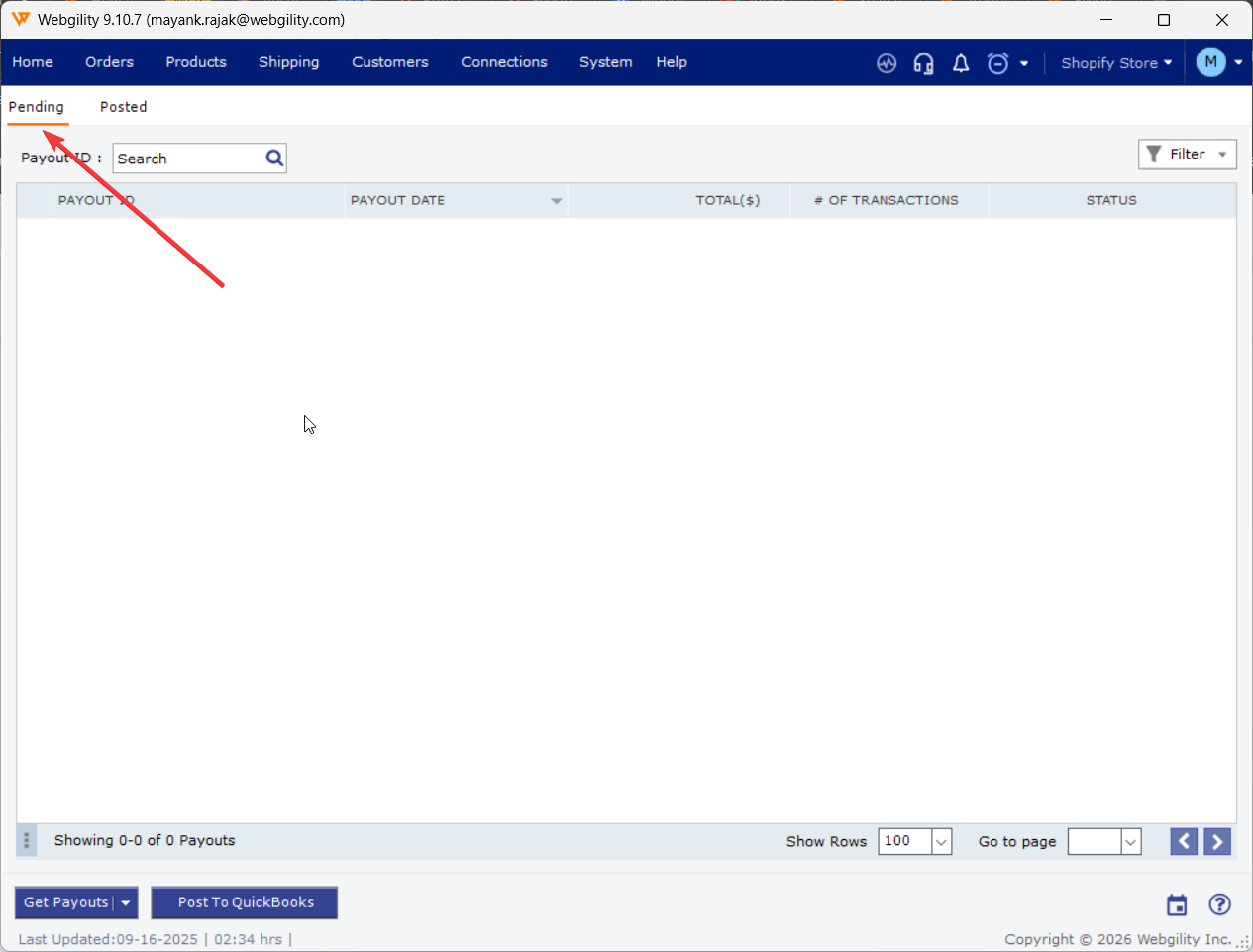
Downloaded payouts will appear under the Pending tab in Webgility
-
From there, you can proceed with posting or reconciliation as needed
Feel free to reach out to support@webgility.com.