
Deleting PII keeps your customers' sensitive data out of Webgility i once you no longer need it. The setting is under Data protection on the Business settings page.
Note: Data protection is one setting for your whole account. It applies to all connected sales channels except Amazon, in every business of your account, whichever business you change it from. Deleting PII does not affect your orders or your accounting.
Steps:
- Go to Setup > Business settings.
- Under Data protection, read the note "This setting will be applied to all the connected channels except Amazon, in every Business of the account."

- Turn on Delete all personally identifiable data (PII) such as email, phone from orders within Webgility. The options of the setting show under it.
- In Delete, choose when Webgility i deletes the personal data: In 7 days, In 15 days or After 30 days of posting to accounting.
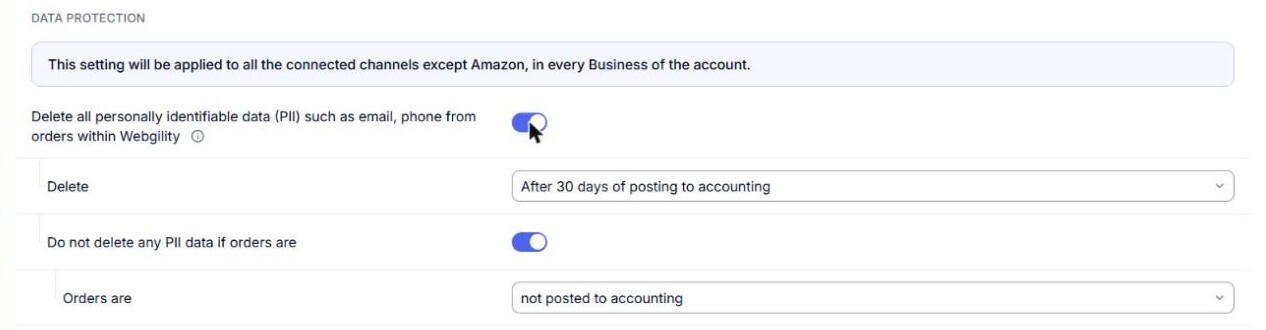
- To keep the personal data on orders you have not posted yet, leave Do not delete any PII data if orders are on, with Orders are set to not posted to accounting. Turn it off to delete the personal data whether or not the order is posted.
- Click Save at the bottom of the page. The page shows a message that the data protection settings are saved.
What each setting does
- Delete all personally identifiable data (PII) such as email, phone from orders within Webgility: turns the deletion of personal data on or off. Options: on or off. Default: off.
- Delete: when the personal data is deleted. Options: In 7 days, In 15 days, After 30 days of posting to accounting. Default: After 30 days of posting to accounting.
- Do not delete any PII data if orders are: keeps the personal data on the orders chosen in Orders are. Options: on or off. Default: on.
- Orders are: the orders whose personal data is kept. Options: not posted to accounting. Default: not posted to accounting.
Note: The options keep their values while the deletion switch is off. When you turn the switch on again, the options you chose before show again.
Turn off PII deletion
- Go to Setup > Business settings.
- Under Data protection, turn off Delete all personally identifiable data (PII) such as email, phone from orders within Webgility.
- Click Save.
Note: If someone else changed the data protection settings after you opened the page, Webgility i does not save your changes and shows "Data protection was changed since you opened this page, so it was not saved. Check it and save again." Check the values and click Save again.
Each saved change of the data protection settings is recorded on the Activity page, with who made it and when. See How to View Your Activity Log.