
Overview
When Webgility Online posts sales orders to QuickBooks, it checks whether each product in the order is matched with an existing item in QuickBooks. If a product does not have a corresponding item match, Webgility Online provides different options for handling the missing item.
Depending on your product synchronization settings, you can:
- Create a new item: Automatically create the missing product in QuickBooks.
- Map to an existing item: Match the sales channel product with an existing QuickBooks item.
- Use a standard item: Use a predefined standard item from QuickBooks for products that do not have an individual item match.
- Move the order to Errors: Prevent the order from being posted when a required item match is missing.
If your settings are configured to move orders to the Errors tab when an item match is missing, Webgility Online will not be able to post those orders, either manually or through automation, until the missing item is addressed.
This article explains how to enable manual item matching and post orders containing products that are not yet mapped to QuickBooks items.
Why Does Your Order Appear in the Errors Tab?
An order may move to the Errors tab when one or more products in the order do not have the required QuickBooks item match and your product synchronization settings are configured to treat missing matches as errors.
In this scenario, Webgility Online prevents the order from being posted to QuickBooks until the missing item match is resolved.
To allow these orders to be reviewed and posted manually, you need to update your product synchronization settings.
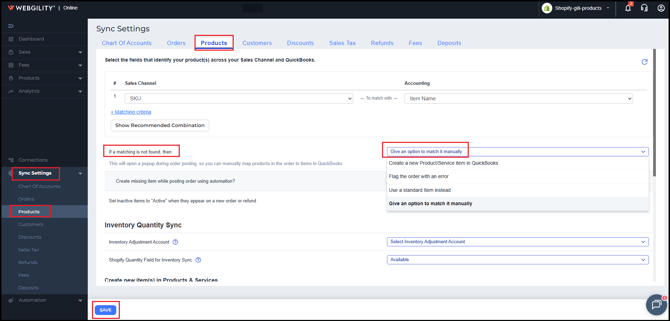
Step 1: Enable the Manual Item Matching Option
Follow these steps to change how Webgility Online handles products that do not have a QuickBooks item match:
- Log in to Webgility Online.
- Navigate to Sync Settings > Products.
- Select Give an option to manually match.
- Click Save to apply the changes.
Step 2: Posting Flagged Orders
Once this setting is enabled, you can post the orders under the Flags tab by following the steps mentioned in the article : Resolving the “Product Not Mapped to an Accounting Item” Order Flag in Webgility Online
Step 3: Posting Orders under the Errors tab
After enabling the manual matching option, follow these steps to post the affected orders:
- Navigate to the Errors tab and locate the affected order.
- Open the order and identify the product that does not have a QuickBooks item match.
- Verify whether the corresponding item already exists in QuickBooks.
- Initiate the order posting process manually.
- When prompted, select the appropriate QuickBooks item to match with the sales channel product.
- Once the item matching is complete, proceed with posting the order.
After the missing item is successfully matched, Webgility Online can proceed with creating the transaction in QuickBooks.
Important Things to Keep in Mind
- Manual matching requires your input: Webgility Online cannot independently determine which QuickBooks item should be used when manual matching is required.
- Manual posting is required: Orders containing products that still require manual item matching cannot be posted through automation. You must manually match the missing items and post the affected orders.
- Automation can resume once the issue is resolved: Once the required QuickBooks items are available and the product mappings are established, subsequent orders containing those products can be processed through automation, subject to your existing synchronization settings.
- Previously failed orders: Changing the product synchronization settings does not necessarily retry orders already present in the Errors tab. Review those orders and initiate the posting process again after correcting the missing item matches.