
Webgility Online flags an order when it finds a product that doesn't have a matching item mapped in QuickBooks. Since QuickBooks needs every line item mapped to post a transaction, the order is held back until the product is mapped or the order is ignored. This article covers both ways to clear this specific flag.
Where do I see this flag?
Go to Sales > Orders, then open the Flags tab. Find the order you need and click the Action Needed icon to see exactly what's wrong with it.
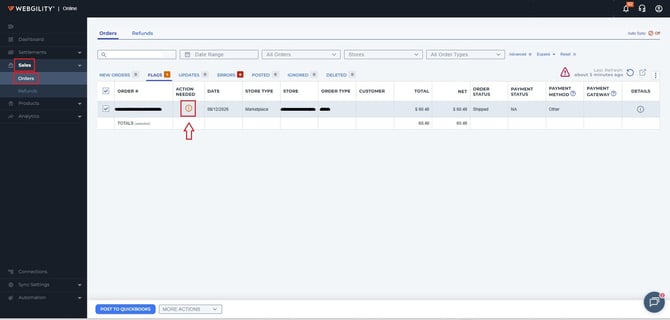
Sales > Orders > Flags — click the Action Needed icon on a flagged order
A Review Flags Before Posting popup opens showing the flag: “One or more products in this order aren't mapped to an accounting item.” The suggested action tells you to map the listed product(s) to an accounting item, or ignore the order if it was placed in error.
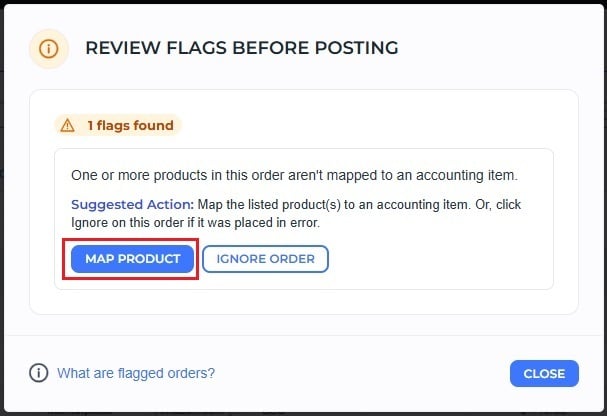
The flag detail popup, with Map Product and Ignore Order options
How do I resolve it?
There are two ways to map the missing product and clear the flag — pick whichever fits how you work.
Method 1: Map the product from the flag popup
Step 1: Click Map Product
From the flag popup, click MAP PRODUCT. This takes you to Products > Product Catalog, where the unmapped item appears under Missing in QuickBooks.
Step 2: Match the product manually
Find the item that came in on the order and match it to the correct QuickBooks item. For a full walkthrough of mapping products, see the related article on mapping items in Webgility Online.
Step 3: Post the order again
Go back to the order in the Flags tab and post it again — with the product now mapped, it should sync successfully.
Method 2: Post the order and map it inline
Step 1: Select the order and post
Instead of opening the Action Needed icon, select the checkbox next to the flagged order and click POST TO QUICKBOOKS.
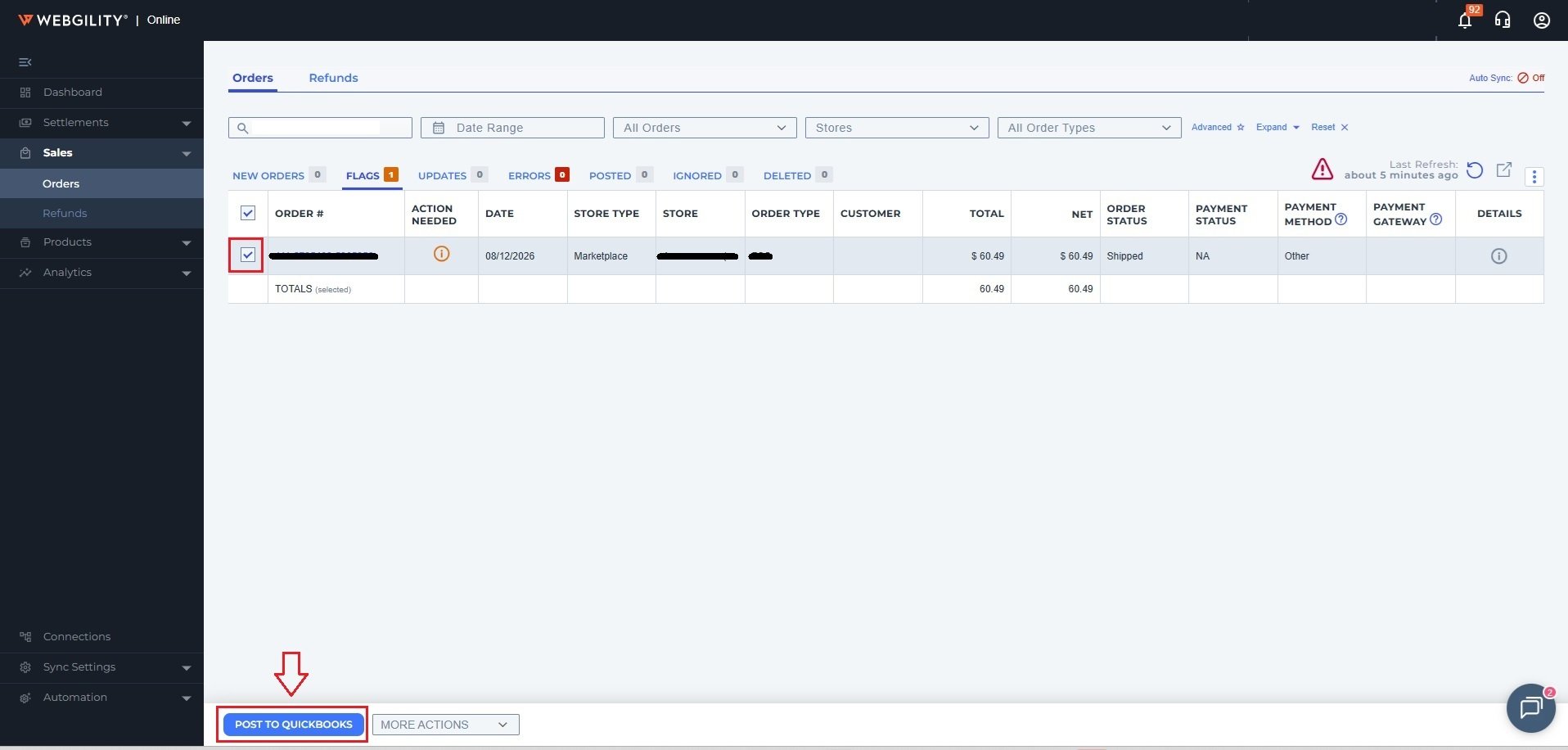
Select the flagged order and click Post to QuickBooks
Step 2: Choose Post Anyway
A popup reminds you to resolve flags before posting, but gives you the option to proceed: “If you have already reviewed and resolved the flags, click Post anyway.” Click POST ANYWAY.
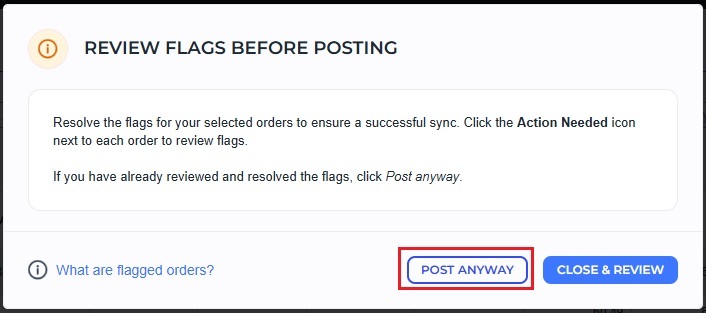
Click Post Anyway to continue posting a flagged order
Step 3: Map the product in the Refresh Settings window
A Refresh Settings window opens: “We couldn't find product(s) below in QuickBooks, would you like to create a mapping?” Use the QuickBooks SKU# dropdown to select the matching QuickBooks item for each row, then click MAP PRODUCTS.
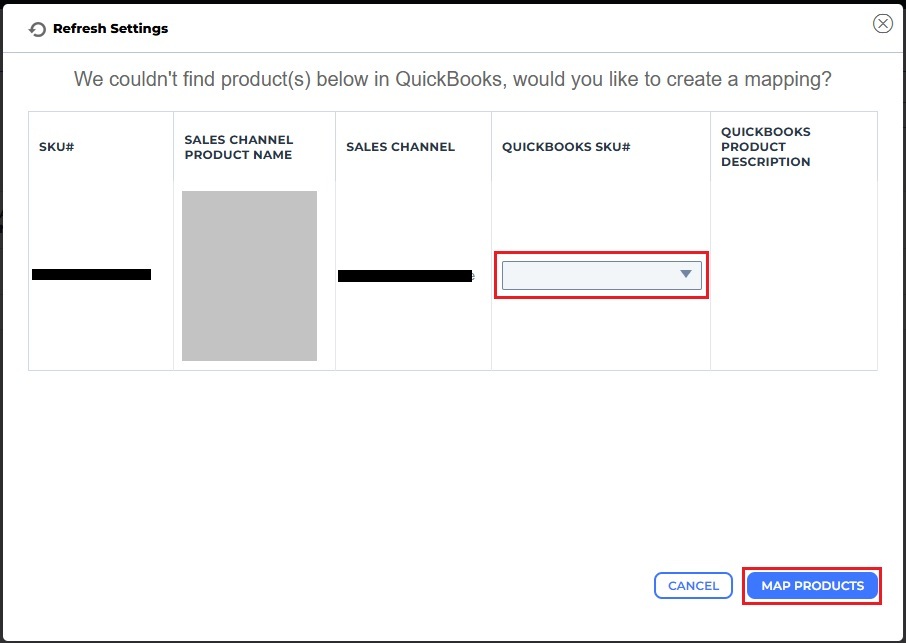
Map each unmapped product to its QuickBooks SKU, then click Map Products
Step 4: Order posts automatically
Once the mapping is saved, Webgility Online posts the order to QuickBooks right away — no need to post it again.
Note: Method 2 is the faster option if you just want the order posted now — you map the product without ever leaving the Orders page. Method 1 is useful if you'd rather review the Product Catalog first.
Mapping the product resolves the flag for good — not just for this order, but for every future order containing that same product, since the mapping is saved to your Product Catalog. That means fewer flagged orders and a higher rate of successful syncs going forward.
Frequently Asked QuestionsCan I ignore this flag instead of mapping the product?
Yes. On the flag popup, click Ignore Order if the order was placed in error and doesn't need to sync to QuickBooks.
Which method should I use — Method 1 or Method 2?
Either resolves the flag. Method 1 sends you to the Product Catalog to map the item before posting. Method 2 lets you post the order and map the product inline, in one flow, without leaving the Orders page.
What if an order has more than one unmapped product?
The Refresh Settings window lists every unmapped product in the order as its own row. Select a QuickBooks SKU for each row, then click Map Products — all of them are mapped in one step.
I mapped the product, but the order still shows in the Flags tab. Why?
This is usually a brief delay in refreshing order data. You can post the order directly from the Flags tab, or wait a few moments for it to move to New Orders automatically.
Will I need to map the same product again on future orders?
No. Once a product is mapped to a QuickBooks item, Webgility Online remembers the mapping, so future orders containing that product won't trigger this flag again.