
Overview
If Amazon invoices remain open in QuickBooks after an Amazon settlement has been imported and posted through Webgility Desktop, the issue may be caused by importing a settlement file in the older Flat V1 format.
Webgility Desktop supports the Amazon Flat V2 settlement file format, which includes the payment details required to link settlement payments to invoices. When a Flat V1 file is imported, the settlement may import successfully, but the payment details needed to close the corresponding invoices may not be processed correctly.
Recommended solution: Download the settlement directly through Get Settlement in Webgility Desktop. This ensures that Webgility retrieves the settlement in the appropriate format from Amazon.
When Does This Apply?
Follow this guide if:
- You manually imported an Amazon settlement file into Webgility Desktop.
- The settlement was posted, but the corresponding Amazon invoices remain open in QuickBooks.
- The invoices show a pending or outstanding balance despite the settlement being processed.
- The imported settlement file was downloaded in the older Flat V1 format from Amazon Seller Central.
Why Does This Happen?
Amazon settlement files contain transaction and payment information used to reconcile orders and invoices.
The older Flat V1 format may not include the payment-side details Webgility requires to apply settlement payments to the corresponding invoices. As a result, the settlement import may complete without correctly applying the payments in QuickBooks, leaving invoices with outstanding balances.
Replacing the Flat V1 settlement with a correctly downloaded settlement or a Flat V2 file can help resolve this issue.
Resolution Steps
Step 1: Unsync the Existing Settlement
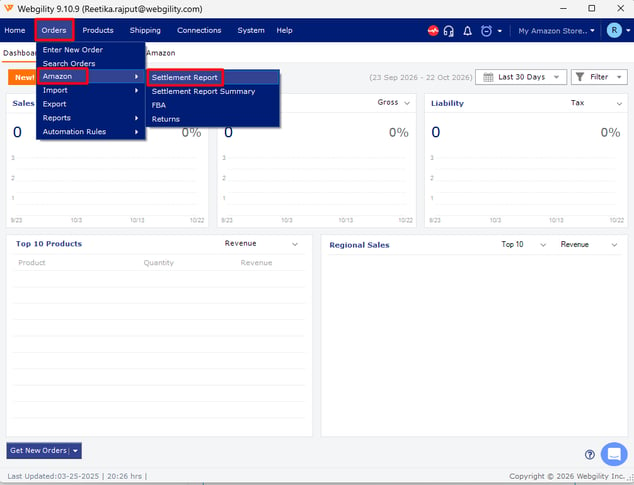
- In Webgility Desktop, navigate to Orders > Amazon > Settlement Reports.
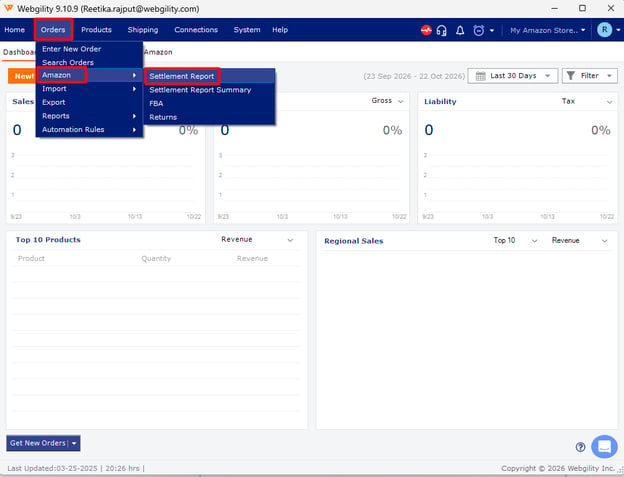
- Locate the Amazon settlement that was imported using the Flat V1 file.
- Select the settlement and use the available Undo Partially Posted option to clear the existing invoice-payment association.
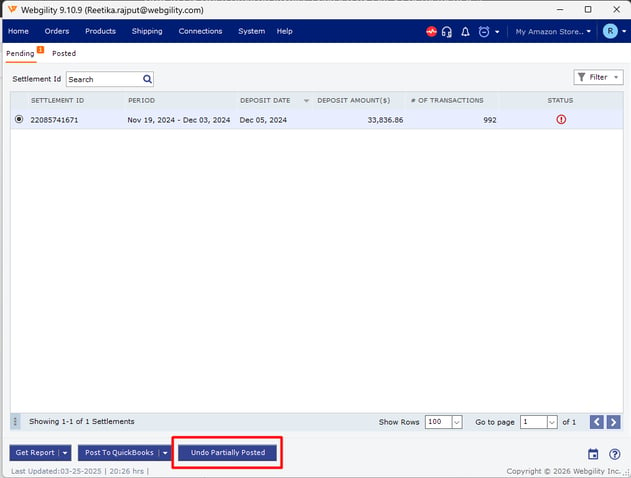
Note: Verify that you have selected the correct settlement before proceeding.
Step 2: Delete the Flat V1 Settlement
- In the Settlement tab, locate the same settlement.
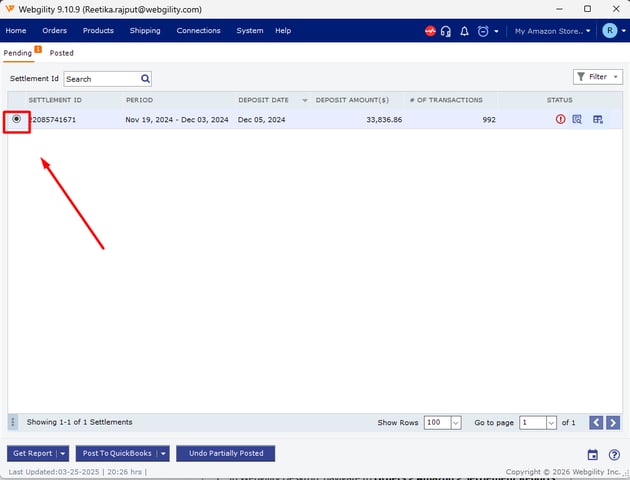
- Delete the imported settlement from Webgility Desktop.
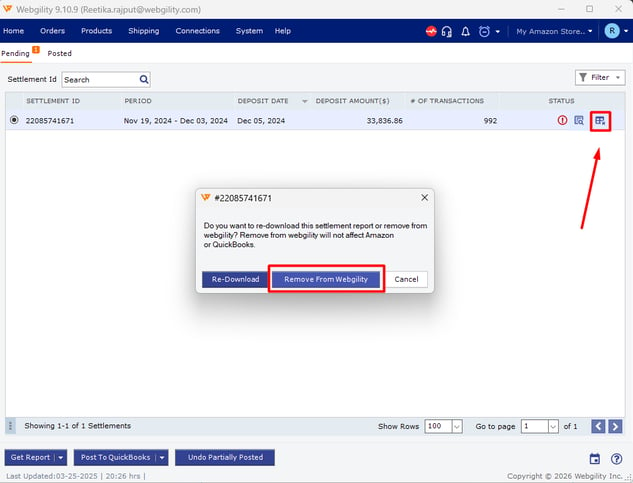
- Confirm that the Flat V1 settlement is no longer being used for reconciliation.
Ensure that you have identified the correct settlement before deleting it. If the settlement has already been posted to QuickBooks, review the posting history and any existing accounting entries before proceeding to avoid duplicate or inconsistent transactions.
Step 3: Download the Settlement Using Get Settlement
- In Webgility Desktop, navigate to Orders > Amazon > Settlement Reports.
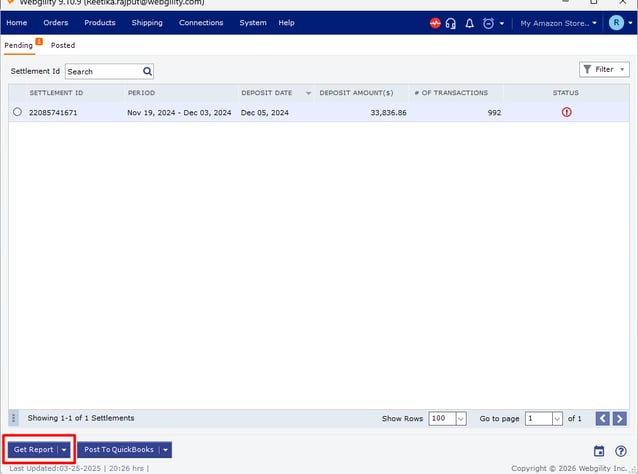
- Use the Get Report option.
- Enter or select the relevant Settlement ID or date range for the settlement that was removed.
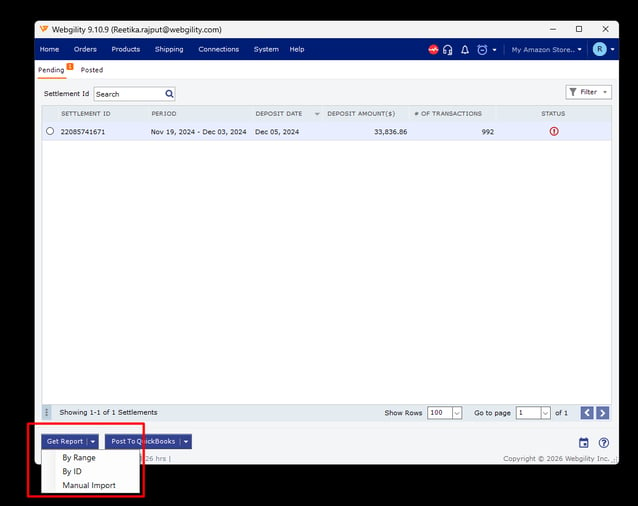
- Download the settlement directly through Webgility.
This is the recommended method because Webgility retrieves the settlement directly from Amazon in the appropriate format, avoiding issues caused by manually importing an older file.
For additional guidance, refer to the article Download and Post Amazon Settlement Reports with Webgility Desktop
Step 4: Post the Settlement and Verify the Invoices
- Open the newly downloaded settlement in Webgility Desktop.
- Review the settlement details and proceed with posting.
- Open QuickBooks and locate the Amazon invoices associated with the settlement.
- Verify that the settlement payments have been applied to the correct invoices.
- Confirm that the invoices show a zero balance if they have been fully paid.
If the invoices remain open, review the settlement posting routes and clearing account configuration. Refer to Set Up Amazon Clearing Accounts for Webgility Desktop Settlement Posting for additional guidance.
Step 5: Use Flat V2 for Future Manual Imports
If you need to import a settlement file manually:
- Sign in to Amazon Seller Central.
- Navigate to the relevant settlement report.
- Export or download the settlement using the Flat V2 format.
- Import the Flat V2 file into Webgility Desktop.
- Post the settlement and verify that the corresponding invoice payments are applied in QuickBooks.
Avoid using the older Flat V1 format for manual settlement imports.
Best Practice
Always use Get Report in Webgility Desktop whenever possible. Direct downloads reduce the risk of file-format mismatches and help ensure that the payment details required for settlement reconciliation are available.
Use manual settlement imports only when necessary, and ensure that the file is in Flat V2 format.
Note: If an invoice remains open because the settlement report does not include the full payment, wait for Amazon to include the remaining payment in an upcoming settlement report. Once the payment is received in the settlement report, Webgility Desktop will post the payment against the corresponding order and mark the invoice as paid, provided the full payment has been received and processed successfully.