
Overview
When setting up a new sales channel profile using settings copied from an existing profile, charges may appear more than once in QuickBooks. Refreshing the QuickBooks data and redownloading affected orders can help resolve this issue.
Steps to Resolve Duplicate ChargesStep 1: Verify Posting Settings
Compare the new profile's Posting Settings with the existing working profile. Confirm that the mapped accounts, items, and clearing accounts are correct.
Step 2: Refresh QuickBooks Data
- In Webgility Desktop, go to Connections > Get Latest Data & Settings.
- Under the QuickBooks section, select the option to download the latest data.
- Wait for the download to finish.
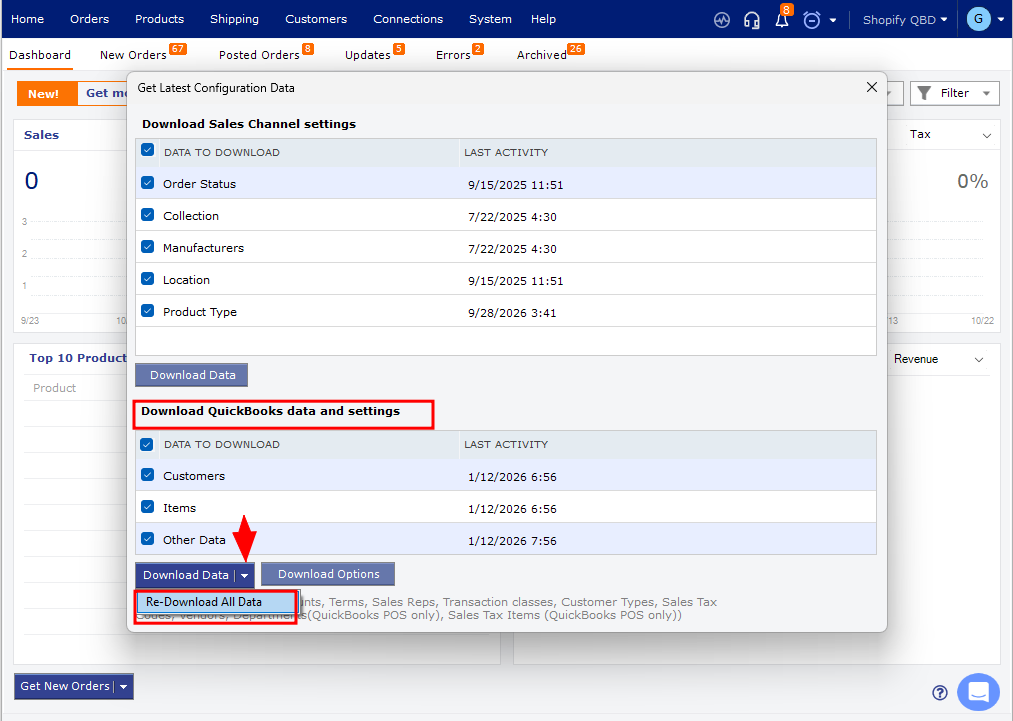
For detailed instructions, see How to Download the Latest Accounting Data from Scratch – Webgility Desktop.
Step 3: Redownload Affected Orders
Open the new sales channel profile, select the affected orders that have not been successfully posted, and click Re-download.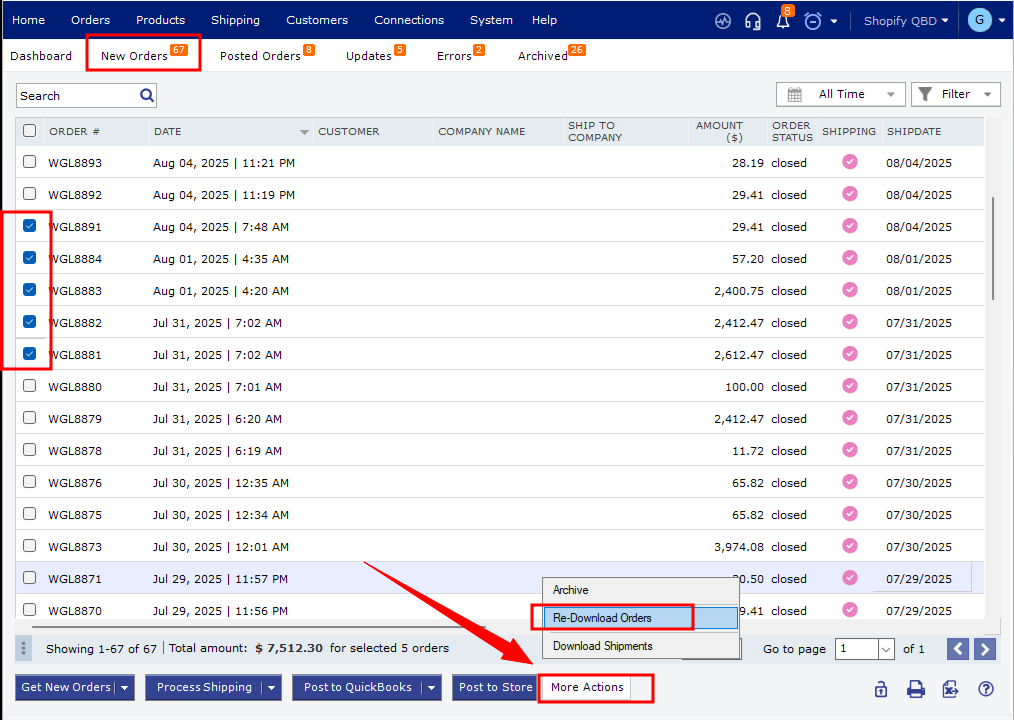
Important: Do not redownload orders that have already been posted correctly. First Unsync then and then redownoad them.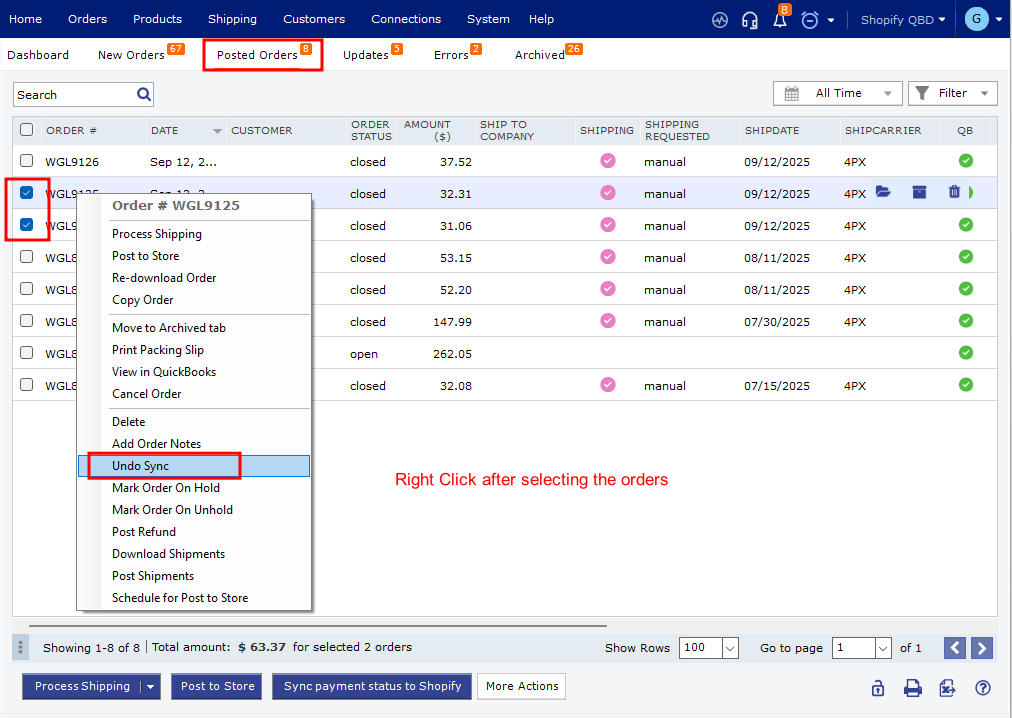
Step 4: Verify the Results
- Post one affected order to QuickBooks.
- Open the transaction in QuickBooks and confirm that each charge appears only once.
- If the transaction is correct, proceed with the remaining affected orders.
If duplicate charges continue to appear, contact Webgility Support with the affected order ID, sales channel profile name, and QuickBooks transaction details.
Best Practice
Refresh QuickBooks data before posting orders through a newly created sales channel profile, especially when its Posting Settings are copied from an existing profile.