
When Does This Apply?
Use this guide if:
- Your Webgility Online order count is higher than Shopify's report for the same date range.
- You see a large batch of orders created within a short period.
- The orders contain legacy order numbers, such as those with a CAN# prefix.
- You suspect a third-party app, such as Matrixify, imported historical orders into Shopify.
Why Does This Happen?
Third-party apps can create large batches of orders in Shopify when importing historical data. Webgility Online may download these orders alongside regular customer purchases, increasing the order count and sales totals displayed in Webgility Online.
These orders may not be duplicates; they may be records created by the import process and stored in Shopify.
Steps to disable orders from downloading from specific sources and Third-Party Apps
-
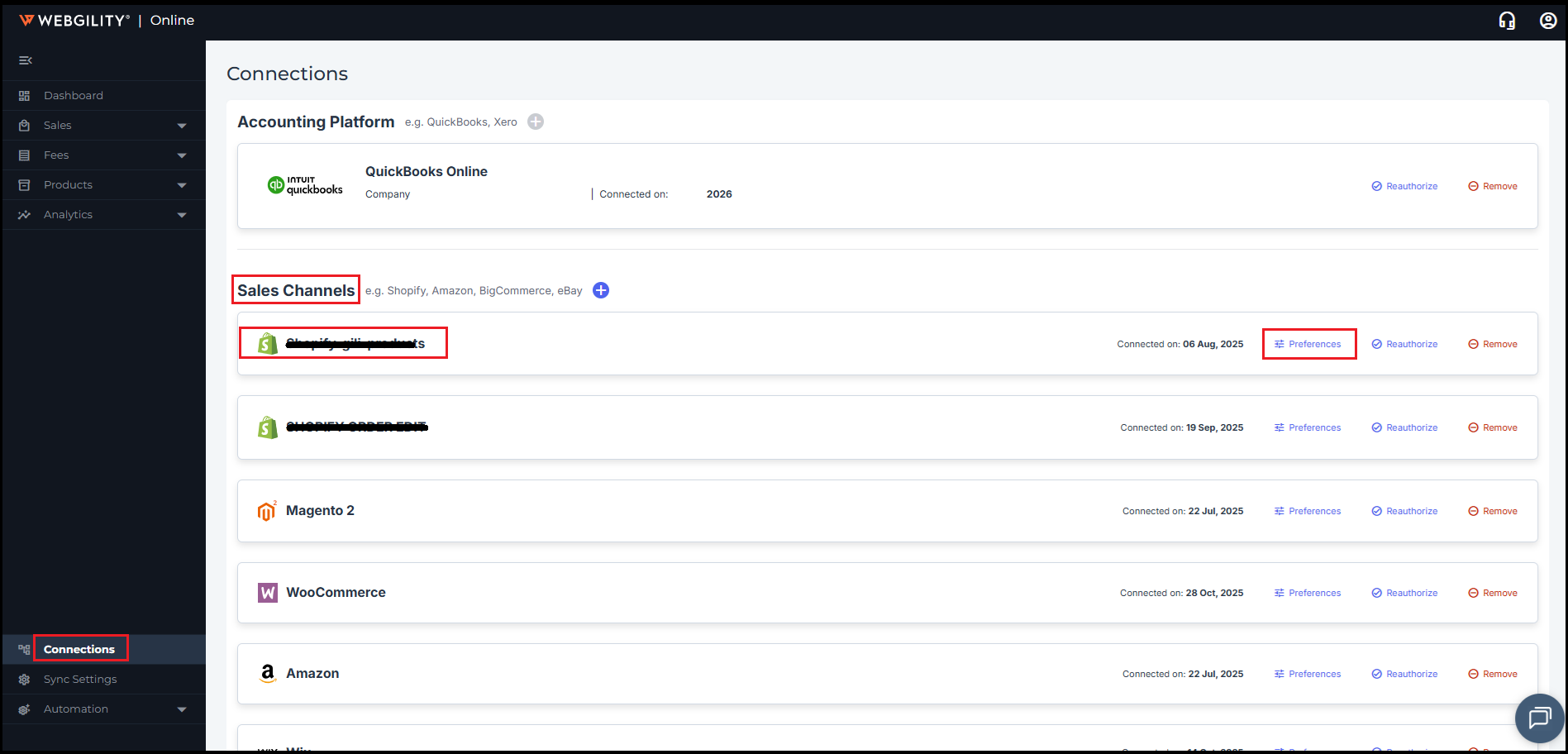
Log in to Webgility Online and navigate to Connections > Sales Channels > look for your Shopify channel and click on Preferences
-
Under Preferences goto Order Settings > Order Source Settings.
-
Under Shopify Sources, locate the channel responsible for the imported orders, and uncheck it.
-
Check the 3rd Party Channels list in the same section.
-
Review each entry carefully before changing its selection, especially if it may include legitimate orders you want to retain.
-
Click Save to apply the updated source settings.
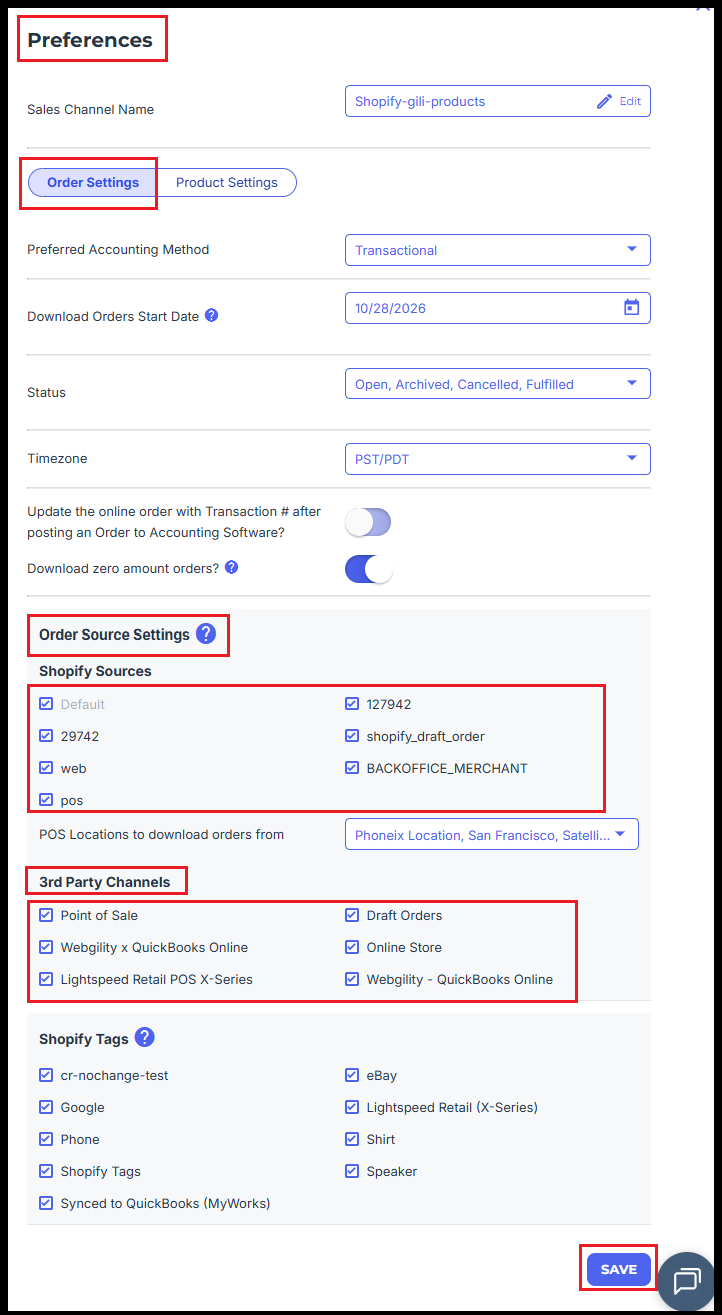
These settings determine which order sources are displayed in Webgility Online. Depending on the configured behavior, saving may also update the visibility of orders already downloaded.
Verify the Order Grid
Return to the Sales > Orders tab and confirm that the unwanted batch is no longer displayed.
Handle Any Legitimate Orders
Note: Excluding a source may hide all orders associated with that source, including legitimate sales. Before making this change, review whether the source contains orders outside the bulk-import batch.
If you need to retain specific orders, review the available options:
- Ignore and restore orders in Webgility Online to keep orders in Webgility Online without posting them, where applicable.
- Delete orders from Webgility Online if you have confirmed that the records should be removed.
Review the impact before deleting orders, particularly if they have already been posted to QuickBooks.