
Overview
If product prices or inventory quantities are not updating on your sales channel, the Scheduler may not be configured to sync product information. Enable product synchronization in the Scheduler settings to automate these updates between QuickBooks and your sales channel.
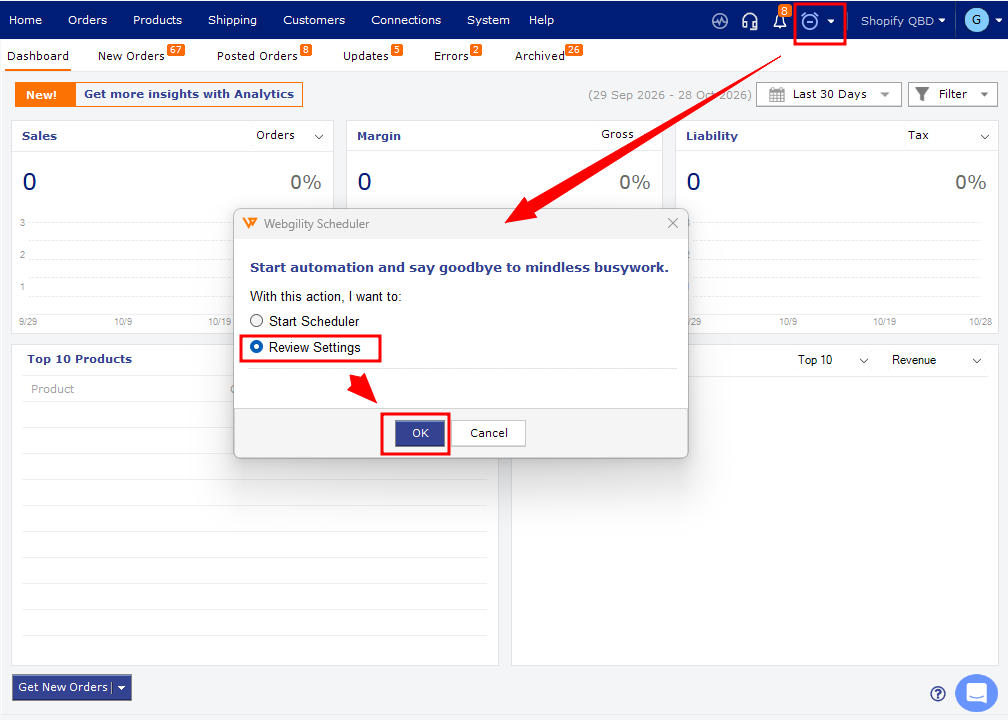
Steps to Enable Product Sync- Open Webgility Desktop and click the Scheduler icon next to the sales channel dropdown.
- Select Review Settings.
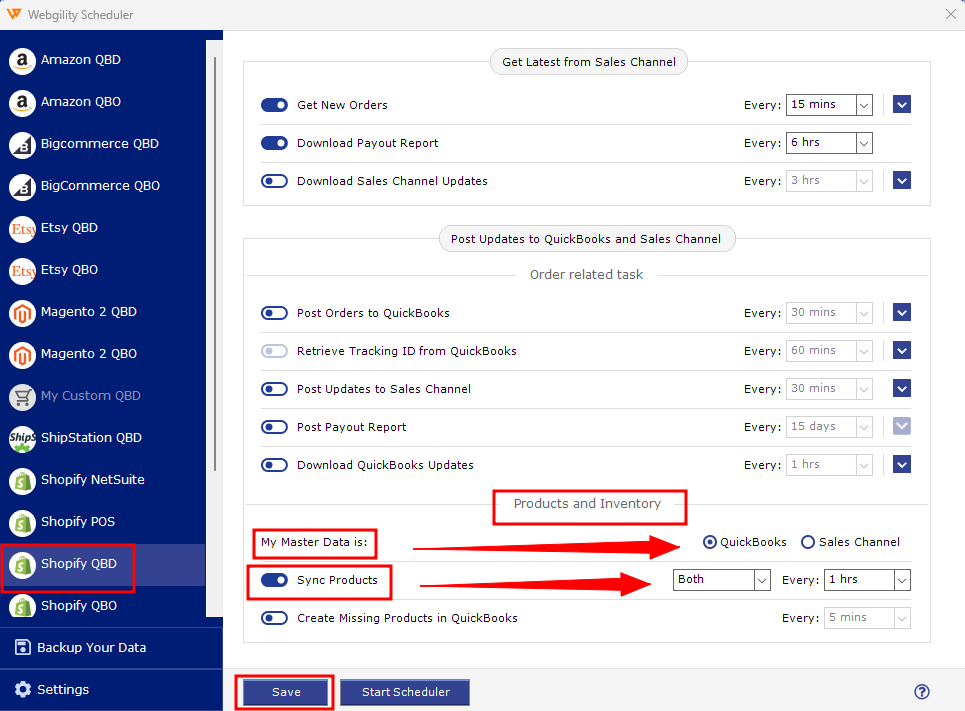
- Select the required sales channel from the left panel.
- Open Products and Inventory and enable Sync Product.
- Select the required sync options: Price, Quantity, or both.
- Choose the correct master data source (QuickBooks or your sales channel) and set the sync frequency.
- Click Save, then start the Scheduler.
Note: Ensure the Scheduler is running and the products are correctly matched between QuickBooks and your sales channel.
For detailed instructions, see Scheduler Settings Overview and How to Sync Products with Webgility Desktop.
If you have any questions or need more help, please contact our support team.