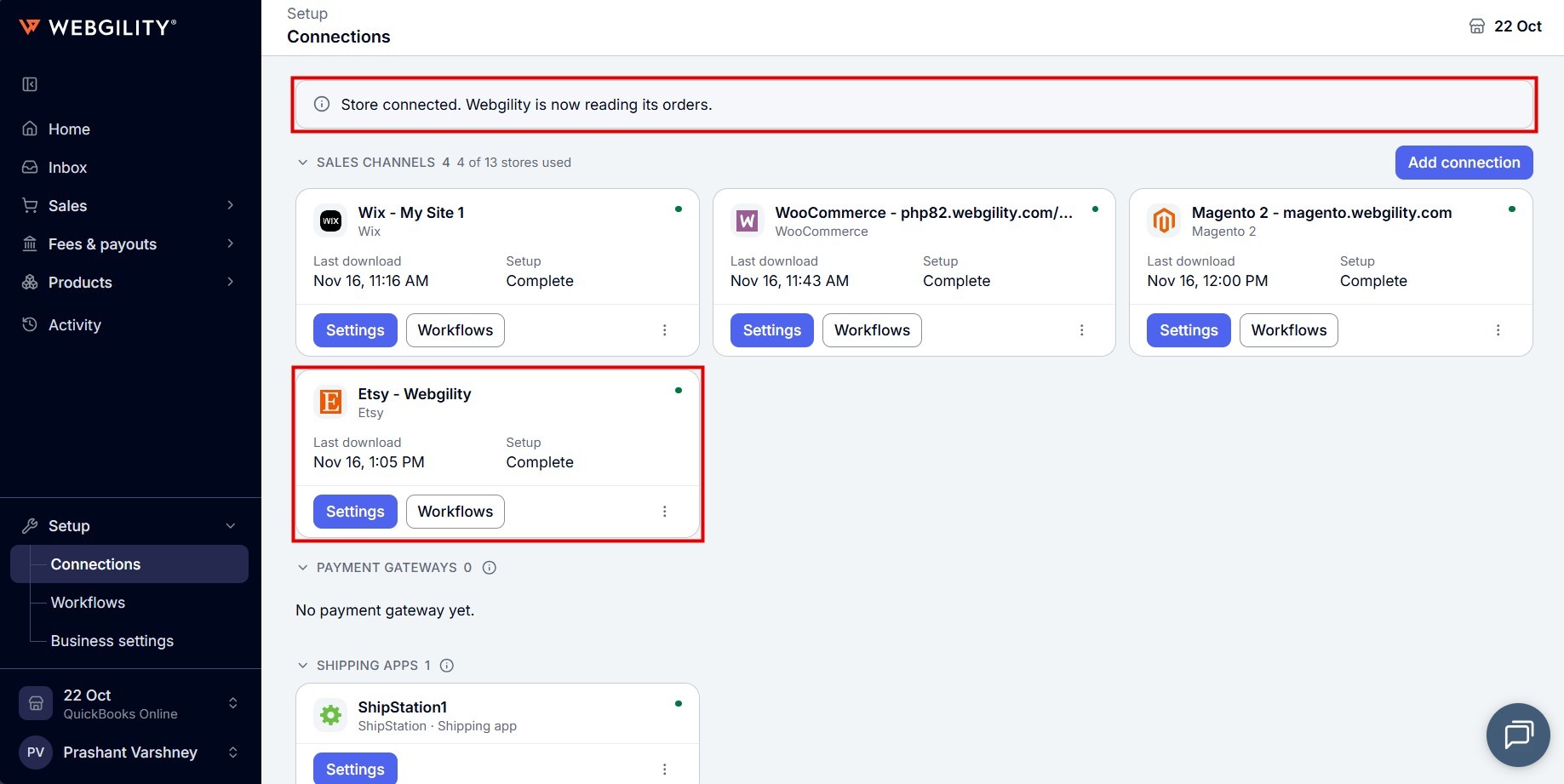
You sign in to Etsy and approve access for Webgility. Once the shop is connected, Webgility i reads its orders and products, so that you can post them to QuickBooks Online.
Note: If Etsy is your first sales channel, you can also connect it from the Welcome to Webgility page when you first sign in. The steps are the same. See How to Connect Your Sales Channel to Webgility i.
Steps
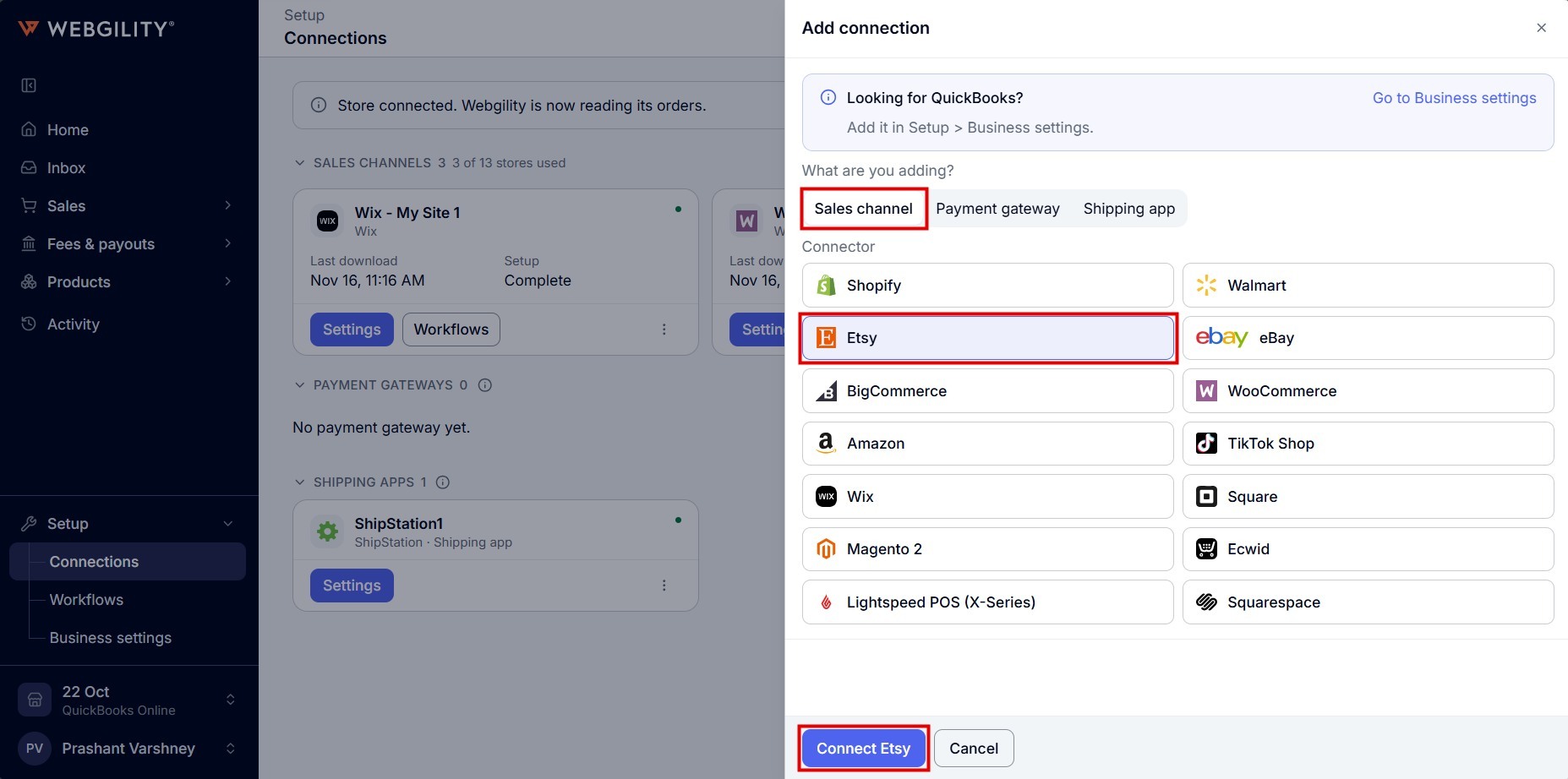
- Sign in to Webgility i, go to Setup > Connections and click Add connection. The Add connection panel opens on the right.
- Under What are you adding?, leave Sales channel selected. Under Connector, click Etsy. Etsy asks for no details here.
- Click Connect Etsy.
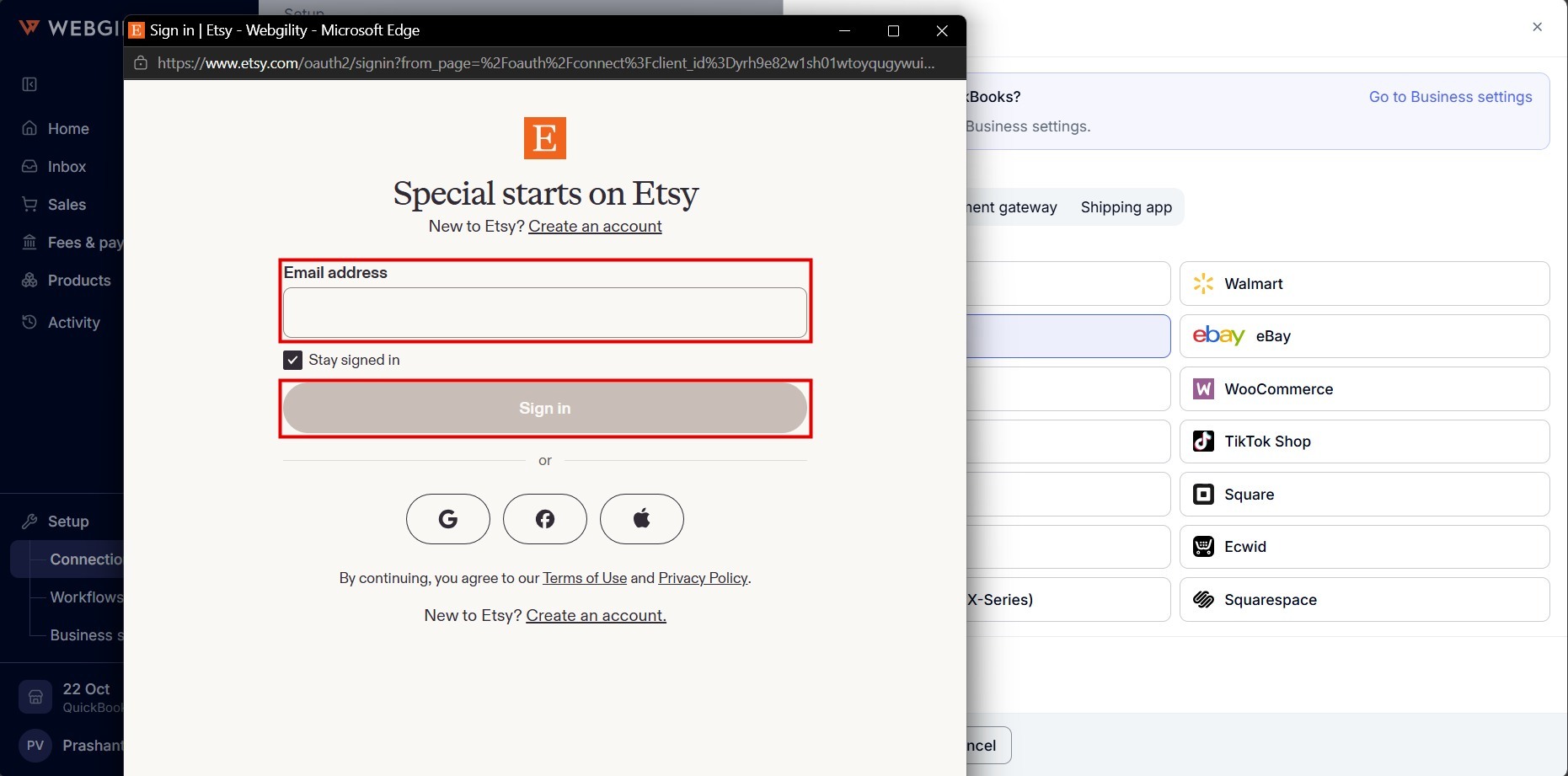
- An Etsy window opens. Enter the email address of your Etsy account and click Sign in, or sign in with Google, Facebook or Apple. If your browser blocks pop-up windows, Etsy opens in the same tab instead. Webgility i never sees your Etsy password.
- Etsy asks you to approve access for Webgility. Approve it. Etsy then brings you back to Webgility i.
- Wait while Webgility i checks the shop and saves the connection. Keep the page open.
- When the connection is complete, the Connections page shows "Store connected. Webgility is now reading its orders." The shop appears under Sales channels as Etsy followed by the name of your shop, for example Etsy - Webgility.