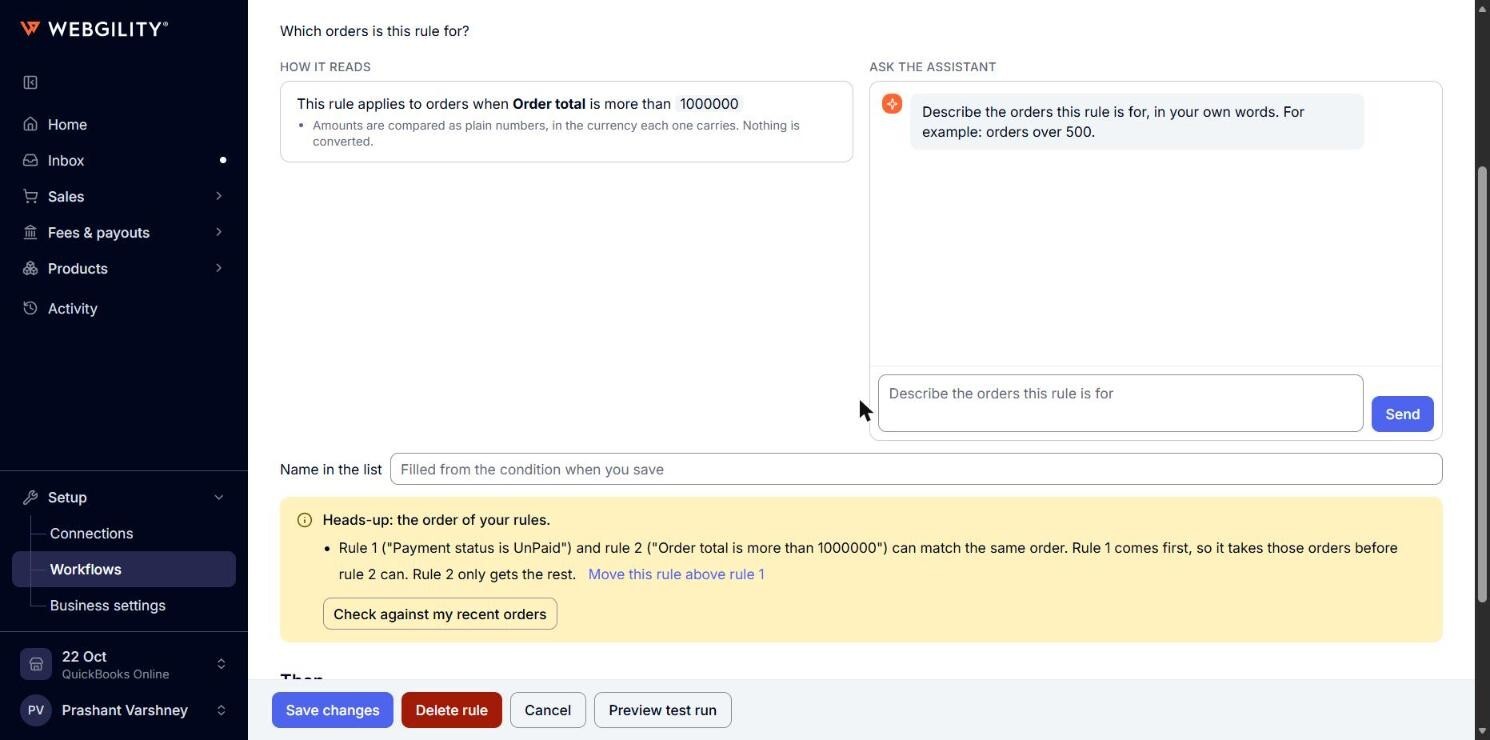
Part of How to Change the Priority (Rank) of Your Rules in Webgility i.
Heads-up about the order of your rules
When the order of your rules affects a rule, its row on the Workflows page shows Heads-up, and its screen shows Heads-up: the order of your rules. under When. The note says which rule comes first and which orders it takes.
- Move this rule above rule 1 (or below, with the other rule's rank): puts this rule at the other rule's place. Click Save changes to keep it. This button does not show when moving the rule would not help. The note then says what to change instead.
- Create a rule for the orders both match: offered when two rules overlap.
- Check against my recent orders: counts how many of your recent orders the two rules both match.
A heads-up never blocks Save. Two rules that match the same order is how you write an exception above a general rule.