
Overview
When Webgility posts an order with a build assembly, QuickBooks checks whether the required components were available on the order date. If inventory was short on that date, the assembly may not build—even if the components are in stock now.
Steps- Review the posting message. In Webgility Desktop, open Orders > Errors, select the order, and check its History tab. See how to review order posting errors.
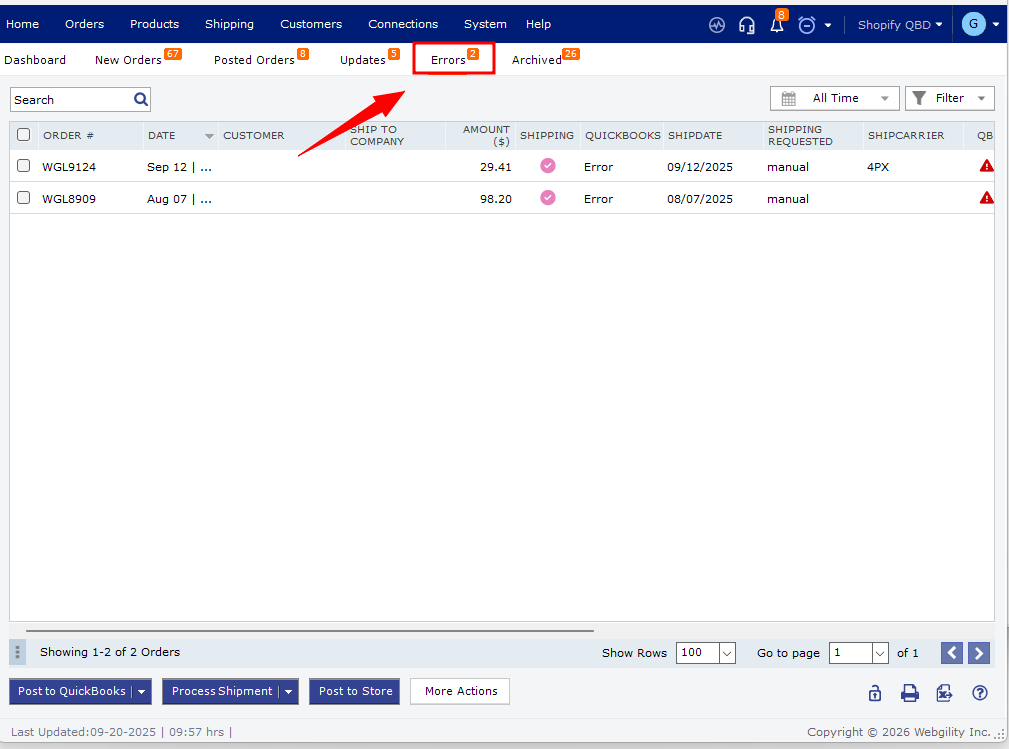
- Update inventory history in QuickBooks. Check the required component quantities as of the order date. If there wasn’t enough inventory, adjust the quantity with an adjustment date before the order date. Follow the QuickBooks inventory error instructions. If you’re unsure how an adjustment affects your records, consult your accounting professional.
- Repost and verify. Return to the Errors tab and post the order to QuickBooks again. Confirm that the assembly and its component quantities appear correctly. For details about assembly posting, see Assembly Items and Group Items FAQs.
If you have any questions or need more help, please contact our support team.