
When posting an Amazon settlement report in Webgility, the process fails partway through — typically around step 9 of 10 — and returns error codes for a list of specific orders. The settlement cannot be fully posted until these errors are resolved.
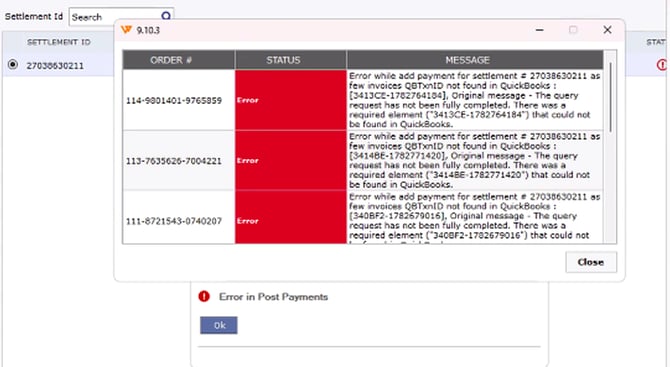
Error Message: Error while add payment for settlement = 27038630211 as few invoices QBTxnID not found in QuickBooks: [3413CE-1782764184], Original message - The query request has not been fully completed. There was a required element ('3413CE-1782764184') that could not be found in QuickBooks.
Symptoms
- The settlement posting process stops before completion and displays error codes for one or more orders- "Error while add payment for settlement# as few invoices QBTxnID not found in QuickBooks, The query request has not been fully completed. There was a required element that could not be found in QuickBooks."
- Attempting to unpost and repost the settlement does not resolve the issue — the same error recurs.
- Checking the order history in Webgility shows that the affected invoices were previously posted successfully to QuickBooks.
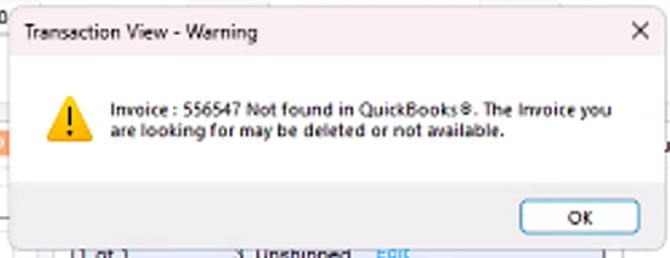
- Opening any of the affected invoices directly in QuickBooks returns a message similar to:
"Invoice [number] not found in QuickBooks. The invoice you are looking for may be deleted or not available."
- Searching for the invoice number in QuickBooks (Edit > Find) returns "No matching transactions were found."
Root Cause
The invoices associated with the failing orders no longer exist in QuickBooks, even though Webgility's records show they were successfully posted at an earlier point. This can happen for reasons such as:
- The invoice was manually deleted or voided in QuickBooks (for example, after an order was canceled).
- A sync glitch caused the invoice to be removed from QuickBooks after it was originally posted.
Because Webgility still references these now-deleted invoices when trying to apply the settlement payout, the posting process fails when it cannot locate a matching invoice in QuickBooks.
Resolution Steps
- Identify the affected orders. In Webgility, review the settlement error details and note the order/invoice numbers that failed to post.
- Confirm the invoices are missing in QuickBooks.
- In Webgility, open the order and note its invoice number(as the order was posted earlier, it may be found in Posted Order or Archived Tab).
- In QuickBooks, go to Edit > Find, and search by that invoice number.
- If QuickBooks returns "No matching transactions were found" (or a "deleted or not available" message when opening it directly), the invoice has been deleted or no longer exists.
- Re-download and re-post the affected orders. For each order confirmed missing from QuickBooks:
- Re-download the order in Webgility. For instructions related to redownloading order in Webgility, refer to this article.
- Post it again to QuickBooks so a new, valid invoice is created.
- Repeat this for every order listed in the settlement error.
- Re-run the settlement posting. Once all affected orders have valid invoices in QuickBooks again, go back into Webgility(Orders > Amazon > Settlement report) and continue/re-post the settlement. It should now complete successfully.
- Verify completion. Confirm the settlement status in Webgility shows as posted, with no remaining errors.
Additional Notes
- If an order was legitimately canceled and voided in QuickBooks, re-downloading and posting it will recreate the invoice needed for the settlement to reconcile against — this does not "un-cancel" the order in your storefront, it only restores the QuickBooks record Webgility needs.
- If this same type of error occurs again in the future, the same unsync/re-download/re-post steps can typically be used to resolve it.
- If you're unsure whether an error is the same type, or if re-posting doesn't resolve it, contact Webgility Support at support@webgility.com with the order/invoice numbers and error codes before making changes in QuickBooks.