
This article walks you through regenerating the Webgility integrated-application certificate in QuickBooks Desktop after an expired QuickBooks admin password has blocked the Webgility Scheduler from posting orders.
When This AppliesYou are in the right place if the Webgility Scheduler stops posting orders to QuickBooks in the background and the Scheduler log shows a permissions or certificate error, especially around the time your QuickBooks admin password was due for its periodic change.
Why This HappensWhen QuickBooks Desktop forces an admin-password change, the Webgility certificate stored inside QuickBooks's Integrated Applications list is tied to the previous password and is quietly invalidated. The Scheduler can still open QuickBooks, but any order that needs admin-level posting rights is rejected until the certificate is reissued.
Important Note: "Steps 1 and 2 are completed inside QuickBooks Desktop by a user who knows the current admin password, and Step 3 is run in Webgility Desktop on the same computer with QuickBooks open."
Steps to Reissue the Webgility Certificate
Step 1: Open QuickBooks Desktop, sign in as the Admin user with the new password, then open your company file in single-user mode.
Step 2: In QuickBooks, open the Edit menu, choose Preferences, pick Integrated Applications, open the Company Preferences tab, select the Webgility entry in the application list, and click Remove.
Step 3: Switch to Webgility Desktop, go to Connections > Accounting/POS/ERP, click Edit Connection on the QuickBooks row, and run a test connection so QuickBooks shows the certificate re-approval prompt.
Step 4: In the QuickBooks pop-up, select Yes, always; allow access even if QuickBooks is not running, confirm the admin login when prompted, and complete the authorization.
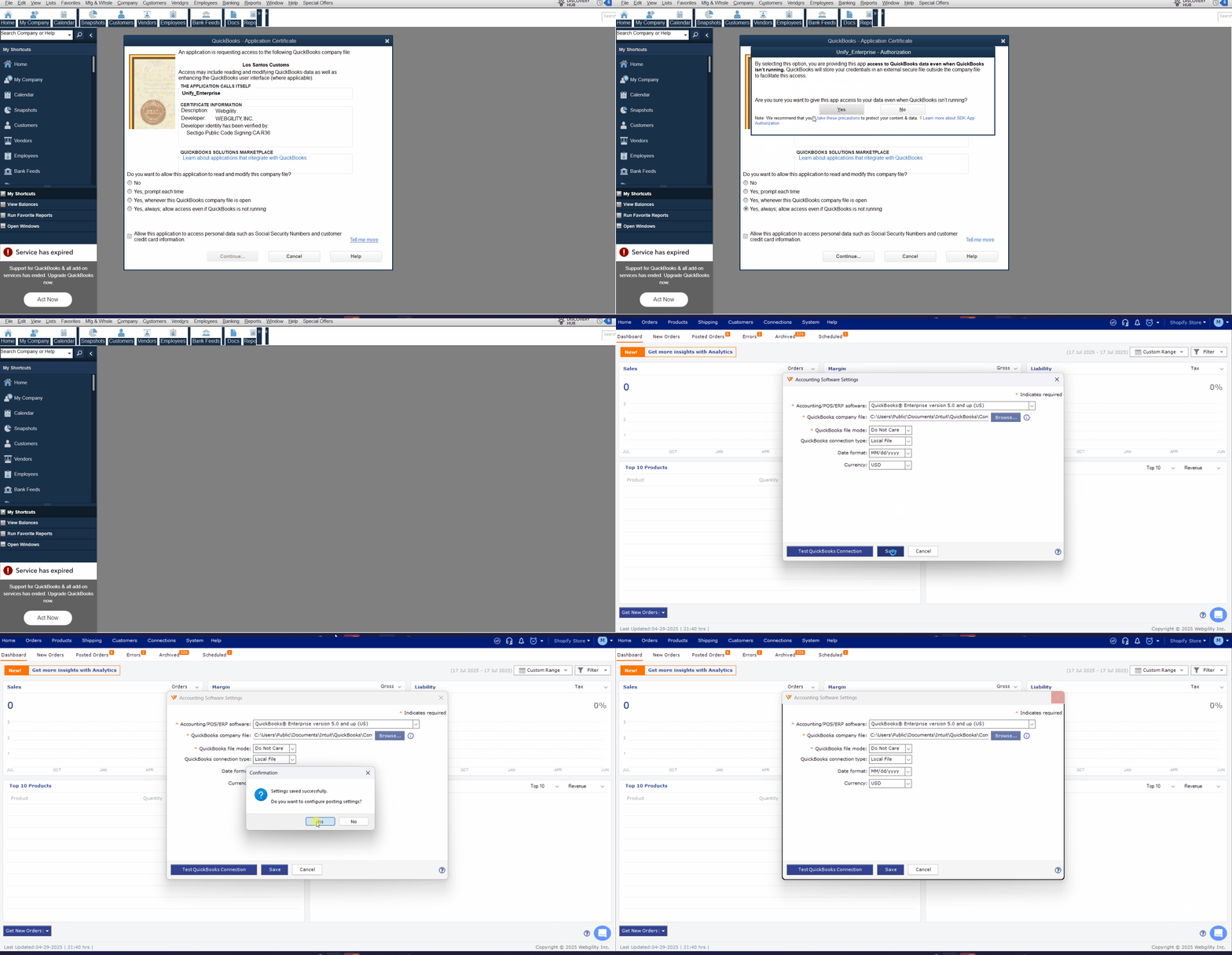
Step 5: Back in Webgility, restart the Scheduler and watch the next scheduled cycle; order posting resumes and the quantity-out-of-sync and price-out-of-sync counts begin to drop.
Key RecommendationWhenever your QuickBooks admin password is scheduled to change, plan a short follow-up on the same day to rerun Steps 2 to 4. Reissuing the Webgility certificate ahead of the Scheduler's next posting cycle keeps orders flowing instead of piling up in the error tab.
Additional SupportIf order posting still fails after Step 5, write to support@webgility.com with the exact Scheduler log line, the subscriber ID, and a note confirming QuickBooks is open on the same computer so support can trace the authorization handshake end-to-end.