
Overview
In this scenario, Webgility Desktop successfully retrieves and posts the tracking ID, but the tracking information does not appear on the Shopify order.
This can happen when Shopify is configured to automatically fulfill orders. Shopify marks the order as fulfilled before Webgility Desktop posts the shipping and tracking information, preventing the tracking update from being added to the fulfillment.
Resolution
Step 1: Disable automatic order fulfillment in Shopify
In Shopify Admin:
- Go to Settings > General.
- Under Order processing, clear Automatically fulfill the order's line items.
- Click Save.
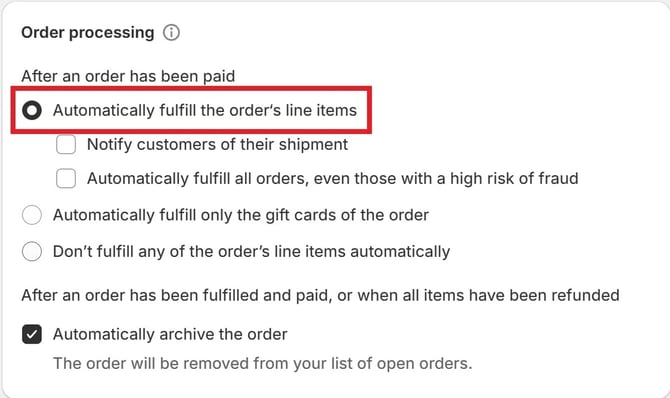
Shopify recommends manual fulfillment when orders need to be shipped and fulfilled manually.
Step 2: Post the tracking information from Webgility
After updating the Shopify setting, retrieve the tracking ID and post the order to Shopify from Webgility Desktop.
For detailed instructions, see How to Retrieve Tracking ID from QuickBooks and Post to Store.
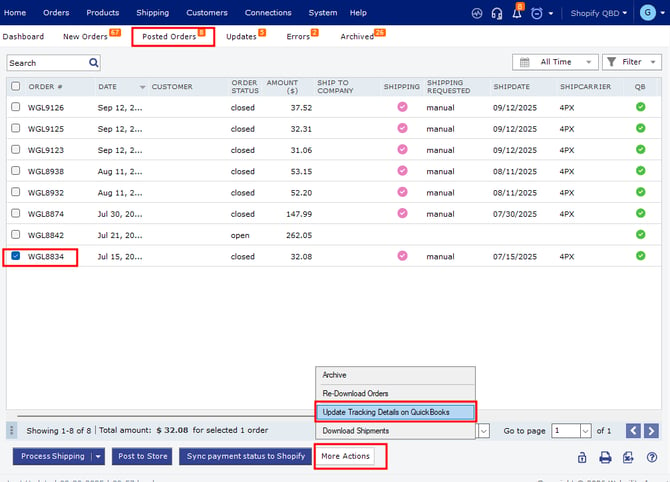
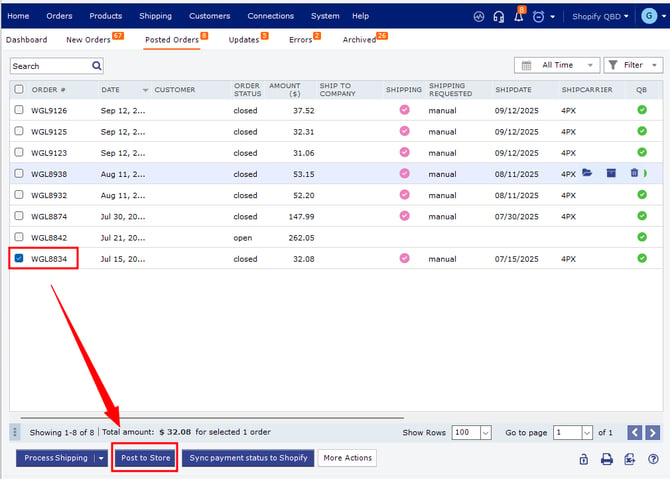
Note: You can also review How to Use and Configure the Post-to-Store Feature for information about posting shipping and tracking details to your sales channel.
Step 3: Verify the tracking information
Post a test order from Webgility Desktop and confirm that the tracking number and shipping information appear on the Shopify order.
Important NoteOrders that were already automatically fulfilled by Shopify may require the tracking information to be updated manually because changing the fulfillment setting does not change the fulfillment status of existing orders. Shopify's automatic fulfillment setting applies to new orders.
If you have any questions or need more help, please contact our support team.