
Overview
You click Post to QuickBooks and see an “Error when saving a Customer Element” message. Even if the name in the error is missing from your active customer list, QuickBooks may already use it for an inactive customer, vendor, employee, job, or contact.
-
Check for an Inactive Customer in QuickBooks Desktop
- Copy the exact customer name mentioned in the error message.
- Open QuickBooks Desktop and navigate to Customers → Customer Center.
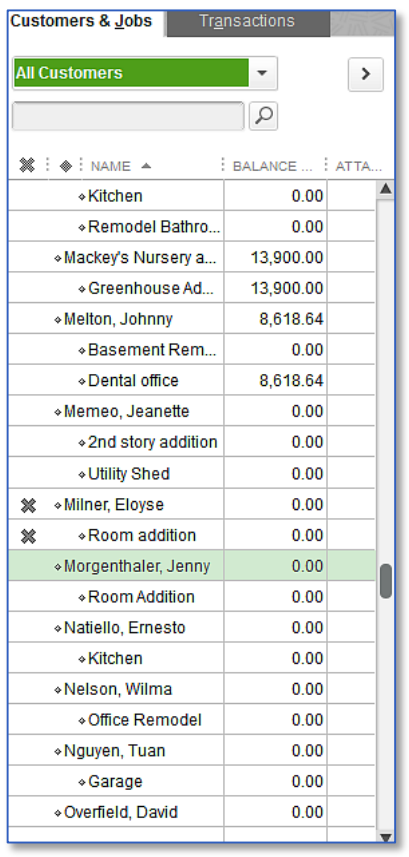
- From the View drop-down menu, select All Customers to display both active and inactive customers.
- Locate the customer using the name copied from the error message.
- If the customer is inactive, right-click the customer name and select Make Customer/Job Active to reactivate the customer.
-
Check Other QuickBooks Lists for Duplicate Names
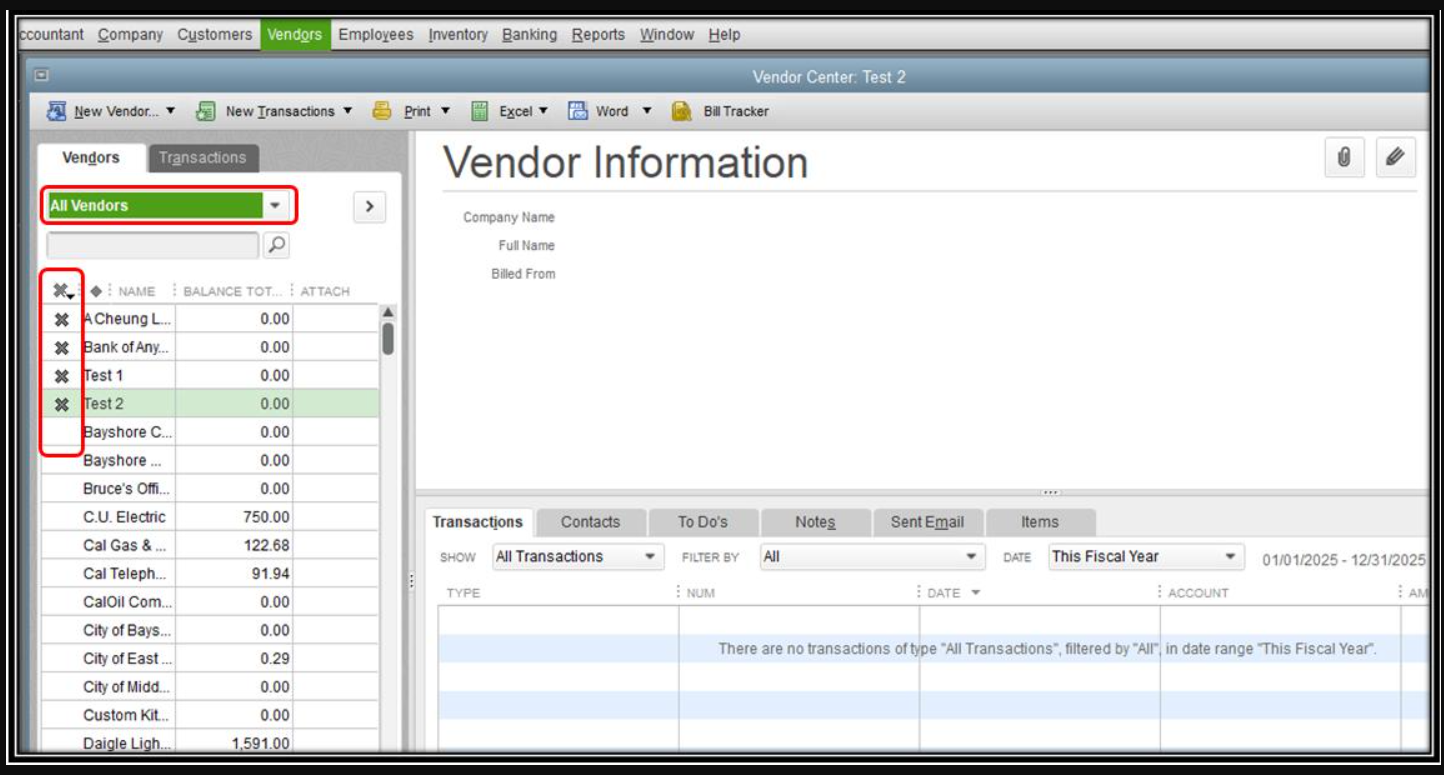
- If the name is not found in the Customer Center, navigate to Vendors → Vendor Center.
- Select All Vendors from the View drop-down menu to display both active and inactive vendors.
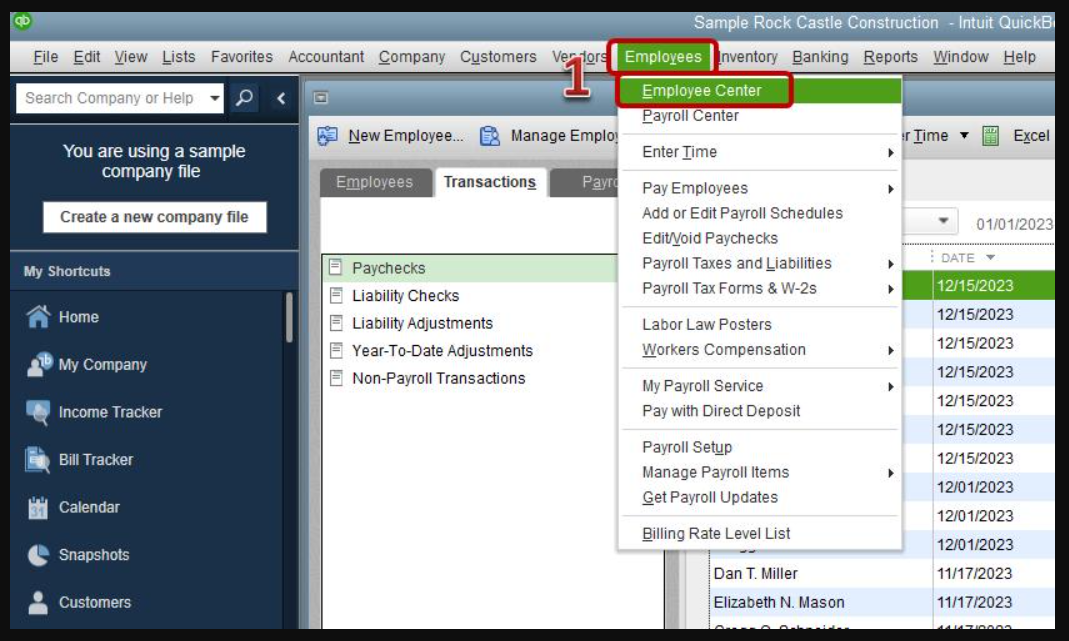
- Navigate to Employees → Employee Center and select All Employees to check for a matching name.
- Navigate to Customers → Customer Center and review the jobs and contacts associated with existing customer profiles.
- Navigate to Lists → Other Names List and check for any matching names.
- If you find a conflicting name, edit the record and add a descriptive suffix, such as (Vendor) or (Employee), to make the name unique.
- Click OK to save the changes.
- Refresh your data and retry the order. Follow Step 2 of the guide to download the latest accounting data from scratch. When the download finishes, reopen the affected order in Webgility Desktop and click Post to QuickBooks.
If you already posted the order under a temporary customer name, follow the Undo Sync guide, correct the customer name in QuickBooks, and post the order again.
If you have any questions or need more help, please contact our support team.