
Overview
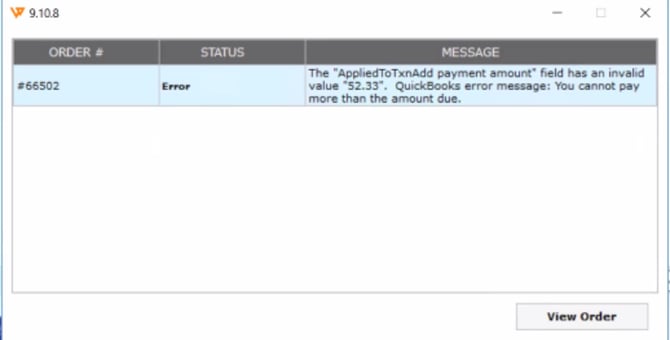
When posting a Shopify payout to QuickBooks Desktop through Webgility Desktop, you may see the following error:
“Applied To Txn Add payment amount field has an invalid value. You can’t pay more than the amount due.”
This error indicates that the payout amount does not match the amount available on one or more related QuickBooks transactions. As a result, the payout may not post correctly and can leave the clearing account out of balance.
 When This Applies
Use this process when a Shopify payout fails to post with the Applied To Txn Add error or when a related payout leaves the clearing account with an unexpected balance.
Steps to Resolve
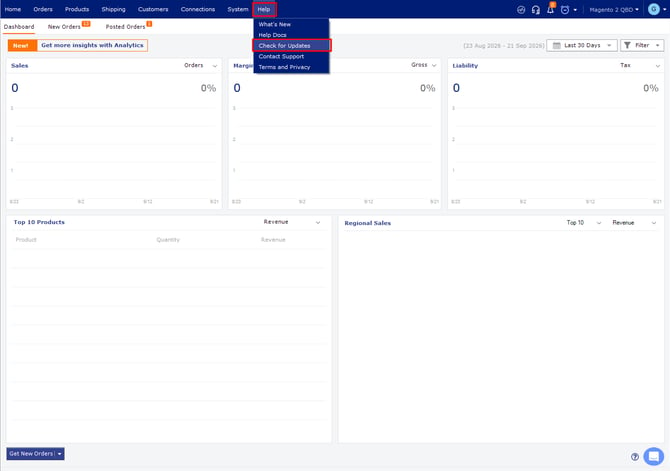
- Update Webgility DesktopOpen Webgility Desktop and go to Help > Check for Updates. Install the latest available version. For detailed instructions, see How to Update Your Webgility Desktop Software.
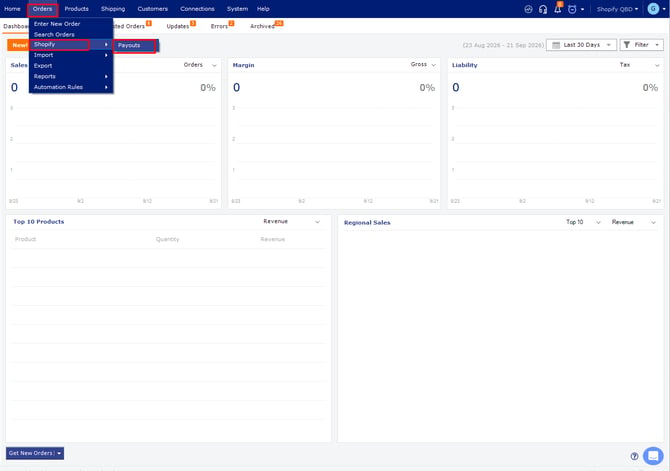
- Review the affected payout. Go to Orders > Shopify > Payouts and locate the payout that failed to post.
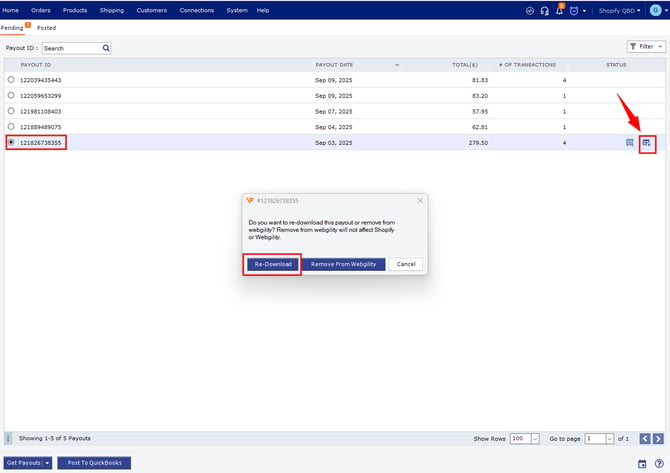
- Unpost and re-download the payoutIf the payout was partially posted, unpost it and re-download the payout to refresh its data.For detailed instructions, see How to re-download a Shopify payout report in Webgility Desktop.
- Repost the payout. After the payout is re-downloaded, post it to QuickBooks Desktop again.
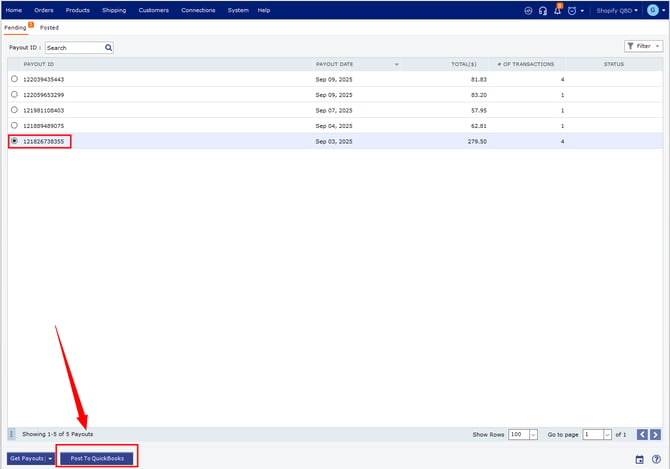
- Verify the clearing account. Check the related clearing account in QuickBooks Desktop and confirm that the payout has posted correctly and the expected balance has been restored.
If the Error Continues
If the same error appears after re-downloading and reposting the payout, review the underlying order for possible tax or item-level discrepancies. Please contact our support team.