
Overview
A Shopify payout may fail to post when Webgility Desktop cannot locate an invoice or sales receipt in QuickBooks. This can happen if a transaction was deleted, voided, or modified in QuickBooks.
Follow the steps below to restore the affected transactions and retry posting the payout.
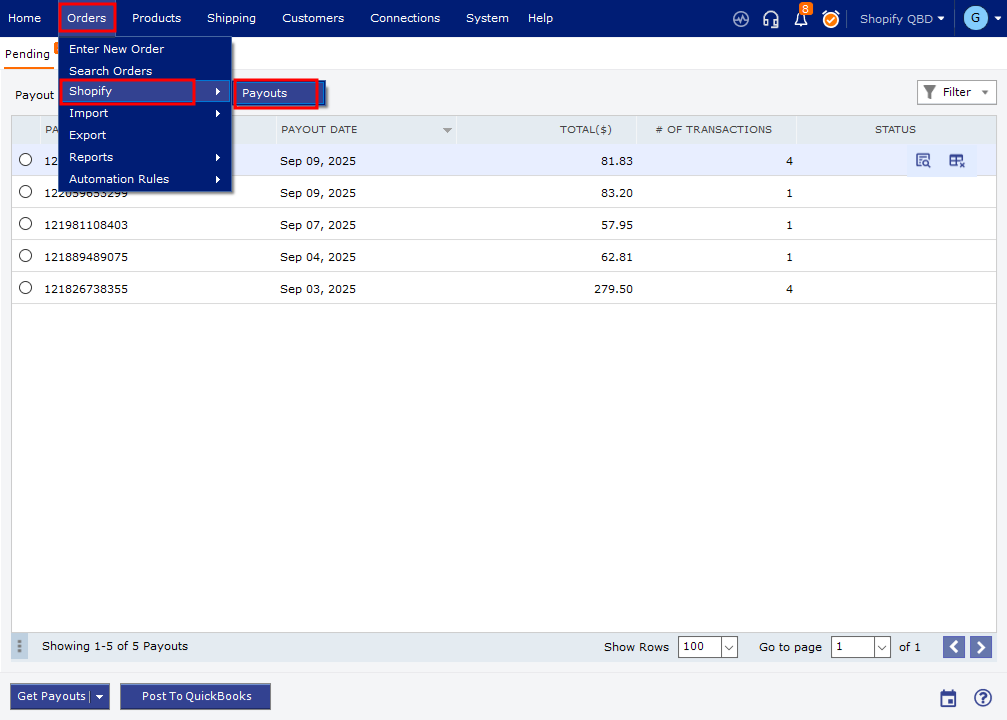
Steps to Resolve the Issue- Identify the affected orders. Open Webgility Desktop and navigate to Orders > Shopify > Payouts. Select the affected payout and note the order numbers listed in the error message.
- Unsync the affected orders. Go to Posted Orders, locate each order, and select Undo Sync or Unsync to return it to a state where it can be reposted. For detailed instructions, see How to Unsync and Repost an Order in Webgility Desktop.
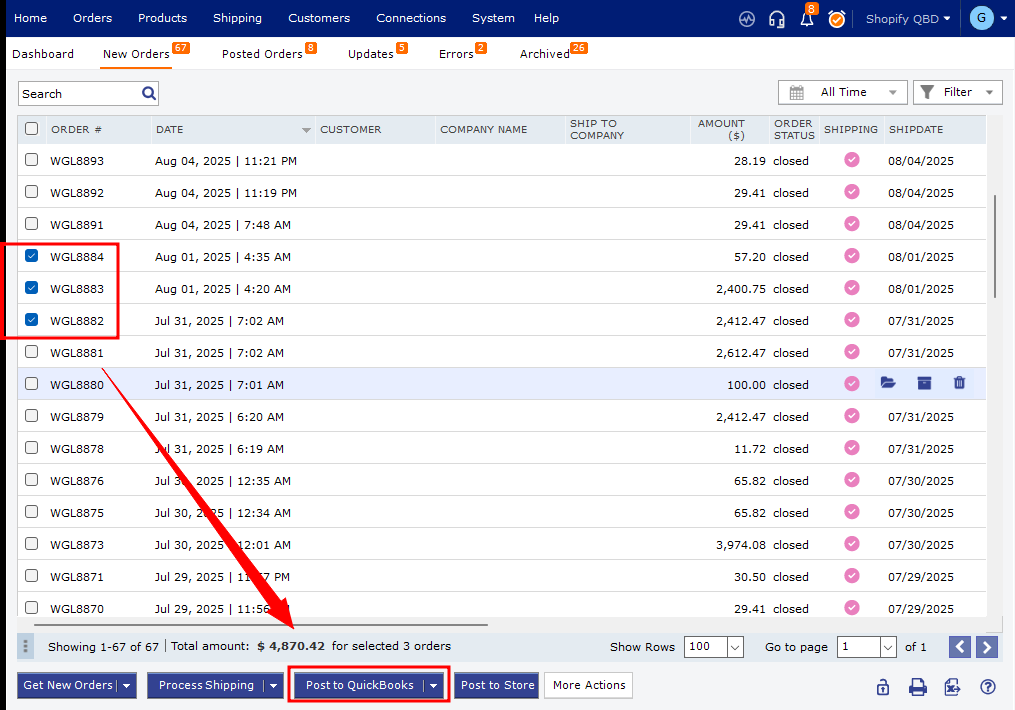
- Repost the orders. Select each affected order and post it to QuickBooks again to recreate the missing invoice or sales receipt.
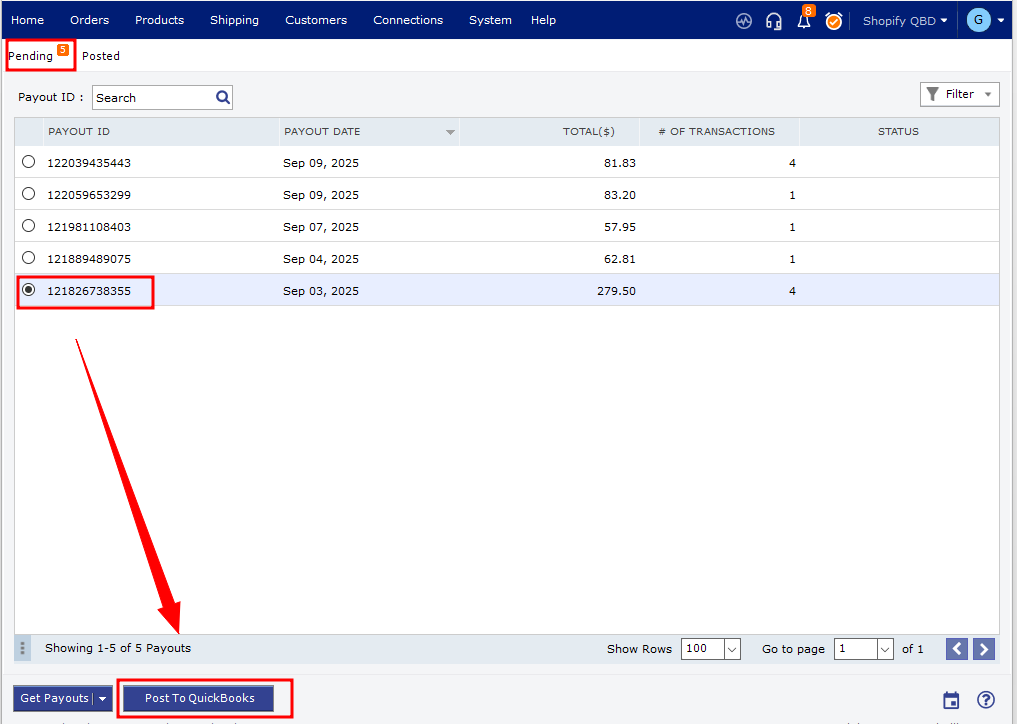
- Retry the payout. Return to Orders > Shopify > Payouts, select the affected payout, and click Post.
Do not manually delete transactions from QuickBooks or repost orders without checking their existing status, as this may create duplicate entries. If Webgility becomes unresponsive, restart the application and verify the order status before continuing.
If the payout still fails, contact Webgility Support and provide the payout date, affected order numbers, and the exact error message.