
Overview
When a Shopify order is edited after it was originally placed, the order total or payment status may change. If an additional payment is still pending, Webgility Desktop may prevent the order from being posted to QuickBooks.
In this scenario, complete the pending payment in Shopify, download the latest order information, and then post the updated order.
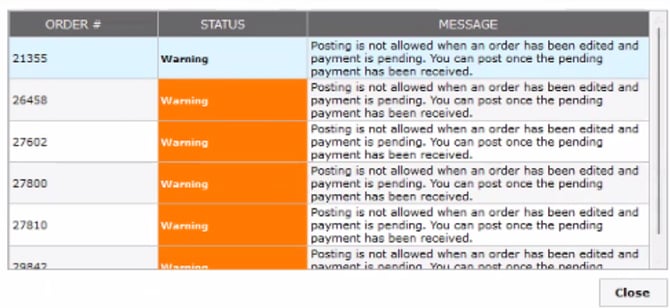
1. Check and Complete the Pending Payment
Open the edited order in Shopify and check the Payment pending section.
If the order has a pending balance, click Collect payment and complete the payment using the appropriate option:
- Mark as paid if the payment was already received outside Shopify.
- Pay by credit card if you need to collect the payment through Shopify.
For detailed instructions, refer to Shopify's guide: Accept payment for an order pending payment
Once the payment status is updated to Paid, return to Webgility Desktop and download the latest order update.
2. Download the latest order update
After the payment is completed in Shopify, re-download the order in Webgility Desktop to retrieve the latest order and payment information from the sales channel.
Select the order and choose Re-download Order. Confirm the prompt to overwrite the existing order data.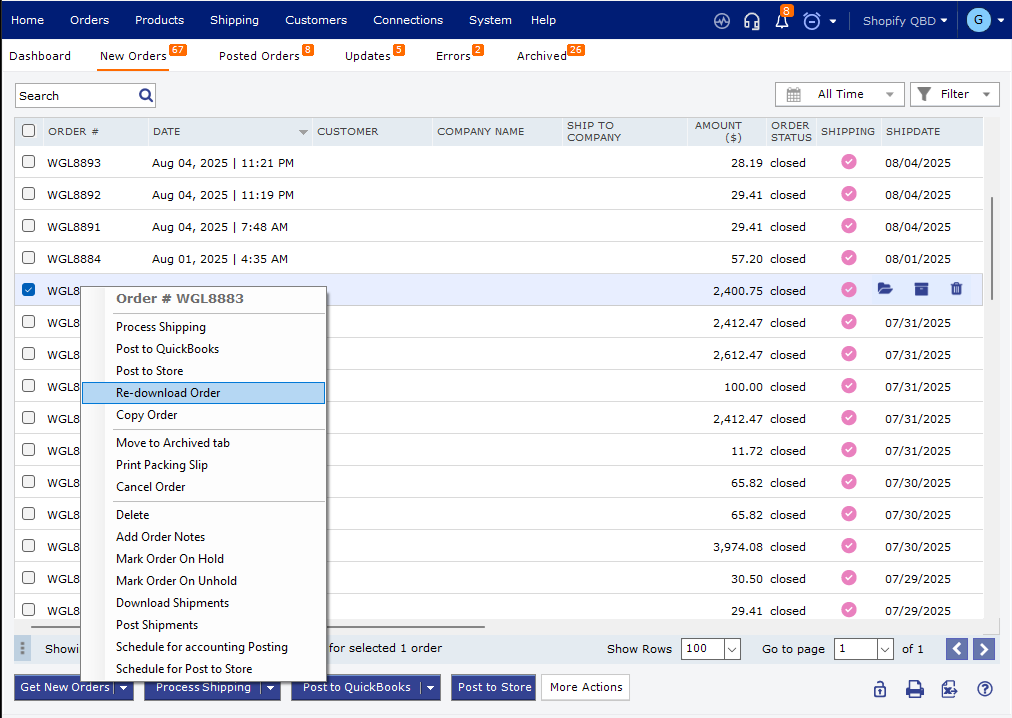
For detailed instructions, see:
Order Re-download in Webgility Desktop
4. Accept the order update, if applicable
If Download Updates is enabled, Webgility will detect changes made to previously downloaded orders and display them in the Updates view.
Open the Updates view, review the changes, and accept the update to download the latest order information from the sales channel.
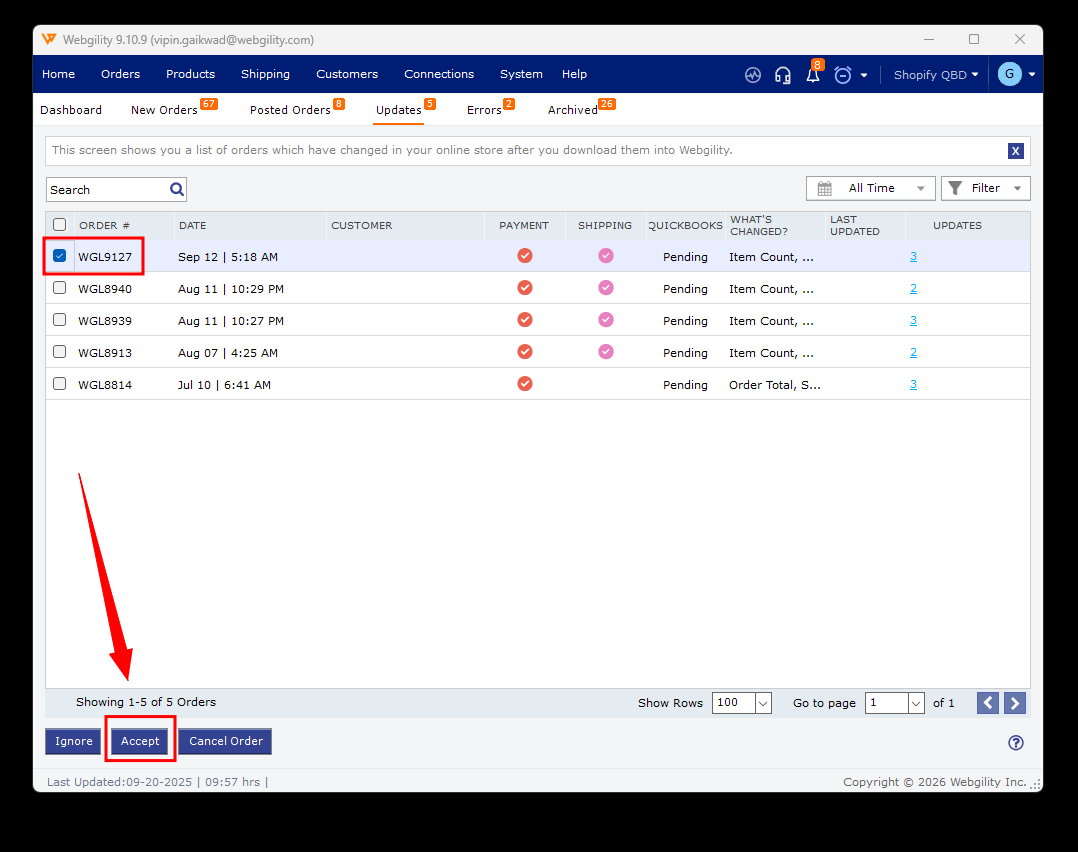
If Download Updates is not enabled, proceed with the updated order after refreshing/downloading the order information.
For more information, see:
Updates View in Webgility Desktop
5. Post the updated order
Once the Shopify payment is fully received and the latest order information has been downloaded, post the order to QuickBooks.
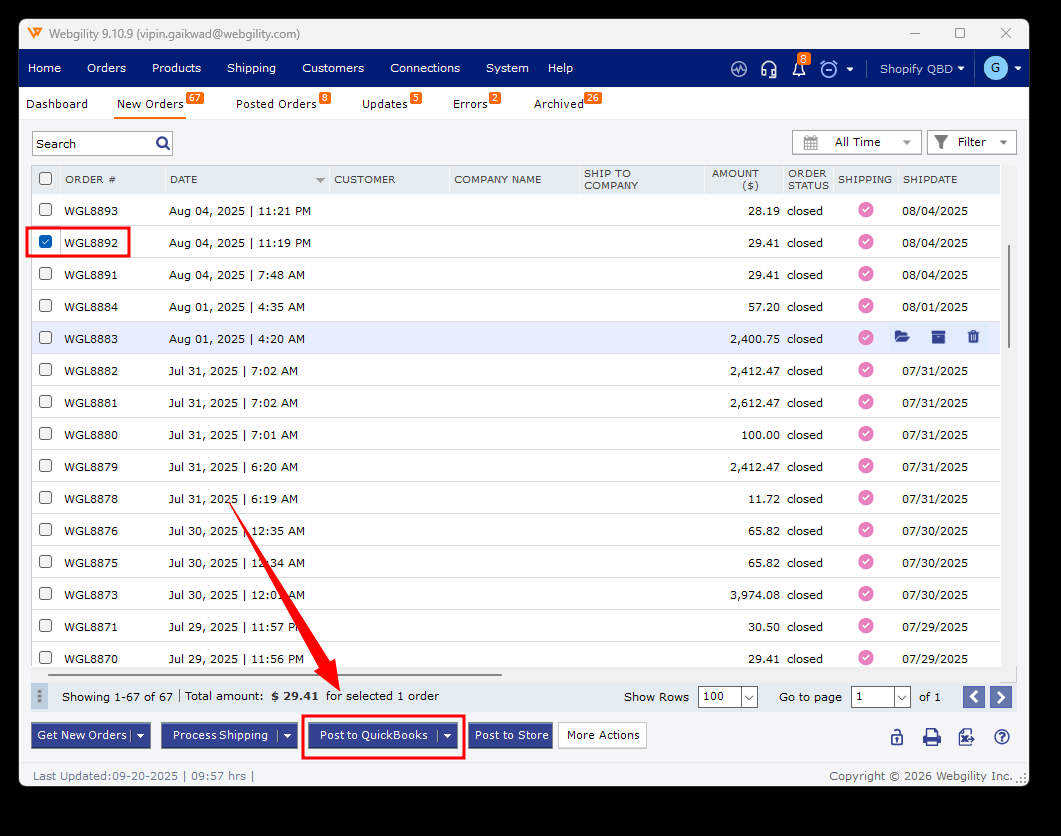
If the Order Was Reduced or Refunded
If the Shopify edit resulted in a reduced order total or a refund instead of an additional payment, follow the appropriate refund workflow.
How to Process Returns and Refunds with Webgility Desktop
Important
Do not bypass the posting block while the Shopify payment is still pending. Complete the payment and download the latest order update first to help keep the Shopify and QuickBooks transactions aligned.
If you have any questions or need more help, please contact our support team.