
Root Cause
A duplicate Webgility Scheduler process, or more than one QuickBooks window open at the same time, is holding the orders in the Scheduled tab so Webgility Desktop cannot complete the posting.
Solution Steps
-
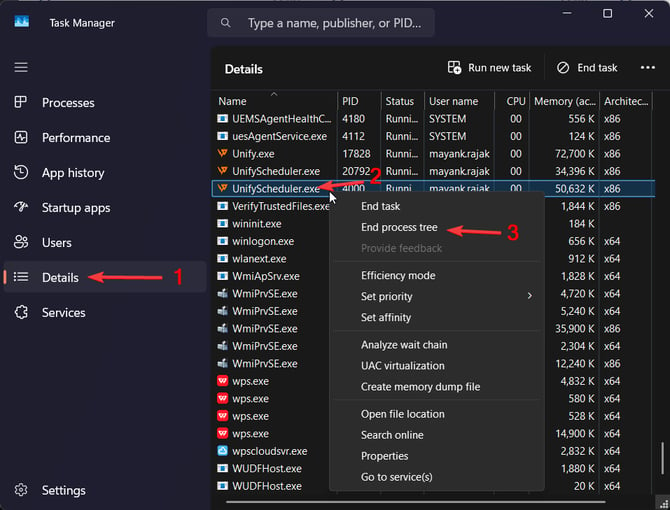
Open Windows Task Manager go to the Details Tab and look for the process unifyscheduler.exe, which is the a seperate process, distinct from the main Webgility application process unify.exe.
-
Right Click on the unifyscheduler.exe process if it is running, and click on End Process tree. This will close all instances of unifyscheduler.exe.
- Go to Webgility and start the scheduler, you may refer to How to Start or Stop the Scheduler.
- Also make sure to Stop & Exit, the shceduler when it's not in use.
Important Note
Running the Webgility Scheduler from more than one machine under the same login, or opening QuickBooks twice on the same machine, both cause this same conflict - keep the scheduler on one designated machine and QuickBooks open in only one window.
Feel free to reach out to us at support@webgility.com.