
Overview
When Webgility Desktop downloads a Shopify order whose item is marked Charge tax = No, the line is imported with the TAX column shown as N (non-taxable). That part is often already right. The posted QuickBooks sales receipt can still show the line as Tax if the Webgility Sync Settings > Sales Tax non-taxable dropdown is pointing at a QuickBooks tax item whose rate is not actually 0%. Webgility sends the line as non-taxable, QuickBooks looks up that mapped tax item, finds it has a non-zero rate, and charges tax anyway.
When This AppliesYou open the imported order in Webgility Desktop and the TAX column shows N on the lines you expect to be non-taxable, but after posting, the QuickBooks sales receipt shows those same lines with the Tax code and tax has been calculated on them. The Sync Settings non-taxable dropdown is not blank — it has a value — but that value is pointing at the wrong QuickBooks tax item.
Why This HappensWebgility reads Charge tax = No on the Shopify line and sends it to QuickBooks as non-taxable, mapped to whichever QuickBooks tax item is selected under Select QuickBooks item for non-taxable products (and, for order-level tax, Tax item for non-taxable orders). QuickBooks does not treat "non-taxable" as a global flag — it uses the rate on the mapped tax item. If that item is a legacy or mislabelled code with a non-zero rate, QuickBooks applies that rate, and the receipt posts with full tax even though every piece of Webgility routing was correct.
Steps to Fix the Mapping
Step 1: In Webgility Desktop, open the problem order and confirm the TAX column shows N on the lines that should be non-taxable. If it does, Webgility imported correctly and the issue is downstream in the mapping, not in the download (background in Record Sales Tax as a Line Item in Webgility Desktop).
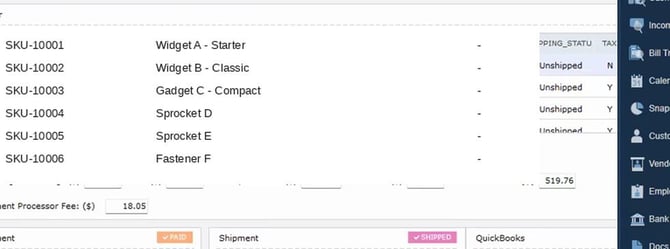
Webgility Desktop Order Detail — the TAX column shows N on the non-taxable line (SKU-10001 in this example) and Y on taxable lines. If this column already shows N, Webgility imported correctly and the issue is downstream in the mapping. Sample data shown; dates and totals are preserved.
Step 2: Open QuickBooks Desktop, go to Lists > Item List, double-click the tax item currently selected in your Webgility non-taxable dropdown, and confirm its Tax Rate (%) is 0.0%. A code that looks right by name (for example, a code called NON) can still have a non-zero rate configured. If the rate is not 0%, either fix the rate on that item or pick a different QuickBooks tax item that is truly 0% — a common 0% code is named Out of State, Non-Taxable, or Exempt.
Step 3: In Webgility Desktop, open Connections > Accounting/POS/ERP > Sync Settings and click Sales Tax in the left sidebar.
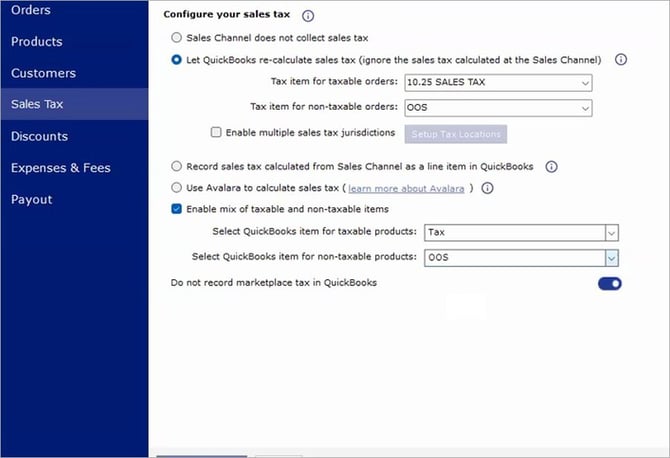
Sync Settings > Sales Tax tab. Both non-taxable dropdowns (Tax item for non-taxable orders, and Select QuickBooks item for non-taxable products) must point at a QuickBooks tax item whose rate is actually 0% — a value is not enough; the mapped item's rate is what QuickBooks applies.
Step 4: Point Select QuickBooks item for non-taxable products at the verified 0% tax item from Step 2. If the issue also appears on whole non-taxable orders (not just mixed orders), update Tax item for non-taxable orders to the same 0% item. The recommended-settings reference is Recommended Settings for Sales Tax for Webgility Desktop & QuickBooks Online.
Step 5: Click Save & Close, then on the Posted tab select the affected historical orders, click Unsync, let them move to New Orders, and post them again as a batch so the corrected mapping applies. Customer-level tax defaults can also route a receipt to the wrong code — if a specific customer's receipts still post with tax after the mapping is fixed, see Customer Tax Settings in Webgility Desktop.
Important NoteImportant Note: "The QuickBooks user that the Webgility Scheduler runs under needs full admin privileges on the QuickBooks company file. Webgility uses that logged-in user's permissions during Automation and a limited user triggers permission pop-ups that block the posting batch."
Key RecommendationTreat the Webgility non-taxable dropdown and the QuickBooks tax item rate as a pair that must agree. The name of a tax item in QuickBooks is a label chosen when the item was created and does not itself make the item 0%. Whenever a new tax item is added to QuickBooks or an existing one is renamed, confirm its rate on the item record before pointing a Webgility mapping at it.
Additional SupportIf orders still post with inflated tax after the mapping is saved and the historical batch is re-posted, contact support@webgility.com with the Shopify order ID, the Shopify item SKU, the Webgility TAX column value for that line, the QuickBooks tax item name selected in the non-taxable dropdown, and the rate on that tax item in QuickBooks so the team can trace which link in the chain is still wrong.