
Overview
Shopify payment-processing fees may become available after an order is initially downloaded to Webgility Online. As a result, the order may be posted to QuickBooks Online without the fee.
Follow the steps below to retrieve the missing fee and update the existing order.
Steps to Retrieve Missing Payment FeesStep 1: Verify the Fee in Shopify
- Log in to your Shopify Admin.
- Go to Settings > Payments.
- Under Shopify Payments, click View payouts.
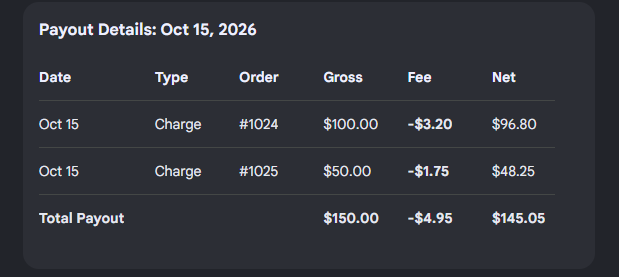
- Select the relevant payout to view its breakdown, or click View transactions to locate the specific order and verify its payment-processing fee.
Step 2: Check for Order Updates
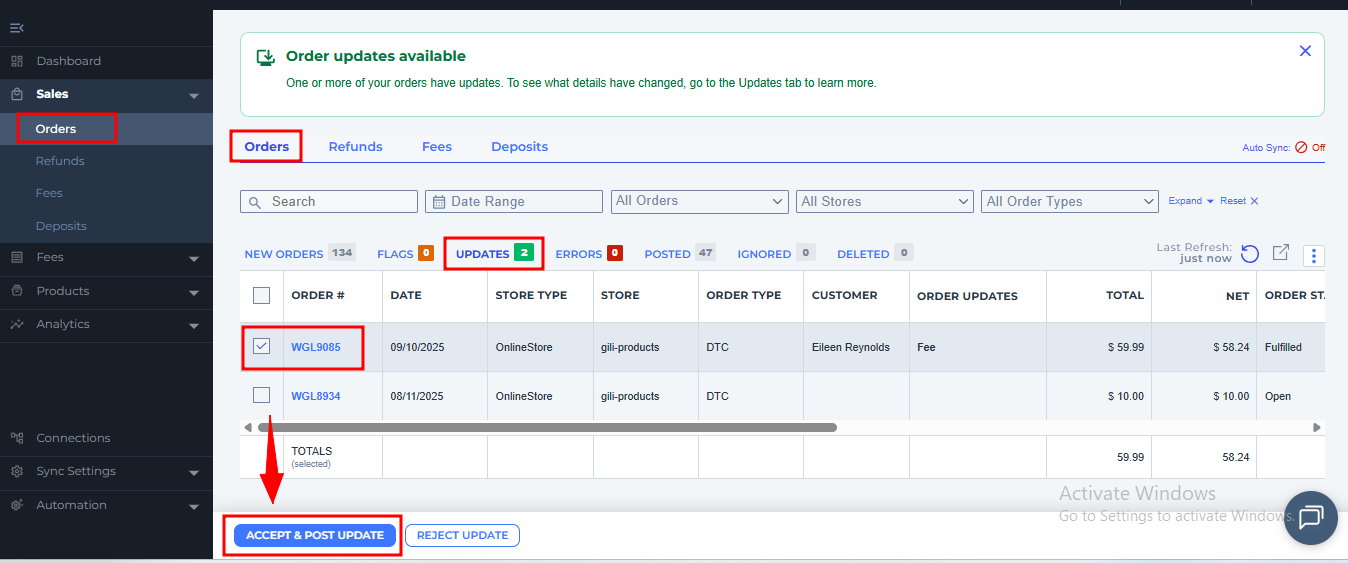
- In Webgility Online, go to Sales > Orders > Updates.
- Open the affected order and verify that the missing fee appears in the update.
- Select the order and click Accept & Post Update to apply the change to the existing QuickBooks transaction.
Step 3: If the Order Does Not Appear in Updates
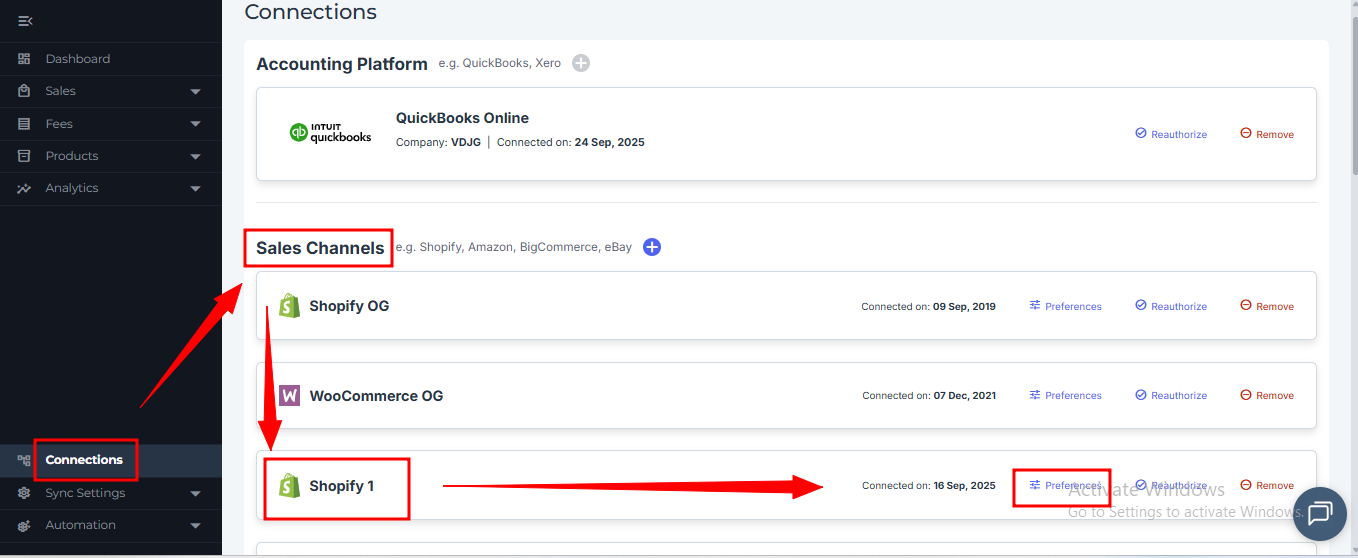
- Go to Connections and open Preferences for the relevant Shopify sales channel.
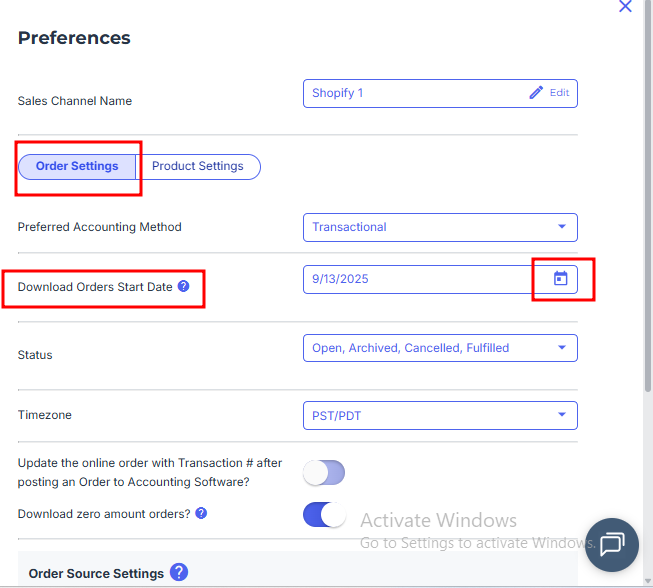
- Set the Order Download Start Date to a date on or before the affected order, then save your changes.
- Go to Sales > Orders > New Orders, select the affected order, and choose Refresh Order(s) from More Actions.
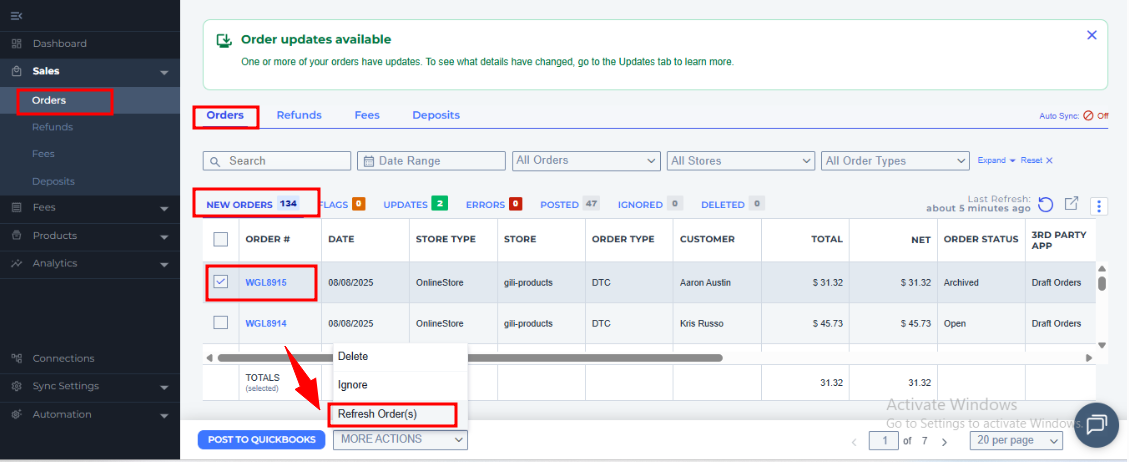
- Once the order is refreshed, verify that the payment-processing fee is available.
For detailed instructions, see Fix Missing Shopify Processing Fees in Webgility Online.
Note: Webgility Online supports downloading orders from the last 90 days by default. Older orders require the Historical Data Add-on. See Historical Order Download with Webgility Online.
If You Need More Help
If the fee is available in Shopify but remains missing after refreshing the order, please contact Webgility Support with the affected Shopify order number.