
Root Cause
The order was downloaded into Webgility Desktop however if we check the Customer Tab in the Order Details, the customer information is missing. in Webgility Desktop if we re-download the order; re-downloading refreshes the order detiails and the missing address is downloaded.
Solution Steps
-
On the sales channel, open the order details and confirm the billing and shipping address are populated. If either is still blank, try editing the address. Please refer to this Shopify Article.
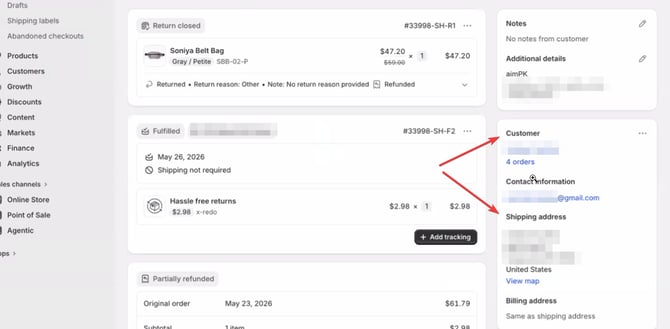
-
In Webgility Desktop, Go to New Orders Tab and locate the affected order or use the search bar for the order number.
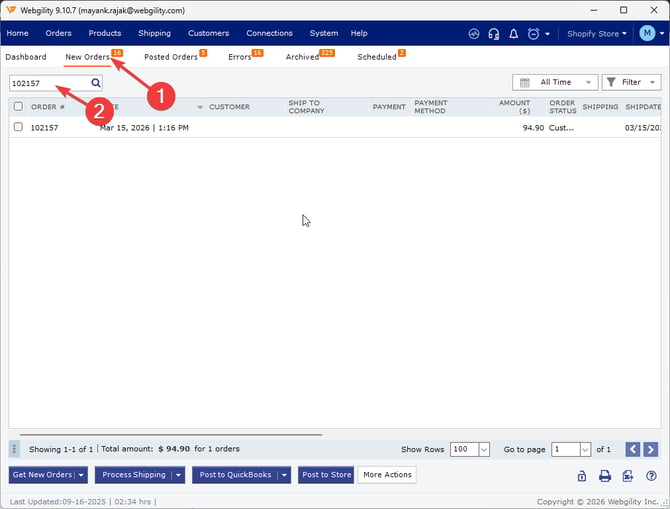
-
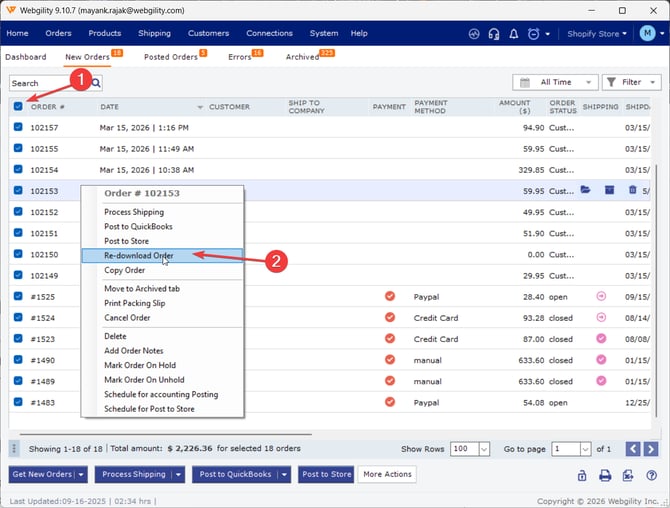
Select & Right-click on the order and select Re-download Order. Webgility Desktop pulls the latest detilas of that specific order from the sales channel. For the broader order download flow see How to Download Orders in Webgility Desktop.
-
Once re-dowloaded, doulbe click on the order and go to the Customer Tab details and confirm the billing and shipping address are now populated. Post the order to QuickBooks as usual.
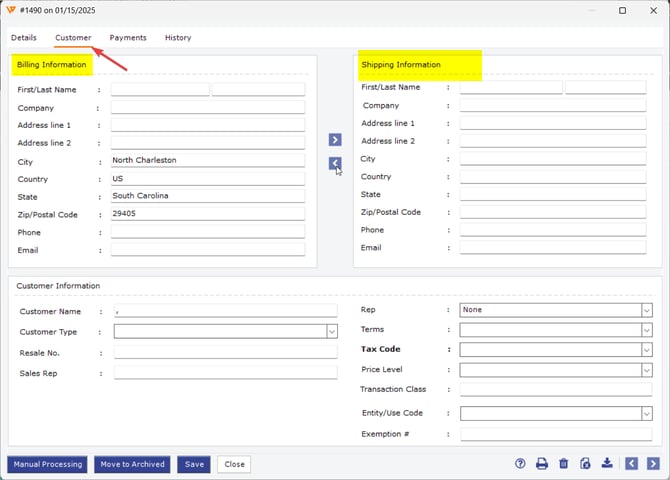
Important Note
"For multiple affected orders where the Customer Address is missing, bulk select the orders in the New Orders tab and Right-click on any order and select Re-download Order. In one go — Webgility Desktop refreshes each order individually against the sales channel and will bring in any missing information.
Feel free to reach out to us at support@webgility.com.