
When to use this guide
Use these steps if:
- Your Magento product download is incomplete.
- You see 503 Backend Fetch Failed in the Webgility Desktop logs.
- A Download Products from Scratch download does not bring in the full Magento catalog.
1. Reduce the product download batch size
In Webgility Desktop:
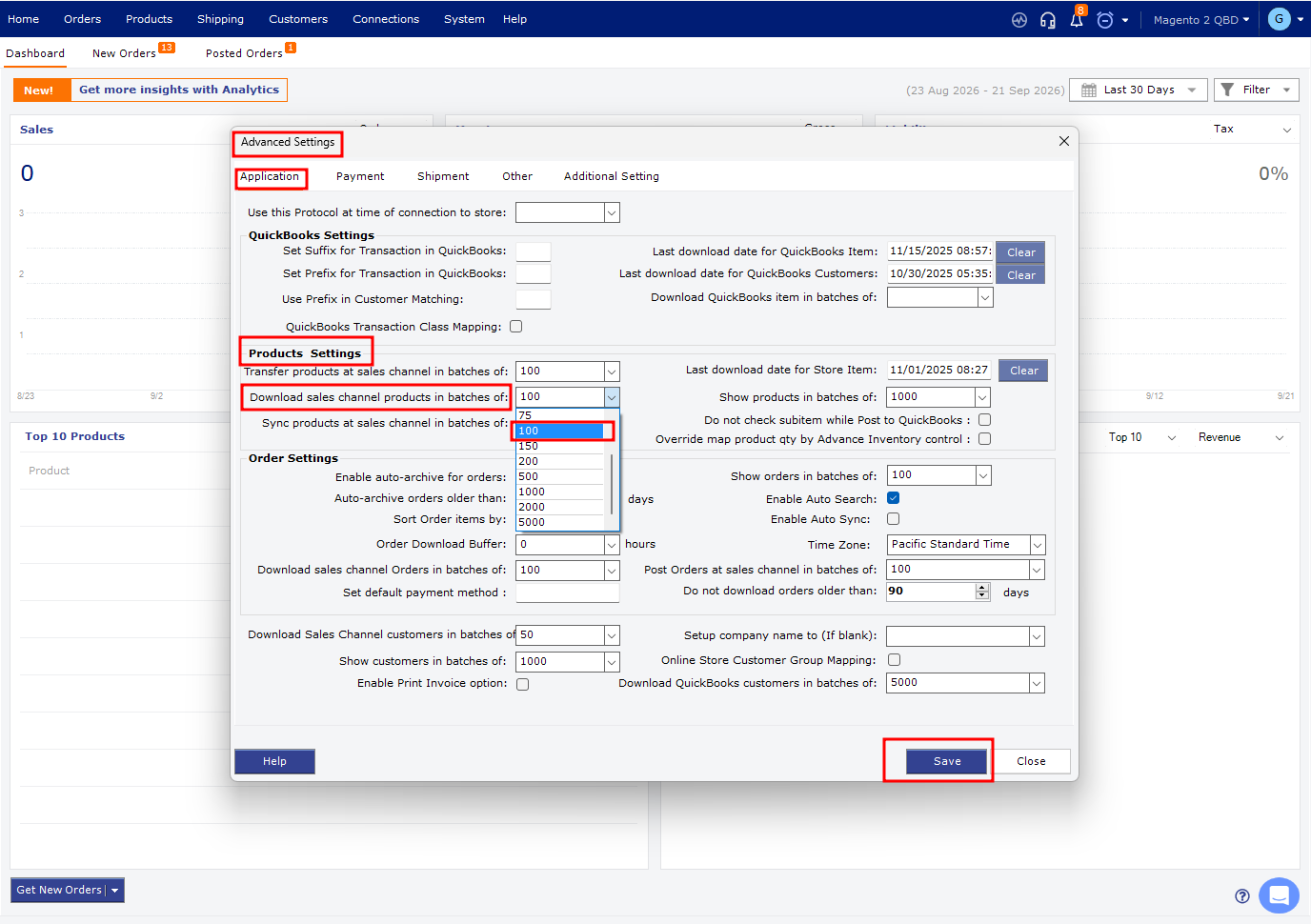
Connections > Sales Channels > Advanced Settings
Open the Application settings and locate the product download batch-size setting.
Reduce the batch size to 100, then click Save.
2. Download the Magento products again
Go to:
Products > All Products under your Magento sales channel.
Select Download Products from Scratch and start the download.
For detailed instructions, see HHow to Download the Latest Sales Channel Data & Products in Webgility Desktop
3. Verify the product count
After the download completes, compare the number of products in Webgility with the number available in Magento.
- If all products are downloaded, no further action is required.
- If products are still missing and the 503 error continues, reduce the batch size further and run the download again.
Still seeing the 503 error?
If the download remains incomplete after reducing the batch size, contact Webgility Support and provide:
- The expected Magento product count
- The number of products downloaded in Webgility
- The batch size used
- The 503 Backend Fetch Failed error from the logs