
Problem Description
"I made changes on my Magento 2 store and now Webgility Desktop will not connect. When I try to reconnect, I see 'The credentials you have entered are invalid' and my inventory is not syncing."
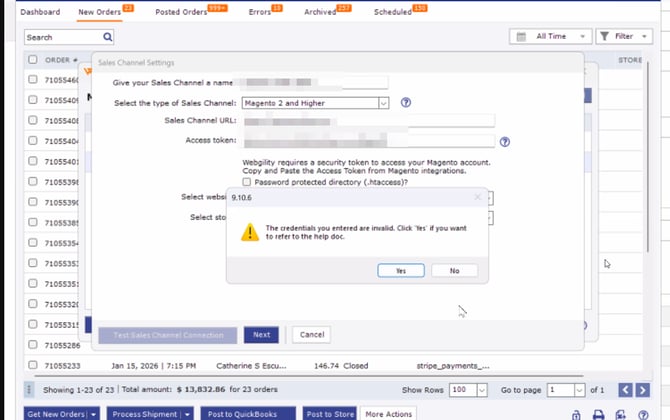
Root Cause
Webgility Desktop signs into Magento 2 with an integration access token tied to a specific admin base URL. When your Magento 2 team rotates the token, changes the admin URL, or updates the integration's permissions, the saved values in Webgility Desktop no longer match what Magento accepts, so the sign-in is rejected and item sync stops.
Solution Steps
-
Step 1: In Magento 2 Admin, open System > Extensions > Integrations, open the Webgility integration, and click on re-authorize its access token. Copy the new token and note your current Magento 2 admin base URL.
You may also refer to Magento 2 - Invalid Credentials.


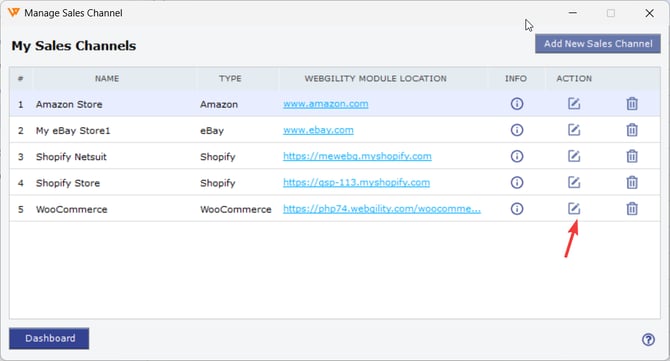
- Step 2: In Webgility Desktop, open Connections > Sales Channels > Manage Sales Channel, click the Action pencil next to your Magento 2 store, and choose Edit Connection.
-
Step 3: Open Sales Channel Settings and click Connect to Magento, paste the new Access Token, confirm the Admin Base URL exactly matches the URL in Step 1, and save.

- Step 4: Click on Connect to Magento 2 & wait for the Sccuesfully Connected prompt, then click on Save.
Important Note
"The Admin Base URL must match the one your Magento integration is active on — including http vs https and any trailing slash. A single-character mismatch is treated as invalid credentials, even when the access token itself is correct."
If you require any further assistance, please feel free to reach out to Webgility Support. We'll be happy to help!