
Overview
If Shopify B2C orders create duplicate charges in QuickBooks even though their sync settings match a working Shopify B2B or Amazon profile, refresh the accounting data and re-download the affected orders.
Important: If duplicate transactions have already been posted to QuickBooks, review and remove the extra transactions before reposting. Do not use Undo Sync if the related payments have already been deposited or reconciled, as this can affect your accounting records.
Steps to Resolve Duplicate ChargesStep 1: Select the Shopify B2C Profile
In Webgility Desktop, use the sales channel selector in the top-right corner to switch to the affected Shopify B2C profile.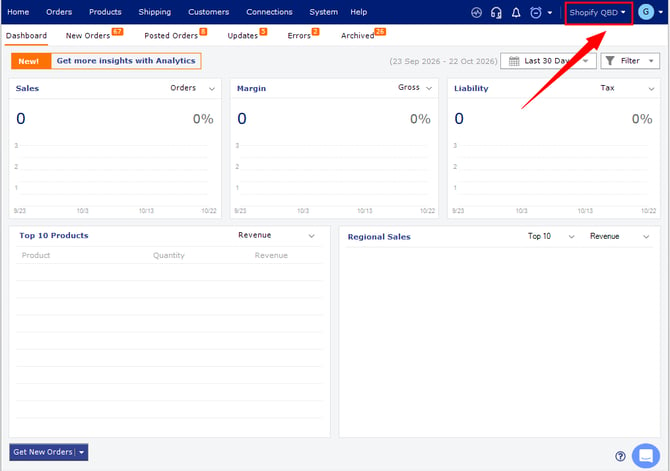
Step 2: Refresh QuickBooks Data
- Click Get Latest Data in the toolbar.
- Select Re-download all data and choose only the QuickBooks section.
- Complete the refresh.
For detailed instructions, see How to Download the Latest Accounting Data from Scratch.
Step 3: Re-download and Repost the Affected Order
- Open the affected order in Webgility Desktop.
- Click Unsync to reverse the previous posting, if appropriate.
- Click Re-download to retrieve a fresh copy of the order from Shopify.
- Click Post to QuickBooks and verify that the order creates only one charge.
For more information, see How to Unpost Transactions from Webgility Desktop with Undo Sync.
Step 4: Repeat for Other Affected Orders
Repeat Step 3 for each remaining affected order, ensuring each order posts correctly without duplicate charges.
Prevention Tip
Whenever you copy sync settings from another sales channel, refresh the QuickBooks data in the destination profile before testing a new order.
If the issue continues with new orders, contact support with the Shopify order number and the related QuickBooks transaction details.