
When a Shopify B2B order comes through for a customer on terms such as Net 15 or Net 30, it arrives in Webgility Desktop without a payment method. Webgility reads that as the catch-all Anything Else row in your Posting Rules, and if that row is set to Sales Receipt your on-account orders post to QuickBooks as Sales Receipts. The complete fix routes those orders to Invoice in Webgility, sets Net 15 on the QuickBooks customer so the mapping finds the signal it needs, corrects a label on the QuickBooks sales-receipt template that otherwise confuses the deposit module, and re-posts any orders already misfiled.
When This AppliesFollow this when your Shopify B2B, net-terms, or on-account customer orders post to QuickBooks Desktop as Sales Receipts rather than Invoices. The misposted orders typically have no payment method populated on the sales channel side. QuickBooks accounts receivable shows the on-account balance as paid even though the customer has not sent payment, and your deposit module may show sales-receipt entries that look like invoices because the sales-receipt template was labeled with Invoice Number instead of Sales Receipt Number.
Why This HappensWebgility posts each order based on the transaction type you have mapped against its payment method on the Posting Rules tab under Orders in Sync Settings. A Shopify B2B on-account order arrives from the sales channel with no payment method because payment is deferred to invoice terms. Webgility cannot match a blank payment method to a specific row in your WHEN PAYMENT METHOD IS mapping, so it falls through to the Anything Else row. When that row is set to Sales Receipt, every on-account order inherits Sales Receipt behavior and posts to accounts receivable as paid. The Net 15 field on the Anything Else row is a routing placeholder that tells Webgility this bucket should produce Invoices, so for the mapping to trigger that behavior the QuickBooks customer also needs Net 15 set on their profile.
Important Note: "Only new orders downloaded after you save these changes follow the corrected mapping. Orders already posted as Sales Receipts stay as Sales Receipts until you void and recreate them as Invoices."
Steps to Route On-Account Orders to Invoice
Step 1: In QuickBooks Desktop, open each on-account B2B customer's profile and set their payment terms to Net 15 (or the terms you use for on-account customers) so Webgility can read a consistent signal when it posts new orders.
Step 2: In Webgility Desktop, use the sales channel selector in the top-right corner to switch to the Shopify sales channel that carries your B2B orders.
Step 3: Go to Connections > Accounting/POS/ERP > Sync Settings, pick Orders from the left-side tabs, and open the Posting Rules tab. Under Select the transaction type for posting orders, pick Post differently based on: and set the dropdown to Payment Method — this is what makes the WHEN PAYMENT METHOD IS mapping table appear. In the table, find the Anything Else row and change USE THIS TRANSACTION TYPE from Sales Receipt to Invoice. The full walk-through is in How to Post Transactions Based on Payment Methods in Webgility Desktop; the mapping concepts are covered in Map Payment Method with QuickBooks.
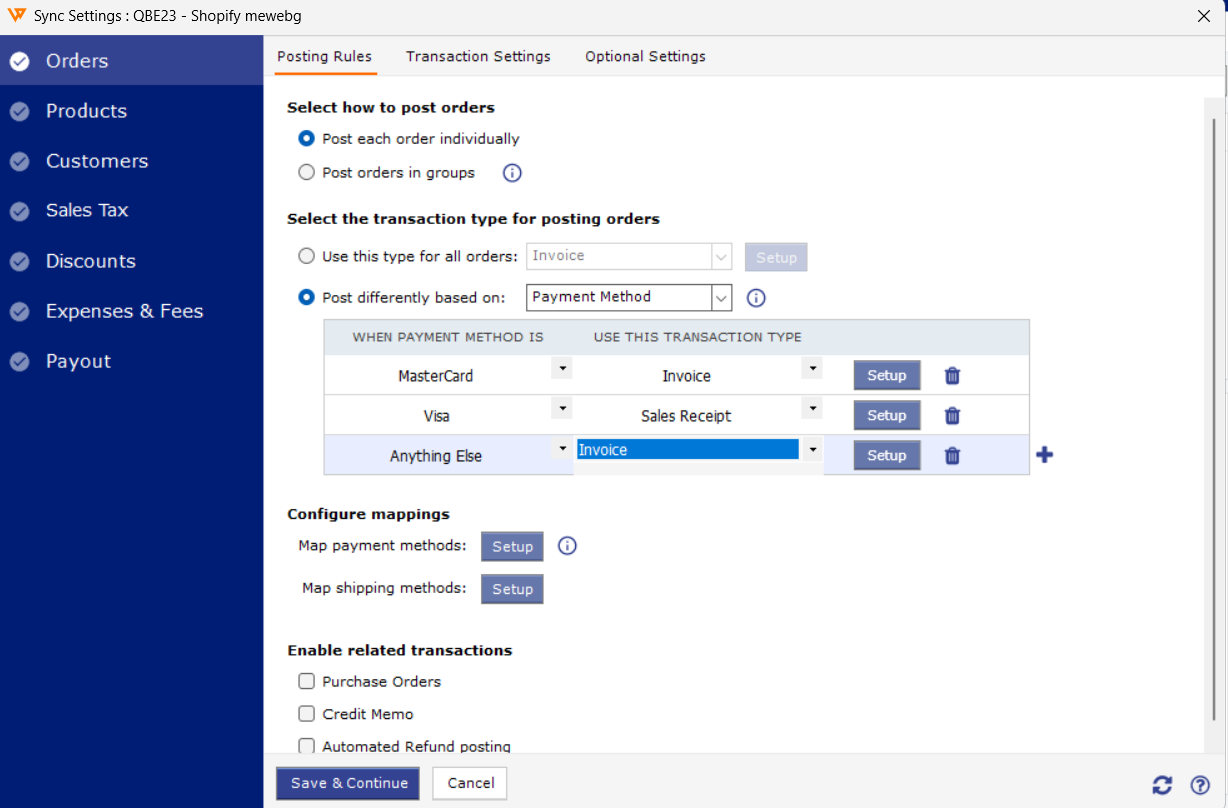
Step 4: Click Setup on the Anything Else row to confirm the QuickBooks account, template, and net terms assigned to it. The net terms here are the routing signal Webgility reads, so set them to Net 15. Click Save & Continue.
Step 5: In QuickBooks Desktop, open Lists, then open Templates, find the sales-receipt template Webgility writes to, and edit its layout. If the template shows an Invoice Number field, remove that field and add Sales Receipt Number in its place so the deposit module reads sales receipts correctly and your sales receipts stop looking like invoices.
Step 6: Void each historical B2B order that posted as a Sales Receipt and re-post the same order from Webgility so it lands in QuickBooks as an Invoice against the customer's on-account balance.
Step 7: Download a new on-account order and post it to confirm it records as an Invoice with Net 15 terms against accounts receivable.
Key RecommendationIf you also carry retail or paid orders under the same Shopify channel, keep explicit rows for the payment methods those orders use (MasterCard, Visa, Shopify Payments, PayPal) on the WHEN PAYMENT METHOD IS mapping. Each listed row posts as the transaction type you prefer. The Anything Else row then handles only the unmatched on-account case, and the Net 15 signal on that row combined with Net 15 on the QuickBooks customer keeps your on-account workflow clean.
Additional SupportIf on-account orders continue to post as Sales Receipts after these changes, write to support@webgility.com. Include your subscriber ID, one Shopify order number that misposted, a screenshot of the Posting Rules tab, and the payment terms set on the matching QuickBooks customer so the team can trace the routing.