
Overview
In this scenario, the settlement or payout amount in Webgility Desktop may differ from the amount shown by the sales channel or on your bank statement because the transaction data was updated after the original report was downloaded.
Re-downloading the affected report or payout retrieves the latest available information and can resolve the mismatch.
Steps to Resolve1. Review the affected settlement or payout
Open the settlement or payout in Webgility Desktop and compare the deposit amount with the amount shown in the sales channel or bank statement.
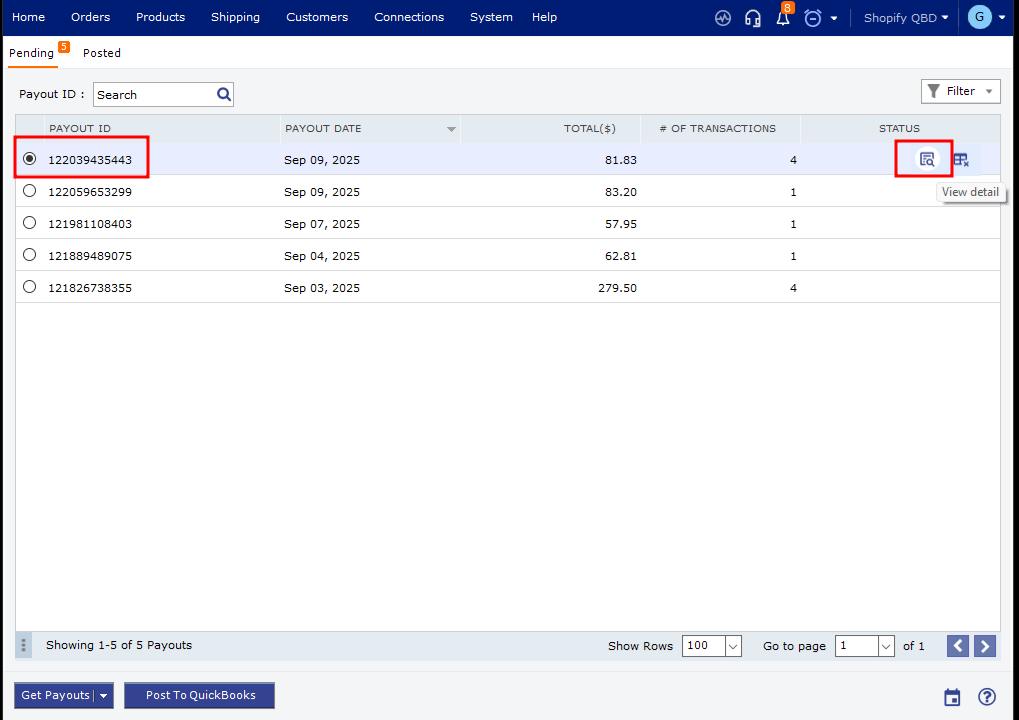
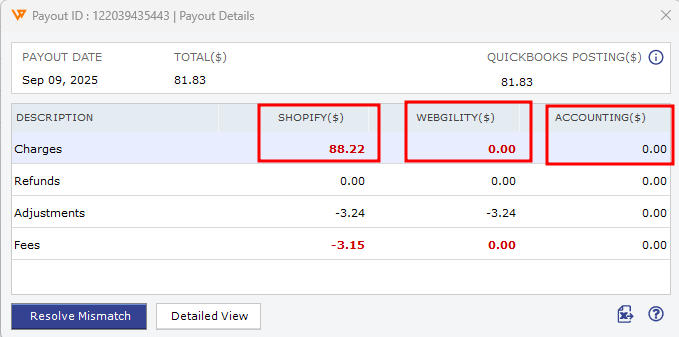
2. Re-download the report or payout
If the amounts do not match, re-download the affected settlement or payout to retrieve the latest transaction data.
For detailed instructions, see the article below. The same steps can be followed for Shopify payouts as well:
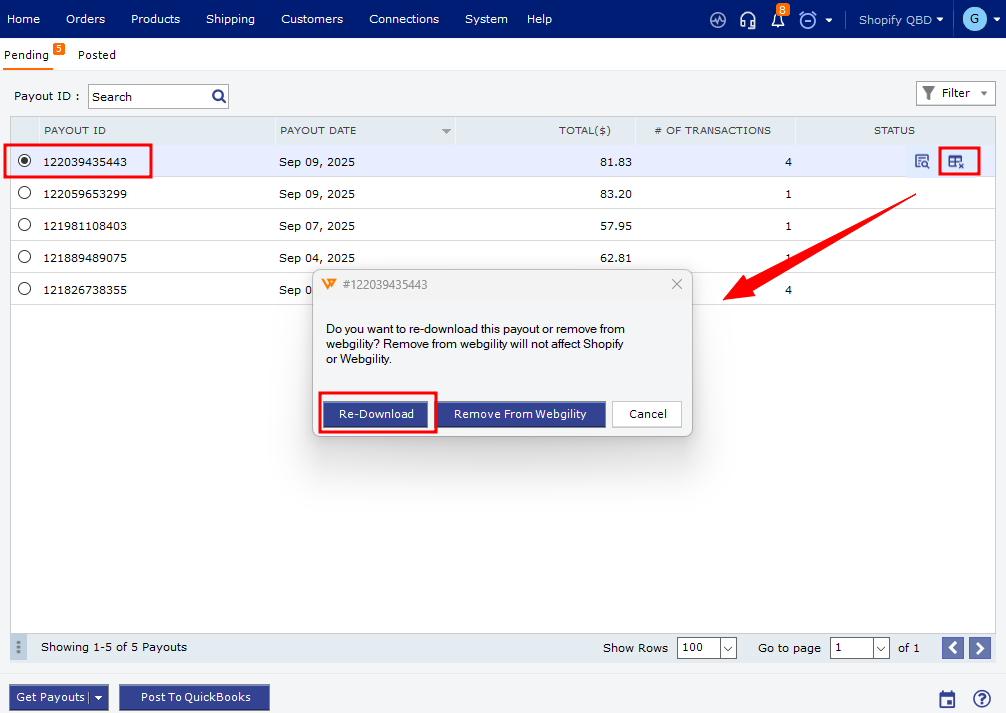
3. Verify the updated amount
After redownloading the settlement or payout, open its Settlement/Payout Details and verify the Deposit Total. Compare the amount with the sales channel or Accounting to confirm that they match.
For how to access the Settlement/Payout Details, refer to Step 1 above.
4. Post the report or payout
If the amounts match, proceed with posting it to QuickBooks.
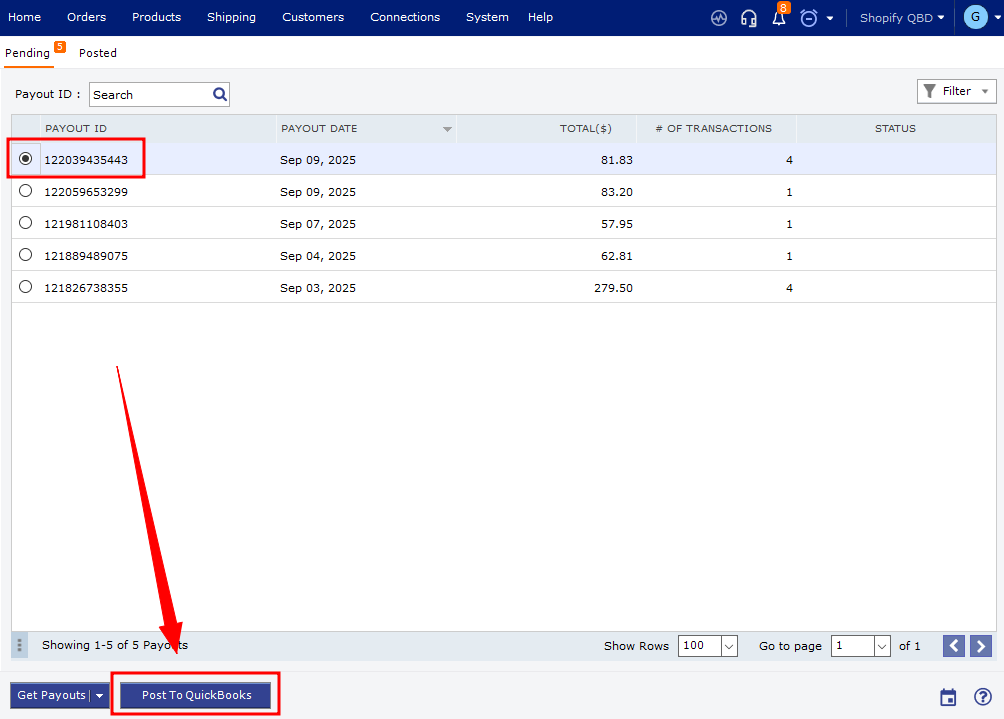
If the amounts still do not match, do not post the report or payout. Contact Webgility Support for further assistance.
Important: Avoid posting a settlement or payout when the deposit amount is still incorrect. This can create a reconciliation difference in QuickBooks.