
Overview
When Amazon ships your orders through Amazon Shipping, Amazon marks them as shipped at the source. Setting Webgility Desktop to download only shipped orders means every order arrives with the correct shipped status. This keeps your records in sync with Amazon and stops other shipping tools from creating a duplicate shipment or label.
This article shows you how to change that setting.
Steps
Step 1: Stop the Scheduler so no download runs while you change the setting. See How to Start or Stop the Scheduler in Webgility Desktop.
Step 2: Go to Connections > Sales Channel > Settings and select your Amazon sales channel.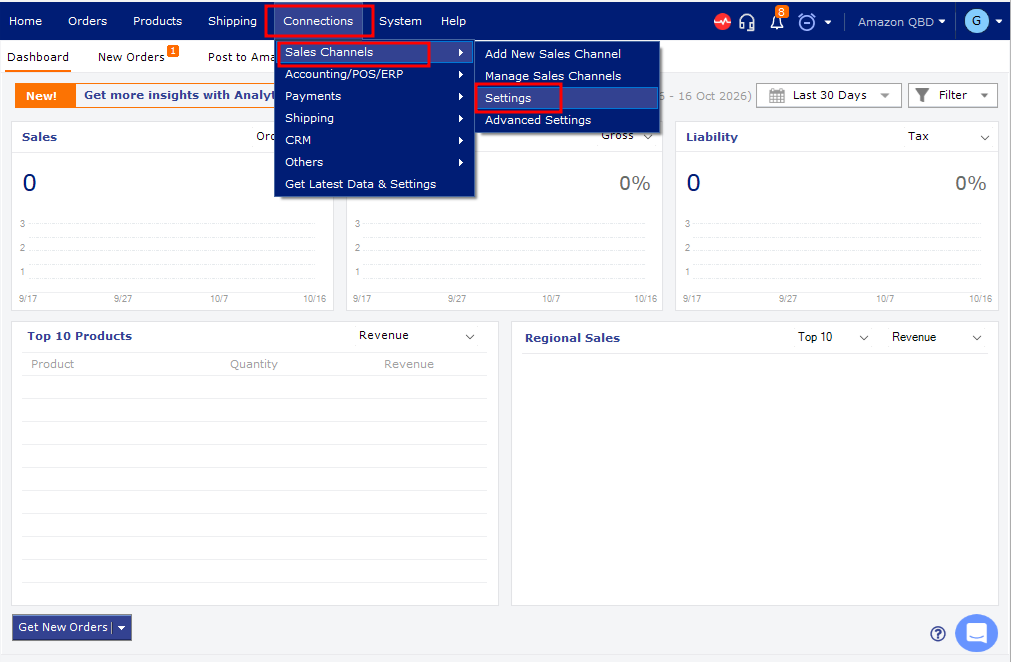
Step 3: Select download only shipped & Completed orders, clear the option to download unshipped orders marked as paid, and save your changes.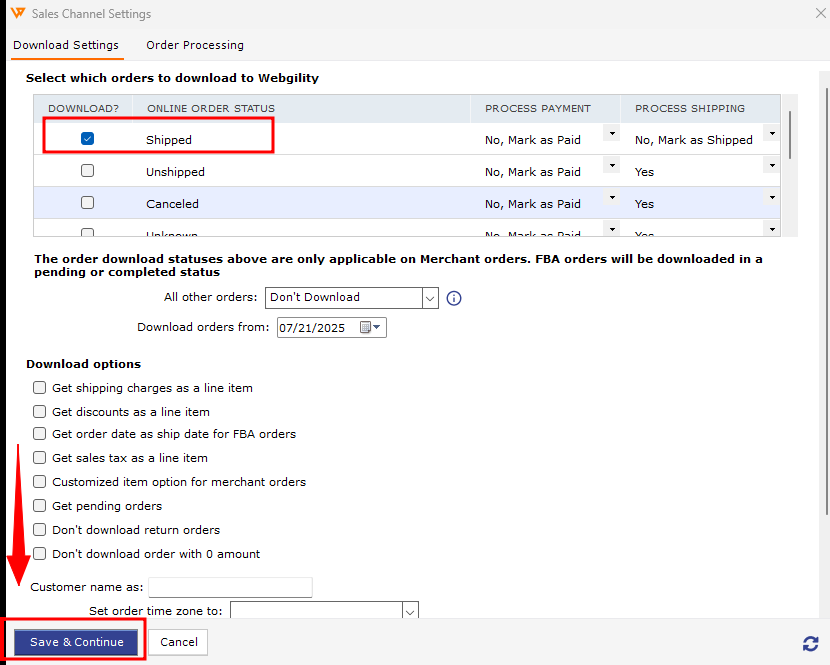
Step 4: Start the Scheduler again and let the next download run. Then open the Orders tab and check that every downloaded Amazon order shows a shipped status.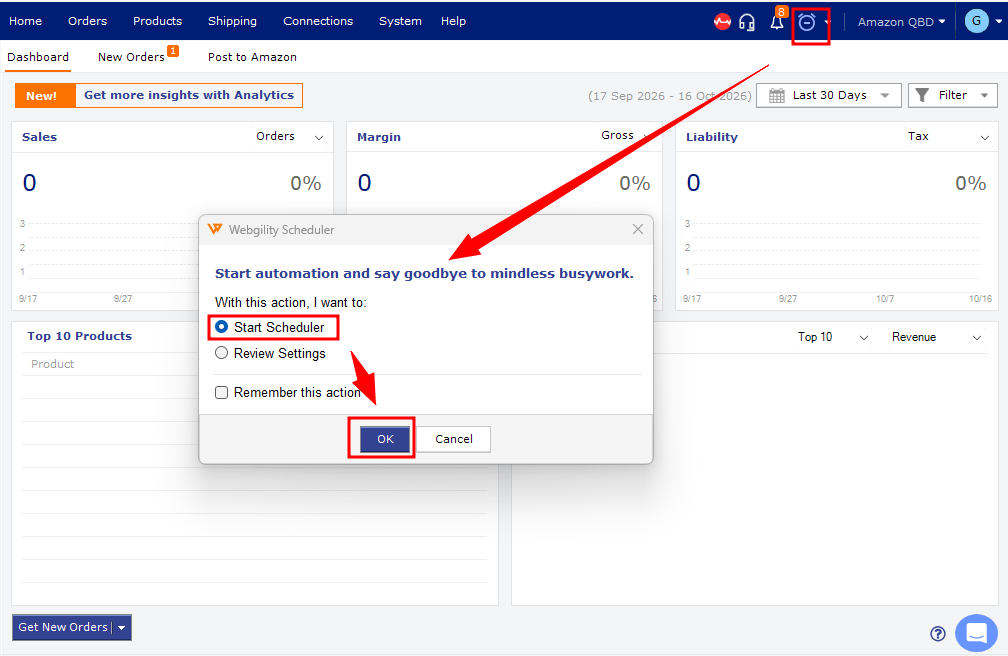
If you have any questions or need more help, please contact our support team.