
Overview
Packing slip column widths are set in the reportdynamic.xml file. Follow these steps to change the width of the Details column. For packing slip and printer setup options, see How to Configure Packing Slip.
- In File Explorer, open C:\Webgility\Unify Enterprise\XML and find
reportdynamic.xml.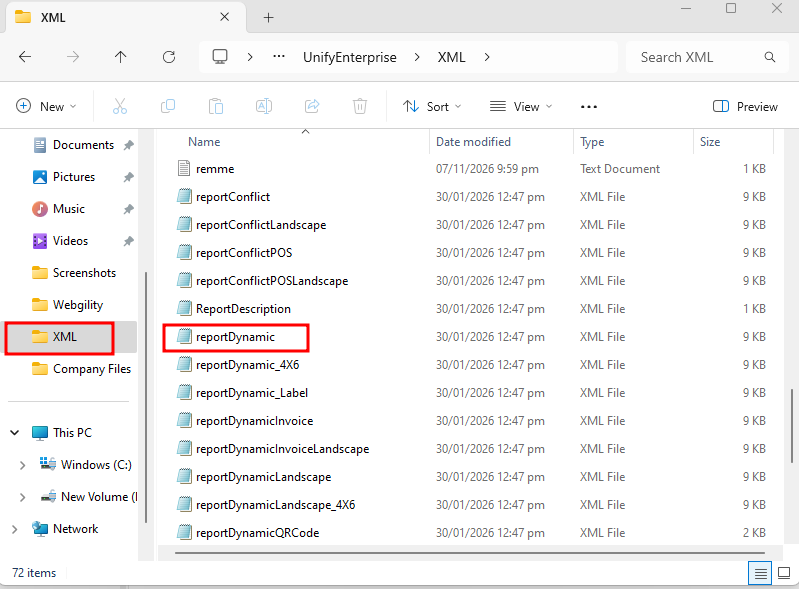
- Make a copy of the file as a backup.
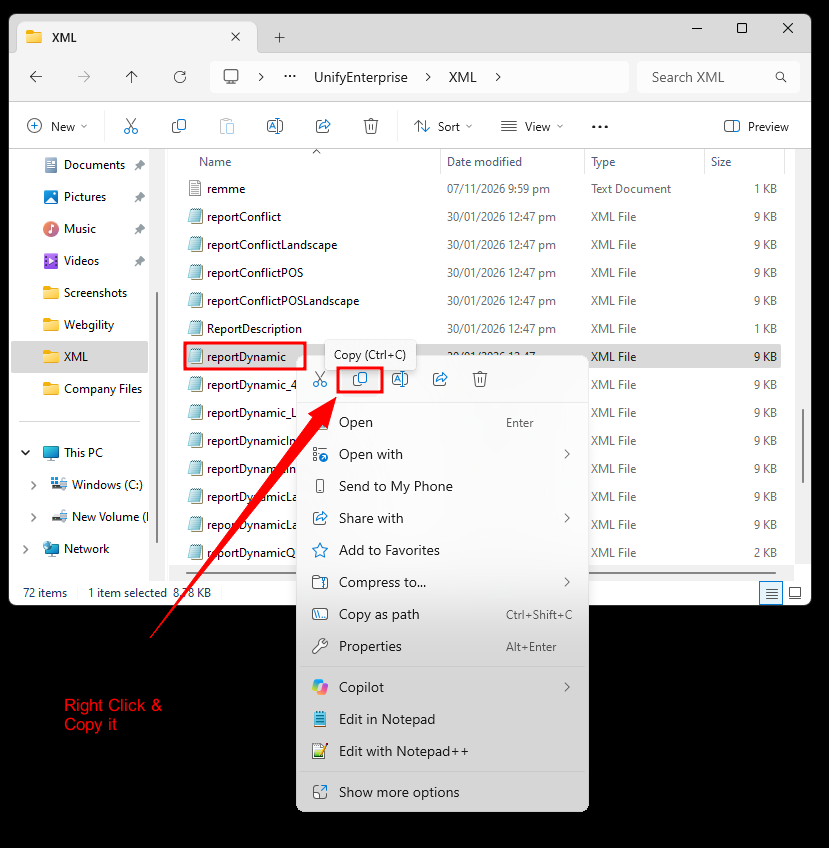
- Open the original file in a text editor and find the
<column name="details"entry. - Change its
widthvalue to the space you need. For example, changewidth="70"towidth="270". - Save the file, then restart Webgility Desktop.
- Generate a packing slip and check that the details are readable and the columns are aligned.
If the packing slip does not display correctly, restore the backup. Make sure the XML tag and quotation marks remain intact when editing.
If you have any questions or need more help, please contact our support team.