
Part of How to Configure Your Channel Settings in Webgility i.
Customers tab
This tab sets how Webgility i finds or creates the QuickBooks Online customer of each order. Most of these settings show when the channel posts Transactional.
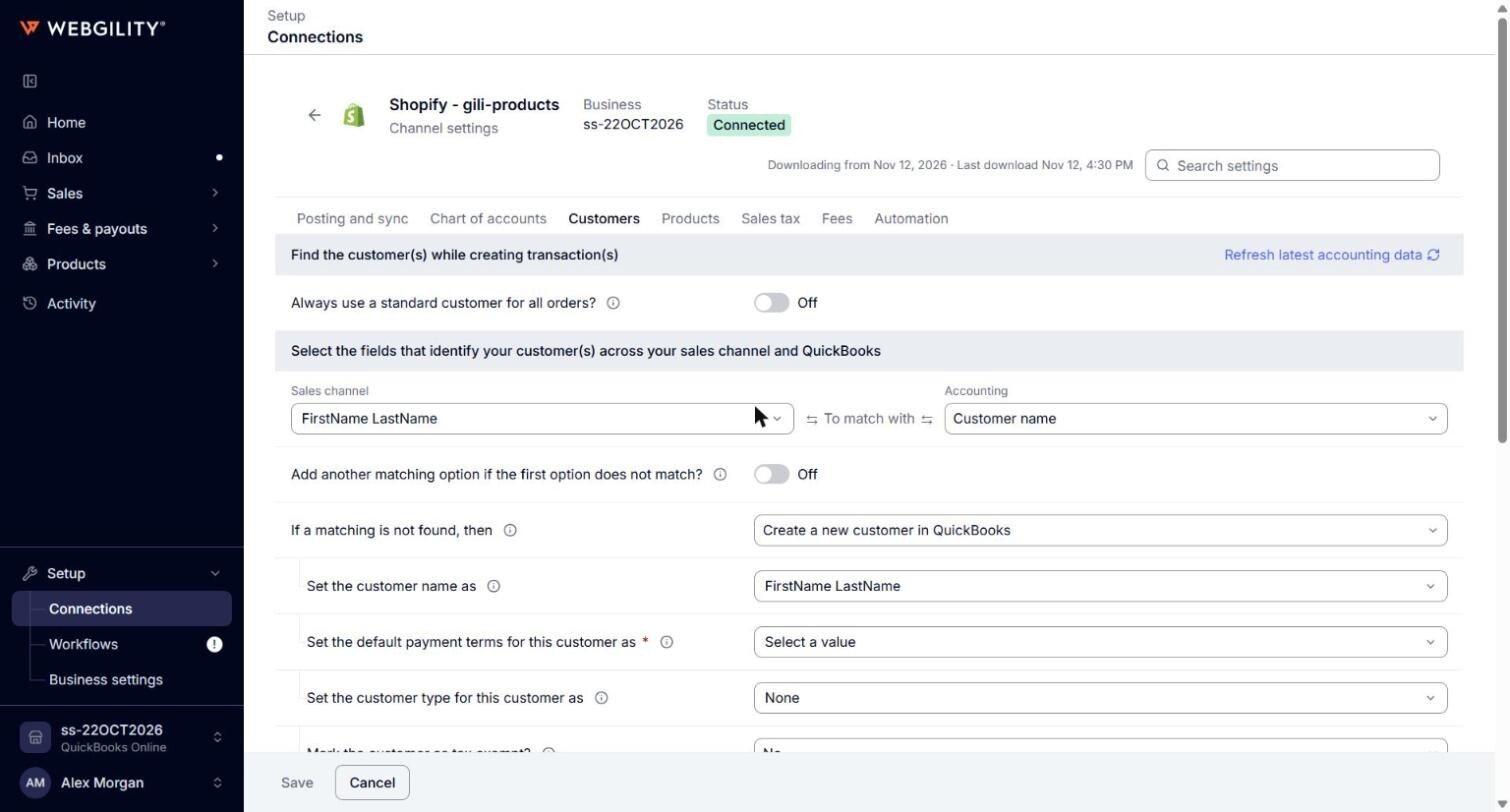
Find the customer(s) while creating transaction(s)
- Always use a standard customer for all orders?: when on, every order posts to one customer, the one in Use this as the standard customer. Options: on or off.
Note: When Always use a standard customer for all orders? is on, the matching fields are hidden. The other customer settings then show under Select the standard customer to use as the default customer.
Select the fields that identify your customer(s) across your sales channel and QuickBooks
- Sales channel and Accounting: the fields Webgility i compares to find the customer. Sales channel options: FirstName LastName, LastName, FirstName, Company, FirstName LastName, Company, FirstName LastName, ZipCode, FirstName LastName, Email, LastName, FirstName, Email, LastName, FirstName, ZipCode, Email. Accounting options: Customer name, Email.
- Add another matching option if the first option does not match?: tries a second pair of fields when the first finds no customer. Options: on or off.
- If a matching is not found, then: what happens when no customer matches. Options: Create a new customer in QuickBooks, Use a standard customer instead.
- Use this as the standard customer: the QuickBooks Online customer used when you post every order to one customer, or when no matching customer is found and you chose Use a standard customer instead. Search for the customer by name.
- Use different customer based on currency: uses a different standard customer for each currency. Then set the currencies and customers in Map currency. Options: on or off.
- Set the customer name as: the name of a customer Webgility i creates. When empty, it uses the fields of the first matching option.
- Set the default payment terms for this customer as: the QuickBooks Online payment term a new customer gets. It is not the term of the document.
- Set the customer type for this customer as: the QuickBooks Online customer type of a new customer. None gives no type.
- Mark the customer as tax exempt?: United States companies only. Options: Yes, No, Based on store. Based on store creates the customer as not taxable.
- Set email field as a blank?: Amazon only. Creates the customer with no email, so the hidden Amazon buyer email stays out of your customer list. Options: on or off.
- Update customers' addresses in QuickBooks with the data provided in the most recent order: with In sales channel and In accounting to pick the addresses. Saved, but not used yet.
- Select different customer for FBA orders?: Amazon only. Posts orders that Amazon fulfils to the customer in Select customer for FBA orders. Options: on or off.
- Set inactive customers to "Active" when they appear on a new order: when on, an inactive matching customer is made active when the order posts. When off, the order does not post and Webgility i says why. Options: on or off.
- If the customer details are not found, then use this default customer: some sales channels only. The customer used when an order has no customer details.
- Enable different customer matching for B2B orders?: Shopify only, on plans that include it. Matches the customer of a B2B order on its own Sales channel and Accounting fields. Saved, but not used yet.
More customer settings
- Record sales channel's physical address as the shipping address for pickup orders?: some sales channels only. Uses the store address as the shipping address of a pickup order. Options: on or off.
- If billing address is blank, use shipping address as billing address: some sales channels only. Options: on or off.
Payment terms
- Map payment terms: some sales channels only, on plans that include it. The QuickBooks Online term an invoice takes for each payment term of the sales channel.