
Overview
When Webgility downloads gift card payments as line items, It can include them in orders posted to QuickBooks Desktop. Enable the setting below and confirm the gift card item is configured for your accounting workflow.
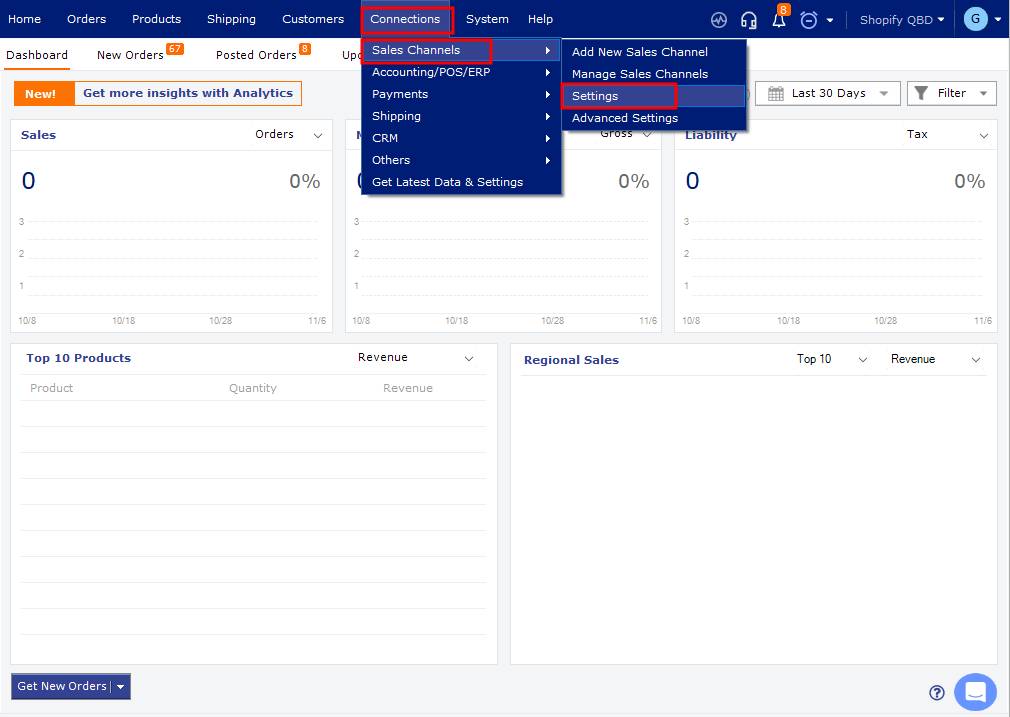
Enable gift card payments as line items- In Webgility Desktop, go to Connections > Sales Channels > Settings.
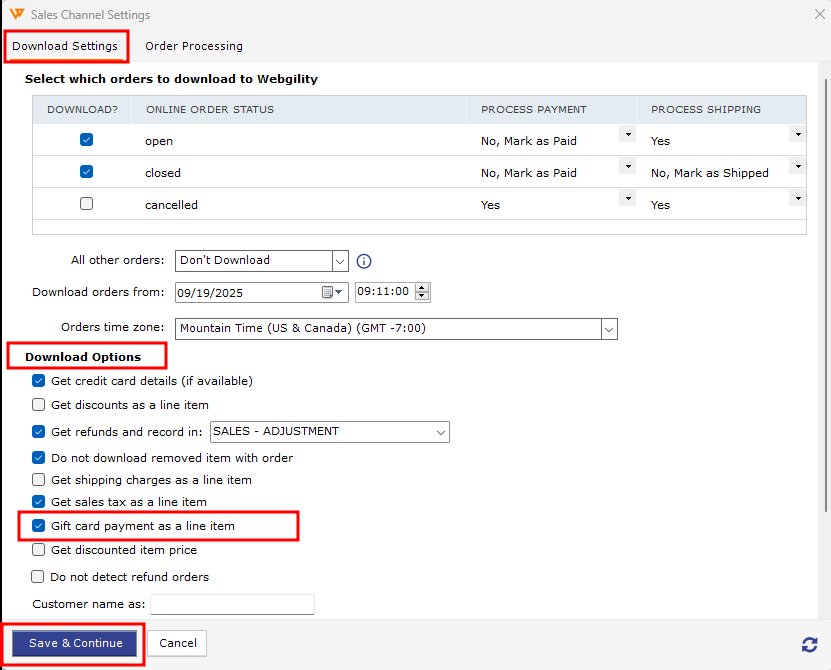
- Open Download Settings and select Gift card payment as a line item.
- Select Save & Continue.
For detailed Sales Channel Settings instructions, see How to configure the Sales Channel Settings in Webgility Desktop.
Check the QuickBooks item setupFor gift cards you sell, create or review a Non-Inventory Part item in QuickBooks Desktop. Webgility’s guide recommends linking it to a gift card liability account and setting it as non-taxable.
See Selling and Redeeming Gift Cards for setup details.
If an order contains an item that is not yet in QuickBooks, follow How to Map Products While Posting Orders.
If you have any questions or need more help, please contact our support team.