Part of How to Manage Your Account and Subscription in Webgility i.
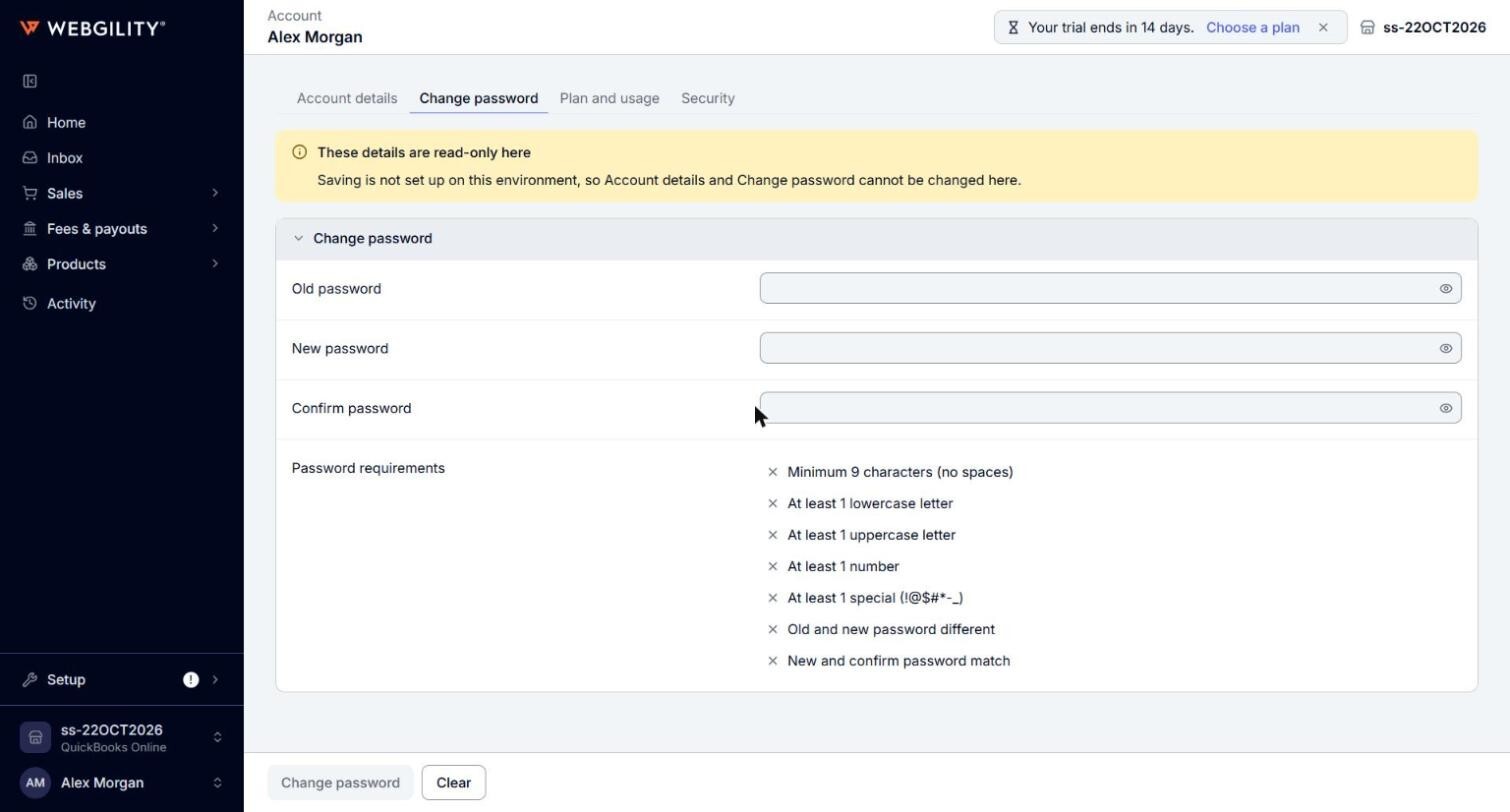
Steps: Change your password
- On My account, click the Change password tab.
- Enter your Old password, then your New password in New password and Confirm password. The new password must meet the Password requirements listed on the tab.
- Click Change password, and confirm. Changing your password signs you out. Sign in again with the new password.