
Part of How to Change the Priority (Rank) of Your Rules in Webgility i.
Change the rank from the rule's screen
- Go to Setup > Workflows and click the rule.
- In the Rank dropdown at the top right, select the new rank, for example Rank 1.
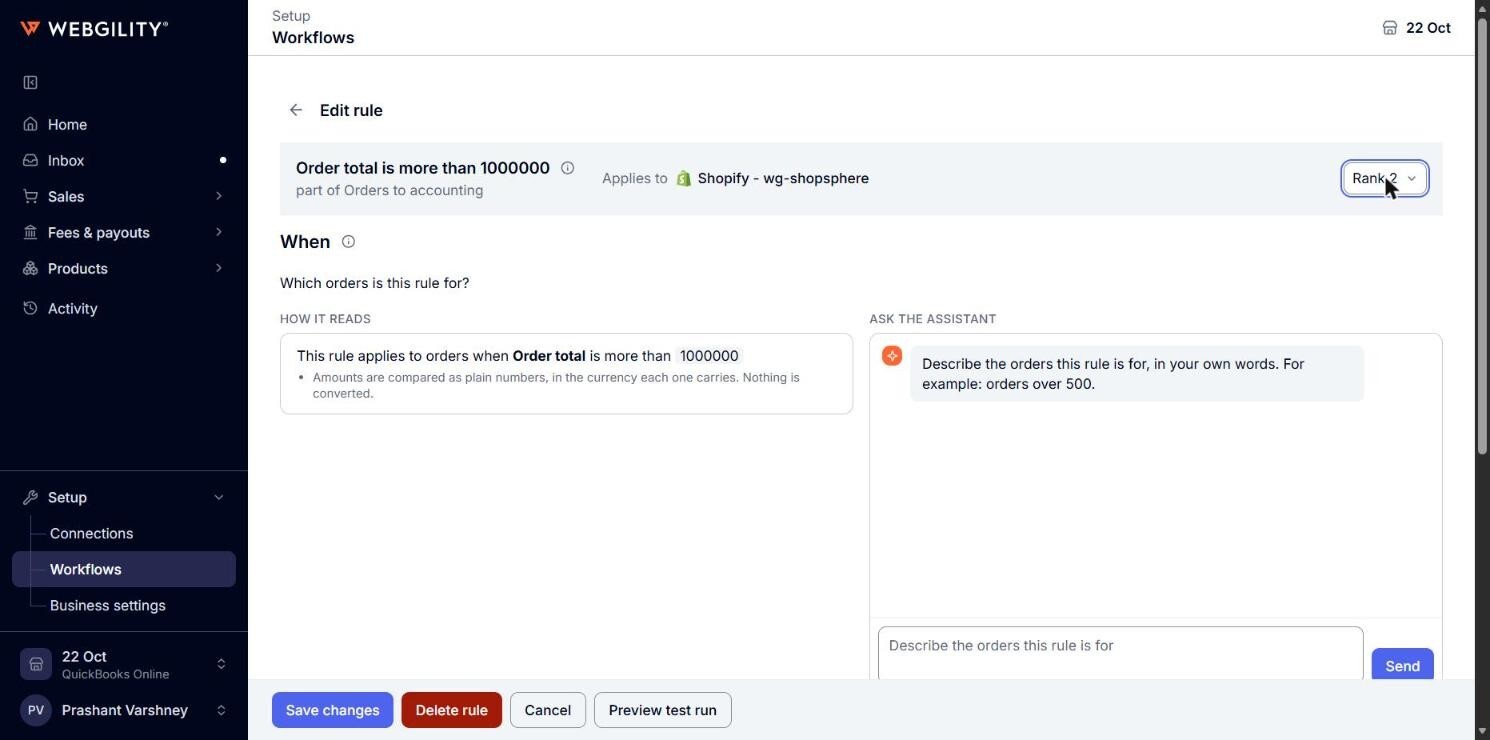
- Click Save changes. The rule moves to the rank you selected, and the other rules of the sales channel move up or down one place to make room.