
Overview
If you can see new orders in Amazon but they only appear in Webgility Desktop after they ship, check the Unshipped setting. When this option is unchecked, Webgility skips orders that Amazon marks as Unshipped.
Download your unshipped Amazon orders- In Webgility Desktop, select your Amazon store from the sales channel menu in the upper-right corner. Go to Connections → Sales Channels → Settings. Sales Channel Settings guide
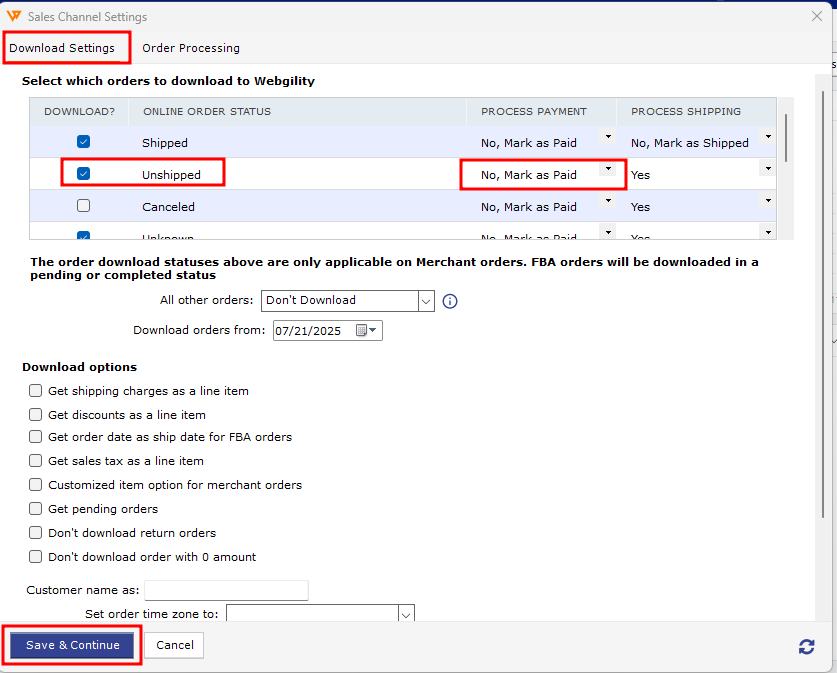
- In the order status filters, select Unshipped and save your changes.
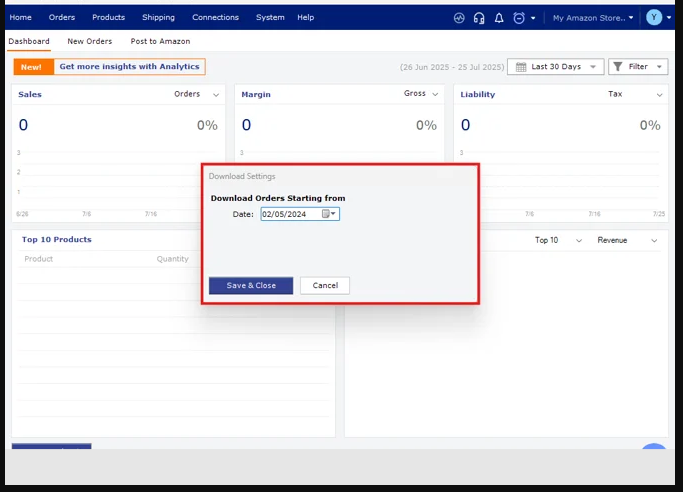
- To retrieve the missing orders, follow the Orders by Range steps in the linked guide. Choose a date range that includes the dates those orders were placed. How to download orders from a past date
If you have any questions or need more help, please contact our support team.