
You may notice:
- Amazon orders are not visible/missing in the Orders section.
- You try to download the orders using the Backdate option, but the download runs for an extended period without downloading the expected orders.
Overview
Webgility Online downloads orders based on the Order Sources enabled in your store settings. If an order source is not enabled, Webgility Online will not download orders from that source.
If orders from a disabled order source already exist in the Webgility Online database, they may also not be accessible until the corresponding order source is enabled in the store settings.
What Causes This?
Amazon store in Webgility Online can have specific Order Sources enabled under its store settings. These settings determine which types of orders Webgility Online can download and access.
For example, if Amazon has multiple order sources but one of them is disabled, orders associated with that source will not be downloaded.
In some cases, orders from a previously enabled source may already exist in the Webgility Online database. If that order source is later disabled, those orders may no longer be accessible through Webgility Online.
How to Make Amazon Orders Visible
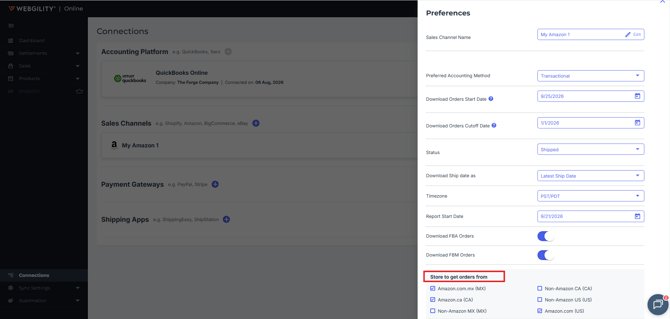
If Amazon orders appear to be missing, first check whether Amazon is selected as an Order Source in your Webgility Online preferences.
Follow these steps:
- Log in to Webgility Online.
- Go to Connections.
- Select your connected Sales Channel.
- Open Preferences.
- Select the appropriate Order Source.
- Amazon.com
- Amazon.ca
- Amazon.com.mx
- Other applicable Amazon marketplaces
- Save the changes.
- Return to the Orders section and check whether the missing orders are now visible.
For additional troubleshooting steps, see Missing Orders in Webgility Online.